web
You’re offline. This is a read only version of the page.
close
Skip to main content

Notifications

Announcements

Community site session details

Community site session details

Session Id :
Small and medium business | Business Central, N...
Suggested Answer

Rounding VAT - Manual change VAT in Purchase invoice with error "exceeds Max VAT Diff allowed"

(0) ShareShare
ReportReport
Posted on by 20

[View:/cfs-file/__key/communityserver-discussions-components-files/758/2627.Manual-change-VAT.xlsx]I am trying to manually change the system calculated VAT which differs from my vendor invoice by SGD 0.01.

1. Specify the "Max. VAT Difference Allowed" on the General Ledger Setup page

2. Place a check mark in the Allow Vat Difference field on Purchases & Payables Setup page

Please refer to attached screenshots that I have done above step (1) & (2).

However, when I manually edit the VAT amount in the Purchase invoice, there is still an error as shown below.

Could you please let me know if i am missing something else?

Many thanks in advance, ezen
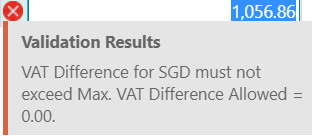
pastedimage1587967205340v1.png

I have the same question (0)
  • Suggested answer
    Community Member Profile Picture
    on at

    is it a foreign currency? if so you checked the currency setup, didn't you?

  • Community Member Profile Picture
    on at

    If the Prices Including VAT check box is chosen on a sales document, the Unit Price and Line Amount fields include VAT, and the field names will also reflect this. By default, VAT is not included in these fields.

    If the field is not selected, the program will fill in the Unit Price and Line Amount field excluding VAT and the field names will reflect this.

    You can set up the default setting of the Prices Including VAT for all sales documents for a customer in the Prices Including VAT field on the Customer card. You can also set up item prices to include or exclude VAT. Normally, item prices contained in the Item Card will be the price excluding VAT. The program uses the information from the Price Includes VAT field on the Item card to determine the unit price amount for sales documents.

Under review

Thank you for your reply! To ensure a great experience for everyone, your content is awaiting approval by our Community Managers. Please check back later.

Helpful resources

News and Announcements

Season of Giving Solutions is Here!

Quick Links

Responsible AI policies

As AI tools become more common, we’re introducing a Responsible AI Use…

Neeraj Kumar – Community Spotlight

We are honored to recognize Neeraj Kumar as our Community Spotlight honoree for…

Leaderboard > Small and medium business | Business Central, NAV, RMS

#1
OussamaSabbouh Profile Picture

OussamaSabbouh 1,742

#2
YUN ZHU Profile Picture

YUN ZHU 844 Super User 2025 Season 2

#3
Khushbu Rajvi. Profile Picture

Khushbu Rajvi. 719 Super User 2025 Season 2

Last 30 days Overall leaderboard

Featured topics

Product updates

Dynamics 365 release plans
