web
You’re offline. This is a read only version of the page.
close
Skip to main content

Announcements

No record found.

News and Announcements icon
Community site session details

Community site session details

Session Id :
Microsoft Dynamics CRM (Archived)

Customize Navigation CSS in Dynamics 365 Portals

(0) ShareShare
ReportReport
Posted on by 480

Hi,

I am working on a portal and I need to apply a custom CSS like in below to my homepage.
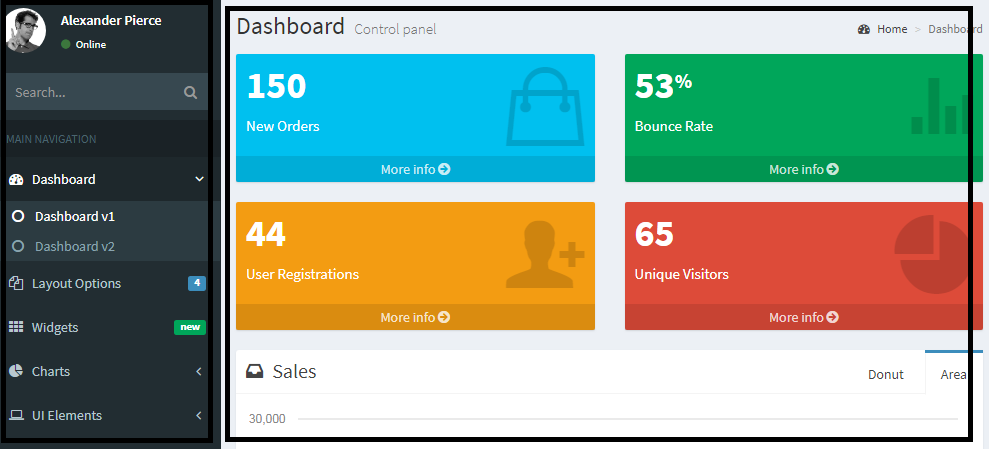
5102.abc.png

 I am using "Page with Side Navigation (2 columns)" web template but I am not sure where to add the CSS which I have for my theme. Also, I am unable to understand where the code for the template "side_navigation" resides in Dynamics CRM.

sidenav.PNG

Thanks in Advance.

*This post is locked for comments

I have the same question (0)
  • Suggested answer
    - Matt Bayes - Profile Picture
    890 on at

    Hi Rizwan,

    The "Page with Side Navigation" web template uses the code from the "Side Navigation" web template. The keyword "include" allows you to include code from one web template in another to prevent duplication.

    As for the CSS, you should be able to add the file on a global scale for it to take effect. You can navigate to the Web Files section inside of Dynamics 365 under the Portals area. Here is where all uploaded documents/files reside and is where you will upload your custom CSS. Just create a new Web File using the "bootstrap.min.css" as a reference for the structure to setup. On the form you should be able to upload a note which will be your file.

    The portal may require a restart through the D365 Administration Center once the file is uploaded for the new changes to take effect.

    Thanks!

    Matt Bayes

  • Suggested answer
    Mahendar Pal Profile Picture
    45,095 on at

    Hi Rizwan,

    Keep in mind you need to work collectively with Web Files (your custom bootstrap.css, Web Template, Some time need to write CSS in entity form and some time you need to use content snippet you can't just use single resource to achieve your above design.

    You can implement your changes with the help of above resources.

  • Verified answer
    Dmytro Rutkovskyi Profile Picture
    1,835 on at

    Just a small addition.

    1) "Side Navigation" just renders Child Links of the current Page. This is webtemplate, but not public, kinda internal. But you can see it's code here: github.com/.../side_navigation.liquid
    and if needed copy it to your webtemplate and do changes.

    2) The Best way to update CSS is to append existent theme.css (CRM->Portal->Web Files-> theme.css) - download original version and append it, then replace the file with your addition. Adding new file - another option, but theme.css automatically added everywhere including popup for entity forms, etc, where you need to write custom code to apply your styles from a different file.

    3) Portal should apply your changes nearly immediately, but if not, the portal restart is not required. You can login with Web role "Administrators" and go to the {portal}/_services/about and hit "Clear Cache"

  • Rizwan Aarif Profile Picture
    480 on at

    Thanks everyone, I'll follow the steps as suggested by you guy and complete it.

    :)

Under review

Thank you for your reply! To ensure a great experience for everyone, your content is awaiting approval by our Community Managers. Please check back later.

Helpful resources

Quick Links

Introducing the 2026 Season 1 community Super Users

Congratulations to our 2026 Super Stars!

Congratulations to our 2025 Community Spotlights

Thanks to all of our 2025 Community Spotlight stars!

Leaderboard > 🔒一 Microsoft Dynamics CRM (Archived)

#1
JS-09031509-0 Profile Picture

JS-09031509-0 3

#2
AS-17030037-0 Profile Picture

AS-17030037-0 2

#2
Mark Eckert Profile Picture

Mark Eckert 2

Last 30 days Overall leaderboard

Featured topics

Product updates

Dynamics 365 release plans
