web
You’re offline. This is a read only version of the page.
close
Skip to main content

Notifications

Announcements

No record found.

Community site session details

Community site session details

Session Id :
Small and medium business | Business Central, N...
Answered

Applying the Prepayments - Cash Receipt Journals - Page Edit - Cash Receipt Journals has to close

(0) ShareShare
ReportReport
Posted on by 80

The error: The field Bal. Account No. of table Gen. Journal Line contains a value (10100) that cannot be found in the related table (G/L Account). Page Edit - Cash Receipt Journals has to close.
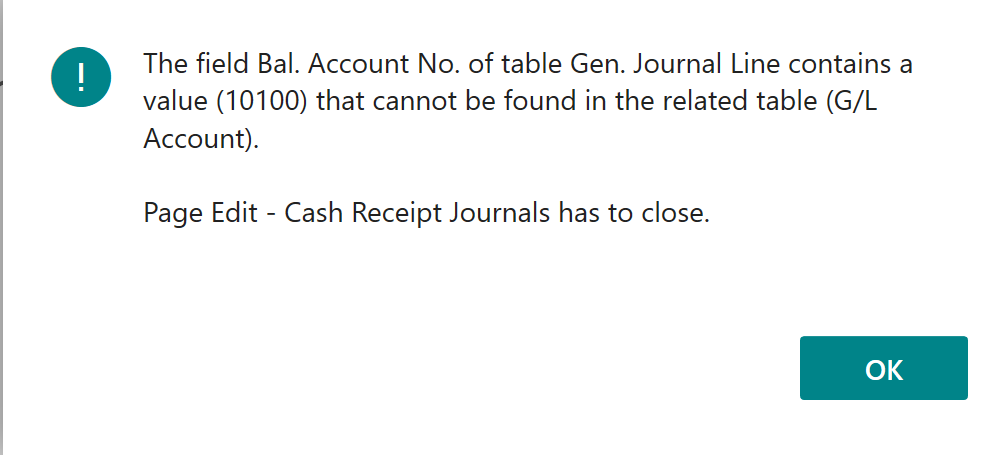
3201.error1.PNG

How I got there: 

Walkthrough: Setting Up and Invoicing Sales Prepayments (https://docs.microsoft.com/en-us/dynamics365/business-central/walkthrough-setting-up-and-invoicing-sales-prepayments)

To this point: 

To apply a payment to the prepayment invoices
  1. Choose the Lightbulb that opens the Tell Me feature icon, enter Cash Receipt Journals, and then choose the related link.
  2. Fill in a journal line with the following information.

The error occurs immediately after step 1, so there is not an opportunity to enter the values per the example:

Field name Enter
Document Type Payment
Account Type Customer
Account No. 20000

Any advice is appreciated.

I have the same question (0)
  • Verified answer
    Dirk Profile Picture
    on at

    The error message indicates that the field Bal. Account contains a value / a G/L Account No. (which does not exists anymore!?) in the Cash Receipt Journal line.

    I would check if this G/L Account is specified in the

    a.)   "Bal. Account No." field of the Cash Receipt Journal batch (from where it wold get defaulted to the lines) or

    b.)   in the "Payment Method Code" associated with the customer account

    If this account no. is specified in either of these fields then you can delete it there then it was probably set at a time when this account no. was available in teh Chart of Accounts (but got deleted later on)

    You should be able to delete the account no. and not get the error message any longer.

  • Suggested answer
    Andy365 Profile Picture
    80 on at

    Thanks for the quick feedback!

    I was able to go to General Journal Templates page -> CASHRCPT and see the "Bal. Account No." with the value in question (10100).

    5483.error1.JPG

    I then changed it to CHECKING:

    2112.error2.JPG

    And was on my way to the next steps in the Walkthrough: Setting Up and Invoicing Sales Prepayments.

    Thanks again for the speedy feedback.

Under review

Thank you for your reply! To ensure a great experience for everyone, your content is awaiting approval by our Community Managers. Please check back later.

Helpful resources

Quick Links

Responsible AI policies

As AI tools become more common, we’re introducing a Responsible AI Use…

Neeraj Kumar – Community Spotlight

We are honored to recognize Neeraj Kumar as our Community Spotlight honoree for…

Leaderboard > Small and medium business | Business Central, NAV, RMS

#1
OussamaSabbouh Profile Picture

OussamaSabbouh 2,238

#2
YUN ZHU Profile Picture

YUN ZHU 773 Super User 2025 Season 2

#3
Sumit Singh Profile Picture

Sumit Singh 630

Last 30 days Overall leaderboard

Featured topics

Product updates

Dynamics 365 release plans
