web
You’re offline. This is a read only version of the page.
close
Skip to main content

Announcements

No record found.

News and Announcements icon
Community site session details

Community site session details

Session Id :
Microsoft Dynamics RMS (Archived)

Trouble Importing CSV File To Inventory Wizard

(0) ShareShare
ReportReport
Posted on by 63

Hello! This is my first post to this forum.

At my store, we are running Microsoft RMS Store Operations Manager 2.0.2000, and on our handheld we have Mobile Manager 5.5.22.1.

I'll run through the steps to where I encounter the problem:

• I open a new inventory count on the handheld, and scan products (any number). I save the count, and it creates a CSV file.

• I dock the handheld so it connects to the terminal on which Store Ops is running.

• I open Store Ops and open the Inventory Wizard > Change Item Quantities > Add Items Manually.

• In the Inventory Wizard Workpad, I am met with the following problems:

- The CSV file contains the following columns: item lookup code, on-hand count, date and time scanned
- The columns in the workpad cannot be moved, only hidden or allowed. The first is always item code and the last column is the always the new count. Therefore, the data cannot be imported in a way that will be able to be used. Here is an example (department was chosen by me, but the number in that field is the new on-hand count from the handheld):
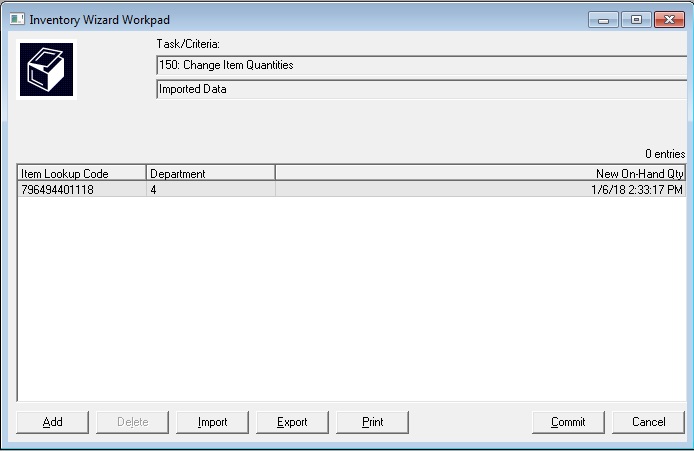
rms-issue.jpg

What I'd like to be able to do is to remove or prevent the date column from the CSV file so that I can efficiently perform my inventory counts. The data cannot even be imported if there aren't at least three columns, and the column tabs cannot be shifted.

I hope someone can help. Thanks!

*This post is locked for comments

I have the same question (0)
  • Verified answer
    Kevin Antosh Profile Picture
    1,649 on at

    Hi - are you doing a physical inventory count or just adding received inventory?  Depending on what you want to accomplish, you should be able to edit the *.csv file in MS Excel. You may also want to look at the physical inventory count module in RMS Manager under "inventory" and "physical inventory". Finally, your Microsoft Dynamics RMS Partner should be able to help you as well. If you do not have a Dynamics RMS Partner then our tech support number at RITE is 888-267-7483. Thanks!

  • pawlybeans Profile Picture
    63 on at

    I'm just a big silly dumdum. I was trying to use the inventory wizard instead of opening a new physical inventory.

    The Mobile Manage manual makes no mention of which function to use in Store Ops.

  • Kevin Antosh Profile Picture
    1,649 on at

    Not the fanciest of videos but this one covers the basics of physical inventory counts in RMS: www.youtube.com/watch and then this video compares physical inventory counts in RMS versus Retail Management Hero: www.youtube.com/watch;t=180s

Under review

Thank you for your reply! To ensure a great experience for everyone, your content is awaiting approval by our Community Managers. Please check back later.

Helpful resources

Quick Links

Introducing the 2026 Season 1 community Super Users

Congratulations to our 2026 Super Stars!

Meet the Microsoft Dynamics 365 Contact Center Champions

We are thrilled to have these Champions in our Community!

Congratulations to the April Top 10 Community Leaders

These are the community rock stars!

Leaderboard > 🔒一 Microsoft Dynamics RMS (Archived)

Last 30 days Overall leaderboard

Featured topics

Product updates

Dynamics 365 release plans
