web
You’re offline. This is a read only version of the page.
close
Skip to main content

Announcements

No record found.

News and Announcements icon
Community site session details

Community site session details

Session Id :
Microsoft Dynamics CRM (Archived)

How to enable Area using Site Map Editor in MS Dynamics CRM instance?

(0) ShareShare
ReportReport
Posted on by

Hello,

I have disabled Settings tab(Area) in SiteMap Editor from XRM Toolbox for Microsoft Dynamics CRM/365 CE(v1.2018.7.28) yesterday. Yesterday, I could see that Settings tab(Area) with "disabled" status and I was able to enable/disabled it.

But today when I open SiteMap Editor from XRM Toolbox for Microsoft Dynamics CRM/365 CE(v1.2018.7.28), I don't see Settings tab(Area) with "disabled". How can I enable it?

This is really frustrating. Can anybody please suggest me?

Note: I have few custom Tabs(Area) in my SiteMap. I don't want to lose them
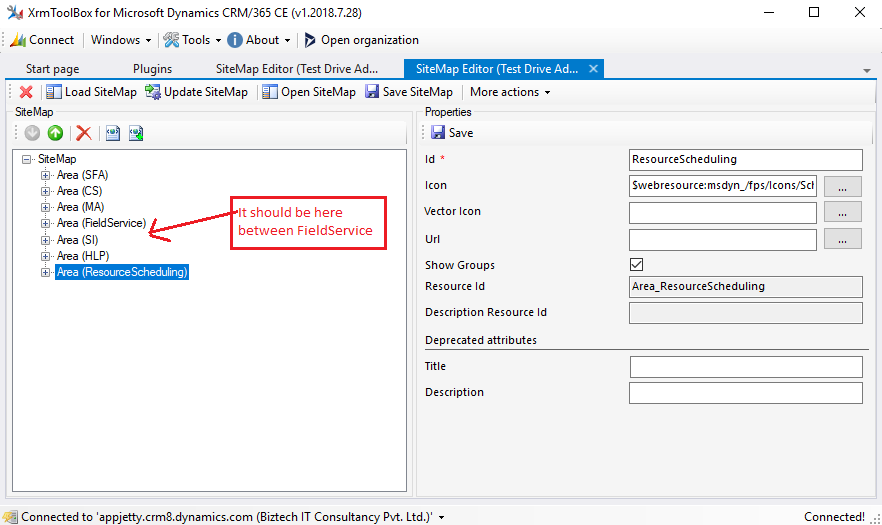
image_5F00_9h.png

*This post is locked for comments

I have the same question (0)
  • Suggested answer
    gdas Profile Picture
    50,091 Moderator on at

    Hi Chhaya,

    Which version of CRM you are using ?

    Do you have any backup of sitemap XML ? Not sure why its not showing , try to reconnect organization and check .

    In addition if you have any other similar organization then try to get the sitemap XML from another environment and update in current organization.

  • Suggested answer
    Pawar Pravin Profile Picture
    5,237 on at

    Hi Chaya,

    I believe you had disabled setting module that you can add from another instance.

    Moreover, you can try from existing backup solution as well.

  • Community Member Profile Picture
    on at

    Hi Goutam,

    I am using MS Dynamics CRM 365 v9.0. I don't have any backup. Settings Area was sawing yesterday. It just disappear when I came and start to work today.  I have tried to download XML file in hope that I could change property to make it visible but there is no such details exist in XML for Settings Area. This is strange.

    As this is quite important, if possible I can contact to XRM Toolbox developer or any other way to connect them.

    Please guide.

  • Community Member Profile Picture
    on at

    Hi Pravin,

    From another instance? How?

    Please suggest.

  • Suggested answer
    Pawar Pravin Profile Picture
    5,237 on at

    Hi ,

    If you think like your setting module doesnt included with any other custom entity in that case you can use it from another trial instance.

    Open trial instance in sitemap editor and try to copy only those in your sitemap editor.

  • Community Member Profile Picture
    on at

    Hi Pravin,

    I have few custom tabs(Area) in Sitemap Editor. This way might not work. I just afraid if I will lost any other things.

    Thanks

  • Verified answer
    gdas Profile Picture
    50,091 Moderator on at

    Hi Chhaya,

    Just connect to the other organization using XRMToolBox , in your screenshot you can see the "Save Sitemap" button . Click on the button you will get the sitemap.xml from there . Now again connect with current organization and click on "Open Sitemap" and select the sitemap.xml which you save earlier and then update.

  • Suggested answer
    gdas Profile Picture
    50,091 Moderator on at

    You can also check in OOB  sitemap editor , go to settings --> Customization--> Customize the System-->Client Extensions -->Select  Site Map  and click on Edit . Check you can see any settings area are there or not.

    In addition if you dont have much customization in the sitemap , you can go to XRMToolBox Sitemap editor and click on "More Actions" and reset to current version.

    Hope this helps.

  • Suggested answer
    RaviKashyap Profile Picture
    55,410 Moderator on at

    Hi Chhaya,

    You sure you are looking into the same organization and the same sitemap? As you have your custom area/ links, you need to update your sitemap manually.

    1. Create a new solution, add sitemap (Client Extenstion >> sitemap)

    2. Export the solution.

    3. Unzip and edit the customization.xml. You will find the sitemap xml, there you locate the settings area which would be probably commented (if you disabled it previously). Uncomment the node, save the file and then zp the folders and import the solution again.

    Unable to find a detailed article on how to do this but found this which can help you - www.slideshare.net/.../sitemap-in-microsoft-dynamics-crm

    Hope this helps.

  • Suggested answer
    Arun Vinoth Profile Picture
    11,615 Moderator on at

    Like I answered in StackOverflow - use the Default Sitemap xml template to restore. Or restoring the OOB/re-importing from different org will also help.

    stackoverflow.com/.../7920473

Under review

Thank you for your reply! To ensure a great experience for everyone, your content is awaiting approval by our Community Managers. Please check back later.

Helpful resources

Quick Links

Introducing the 2026 Season 1 community Super Users

Congratulations to our 2026 Super Stars!

Meet the Microsoft Dynamics 365 Contact Center Champions

We are thrilled to have these Champions in our Community!

Congratulations to the March Top 10 Community Leaders

These are the community rock stars!

Leaderboard > 🔒一 Microsoft Dynamics CRM (Archived)

#1
JS-09031509-0 Profile Picture

JS-09031509-0 3

#2
AS-17030037-0 Profile Picture

AS-17030037-0 2

#2
Mark Eckert Profile Picture

Mark Eckert 2

Last 30 days Overall leaderboard

Featured topics

Product updates

Dynamics 365 release plans
