




 61,214
 Like
Like Share
Share
 Report
Connect your Shopify store (or stores) with Business Central and maximize your business productivity.
To use Shopify with Business Central, you have a couple of things to do first.
Prerequisites for Shopify
You must have:
· A Shopify account
· A Shopify online store
To create a new Shopify account or sign-up for a free 14-day trial, navigate to Shopify

Enter your email address for a free 14-day trial
Click on “Start free trial”
Enter Password and Store Name
Click on Create your store

Select the option based on your business (or skip)


Select the Country

Click on Enter my store
Our trial Shopify store is ready

Recommended settings
· Deactivate Automatically archive the order in the Order Processing section of the Checkout settings in your Shopify admin.

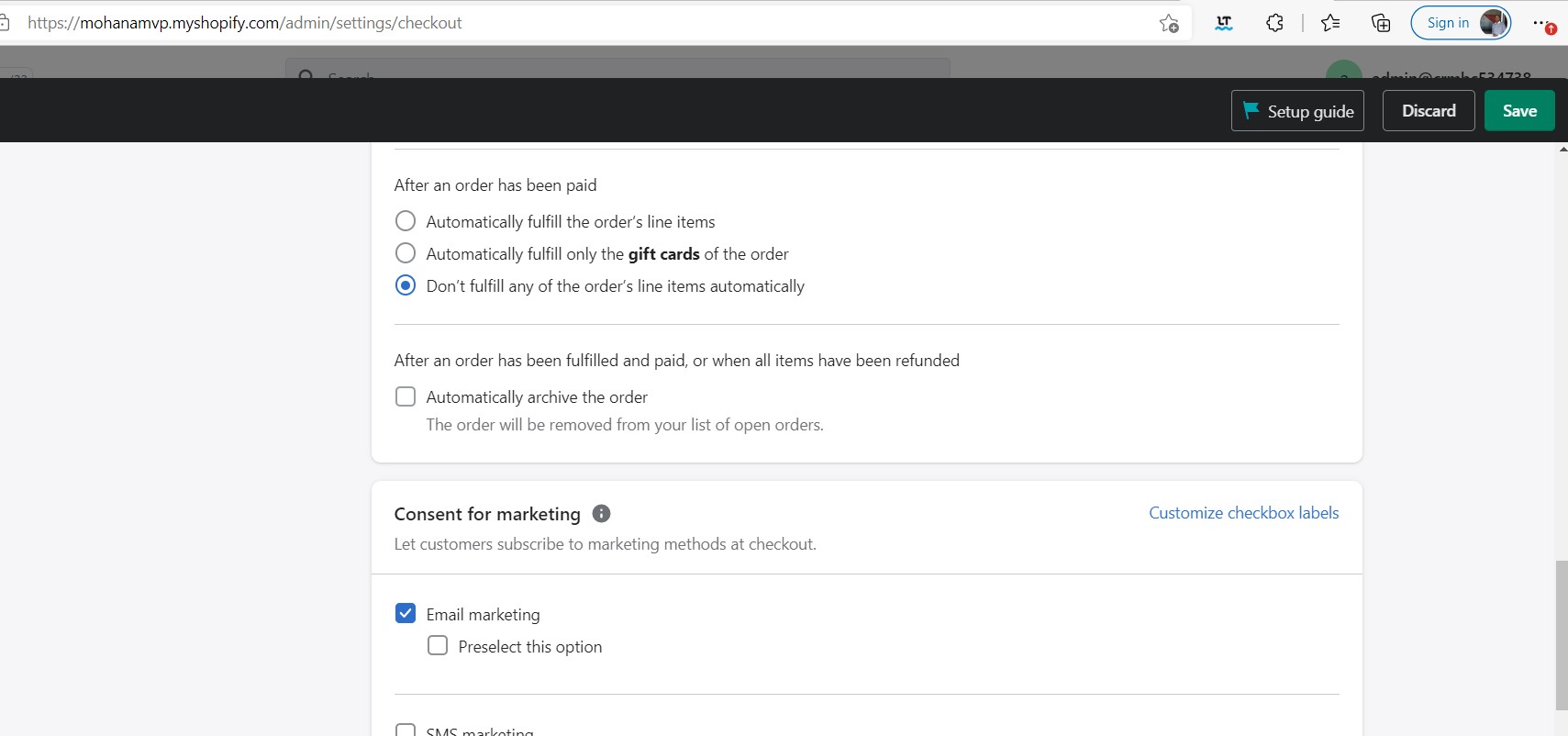
Prerequisites for Business Central
· Make sure that the Shopify Connector app is installed.

Connecting Business Central to the Shopify online store
1. Go to the search icon, enter Shopify Shop and choose the related link.

2. Choose the New action.
3. In the Code field, enter the desired code.
4. In the Shopify URL field, type the URL of your online shop, which needs to be connected. Use the following format:
https://{shop}.myshopify.com/.
5. Activate Enabled toggle, review and accept the terms and conditions.
6. If prompted, sign-in into your Shopify account, review privacy and permissions, and then choose the Install App button.


Configure location mapping:
1. Choose the Locations action to open Shopify Shop Locations.

2. Choose the Get Shopify Locations action to import all locations defined in the Shopify.

3. In the Location Filter, enter ''|EAST|MAIN.
4. Deselect toggle from the Disabled field to enable inventory sync for selected Shopify location.

*This post is locked for comments