




 Like
Like Share
Share
 Report
Introduction :
This functionality helpful to correct posted Purchase invoice if user make mistake or want to do any changes. You cannot correct posed purchase invoice which are partially or fully paid.
Steps:
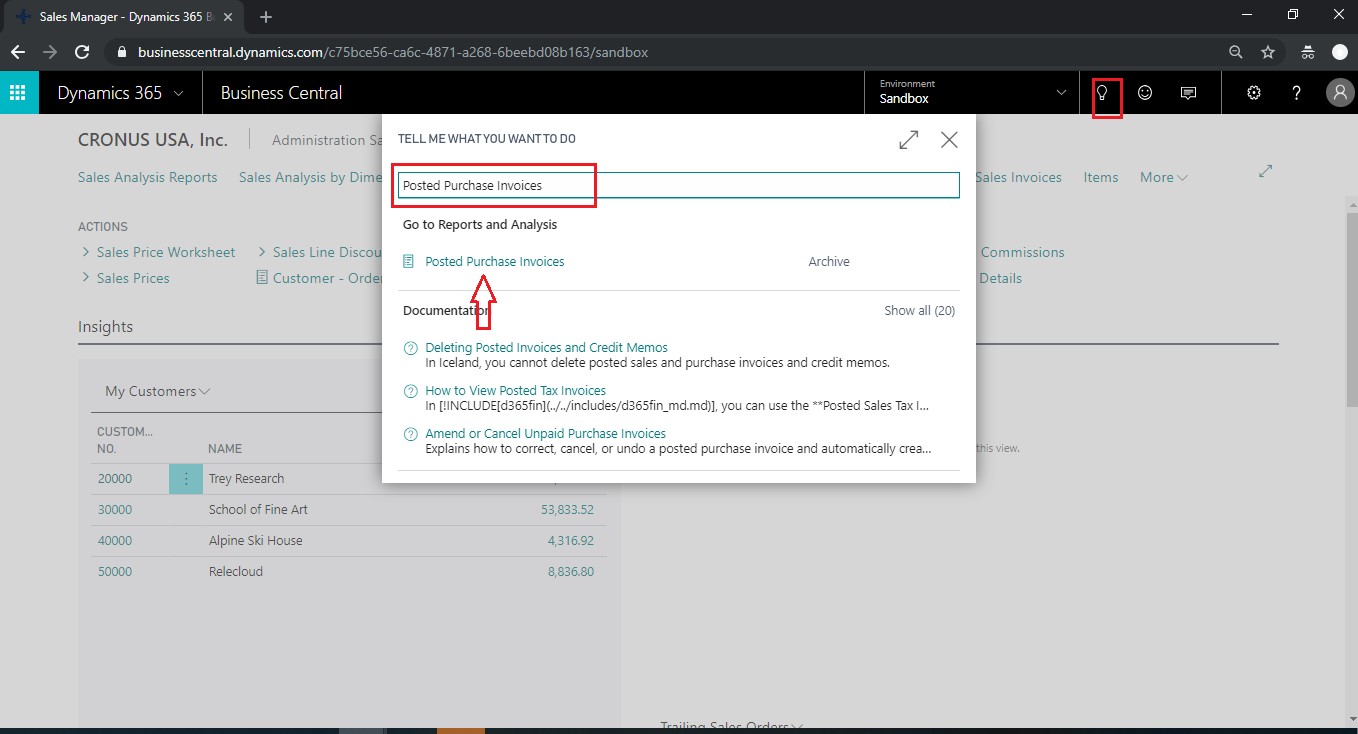
- In search bar enter Posted Purchase Invoice and chose the related link.
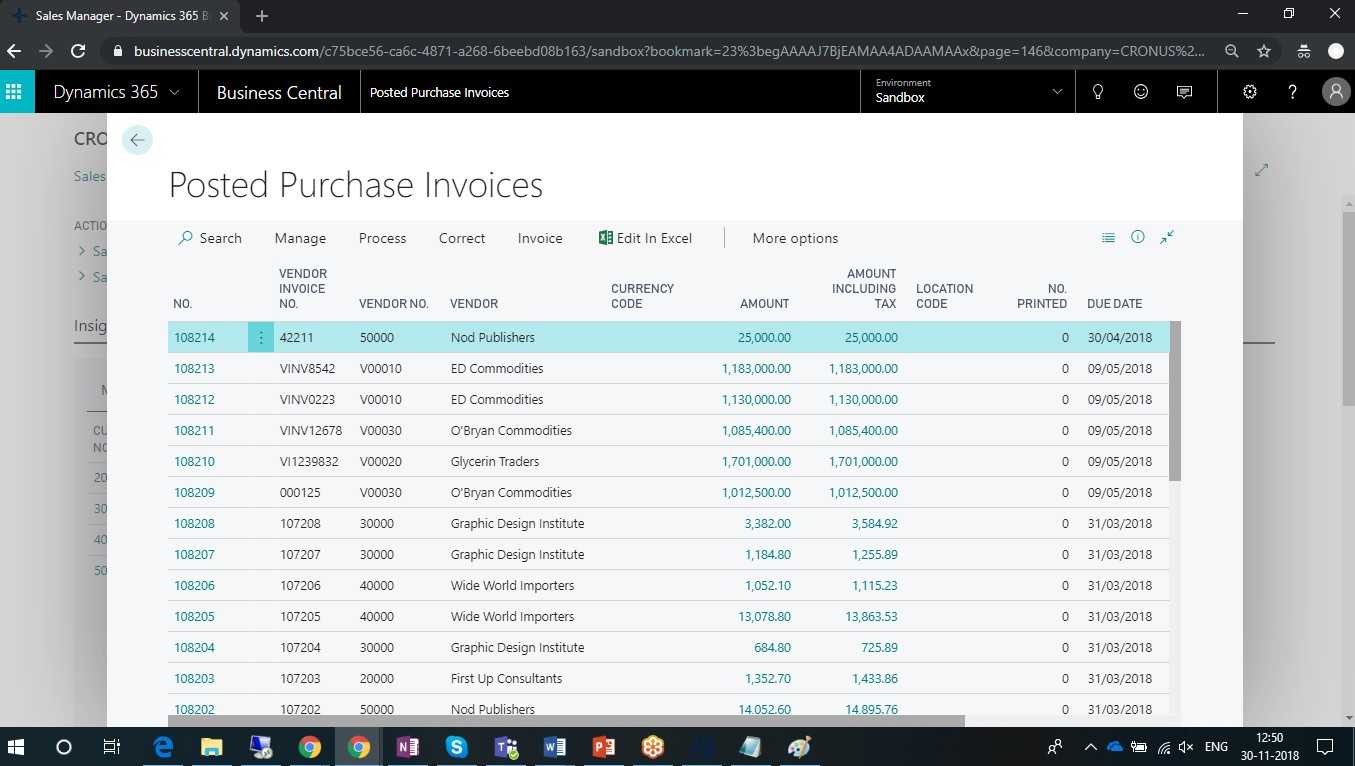
- Select and open Posted Purchase Invoice which you want to correct.
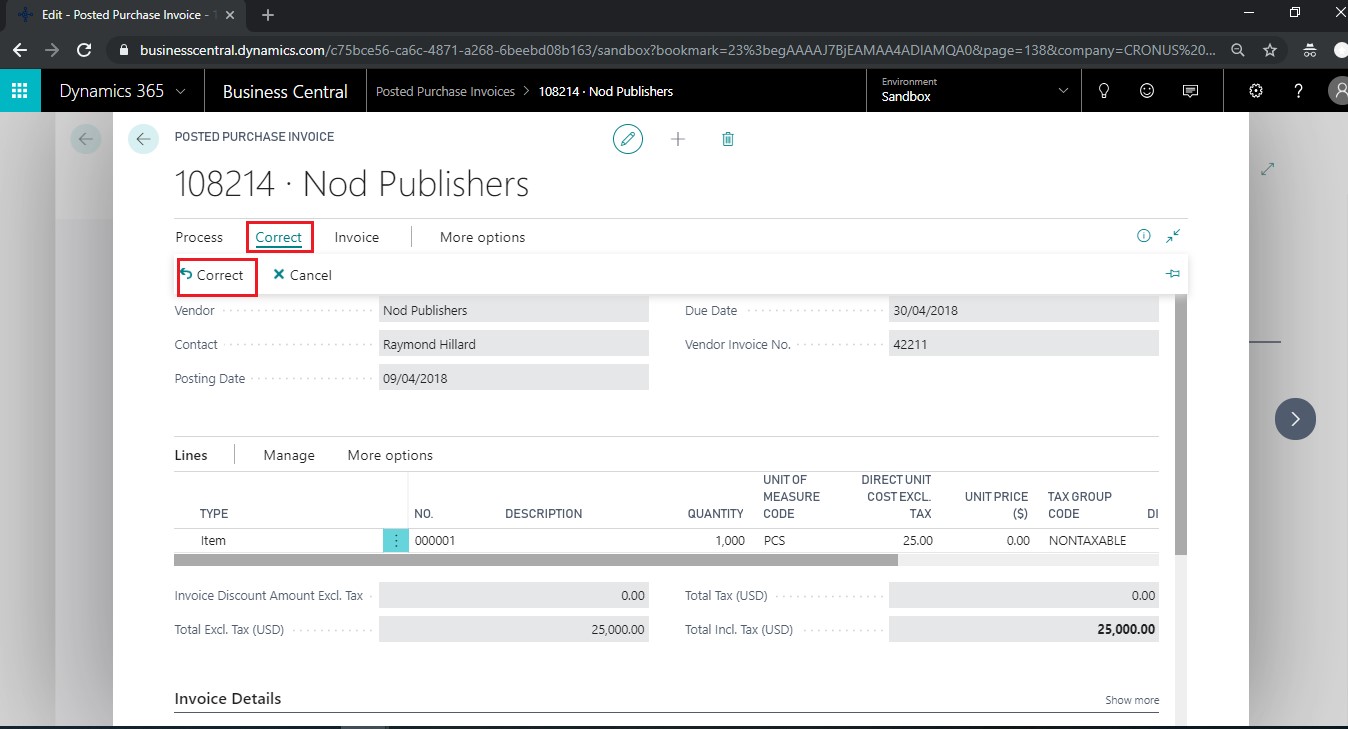
- Click on correct button on Posted Purchase Invoice form.
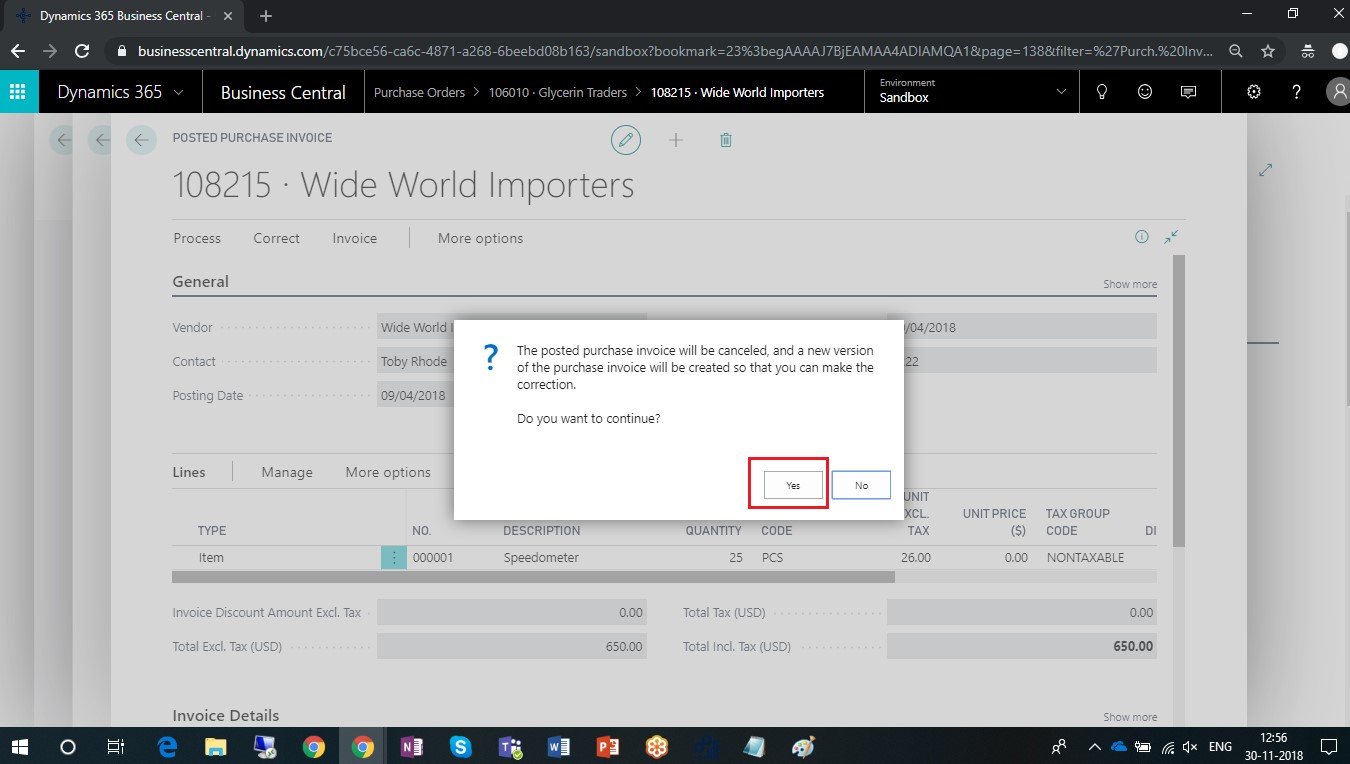
- Once you click on correct then you will get below pop up. Choose yes to continue.
- New Purchase Invoice with same information will be created.
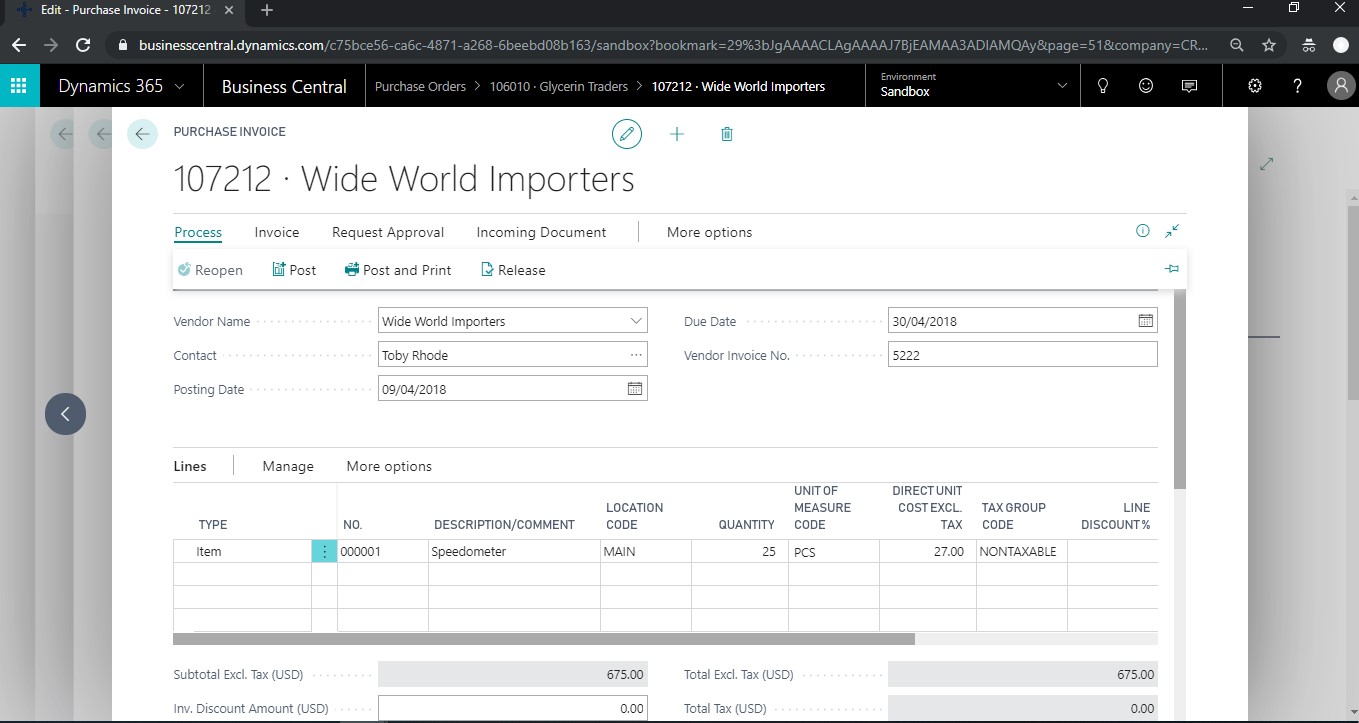
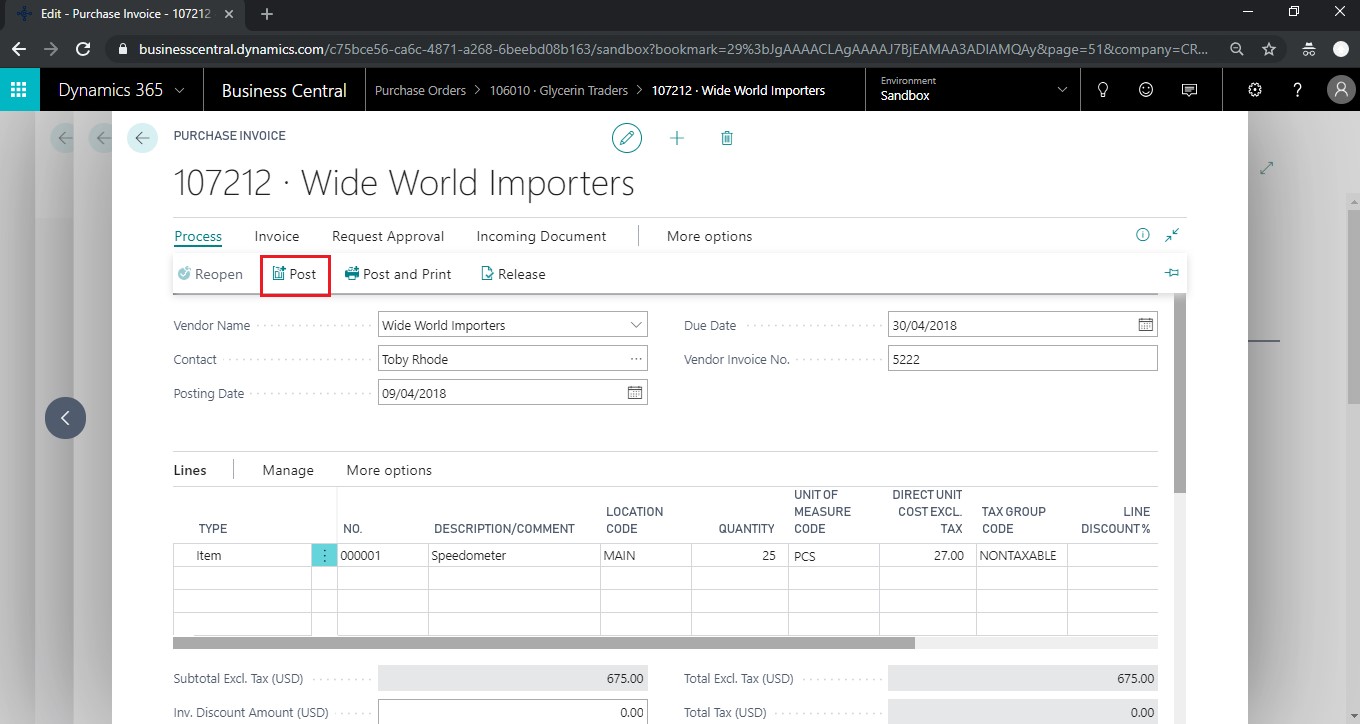
- Make the changes whichever are required and click on post button to post purchase invoice.
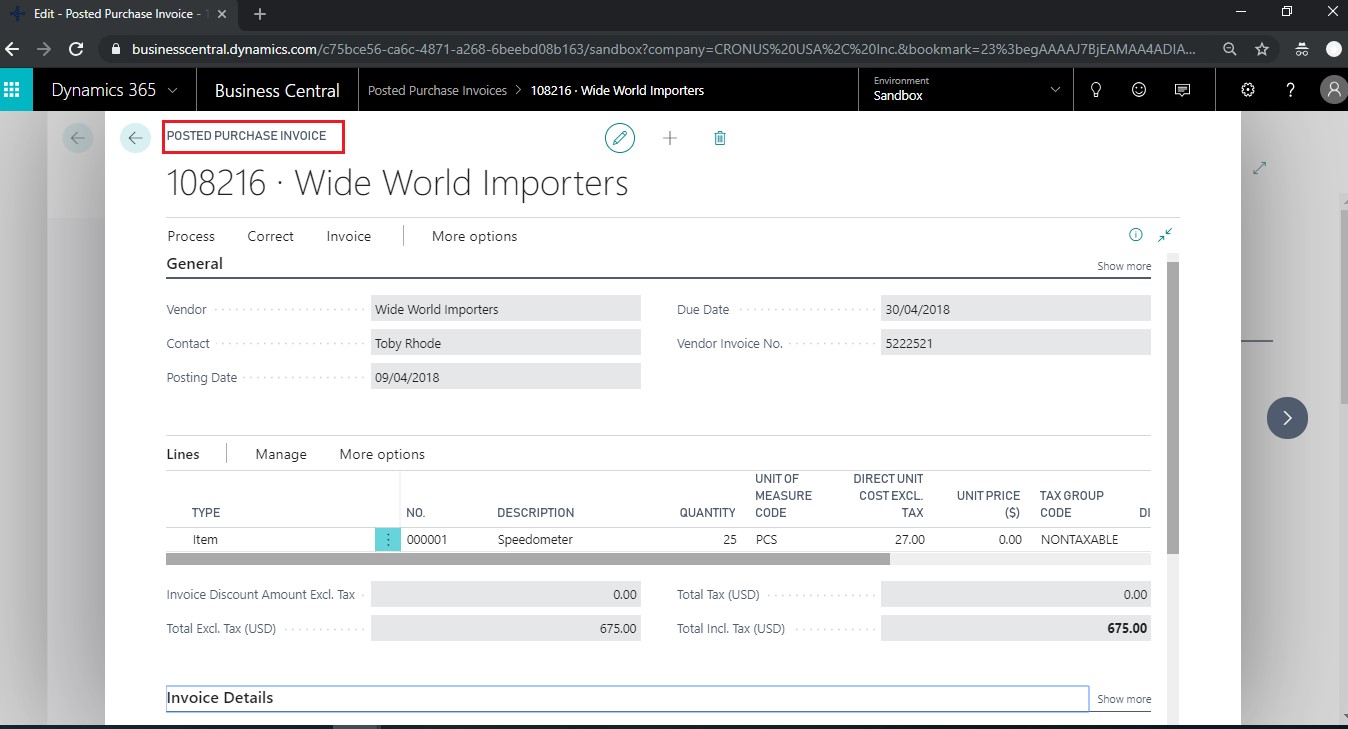
- In Posted Purchase Invoices form, you can check new posted purchase invoice.
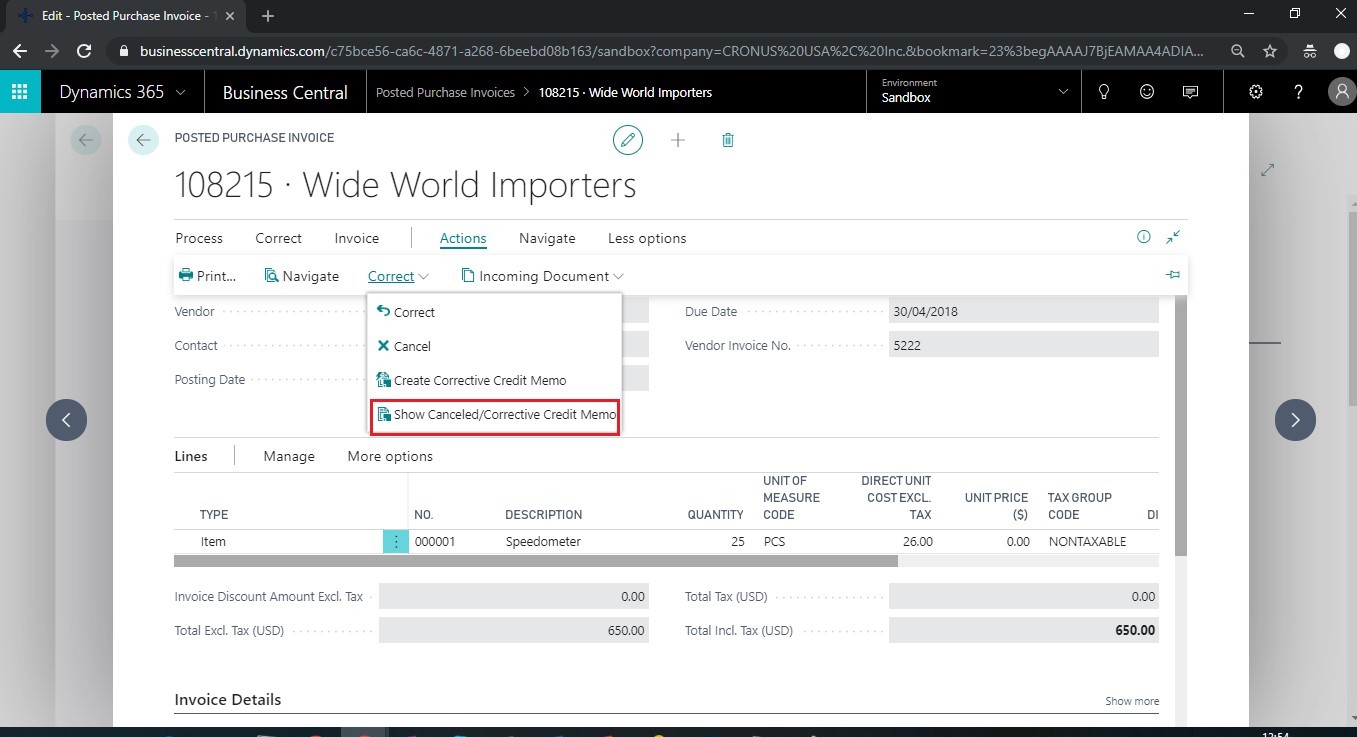
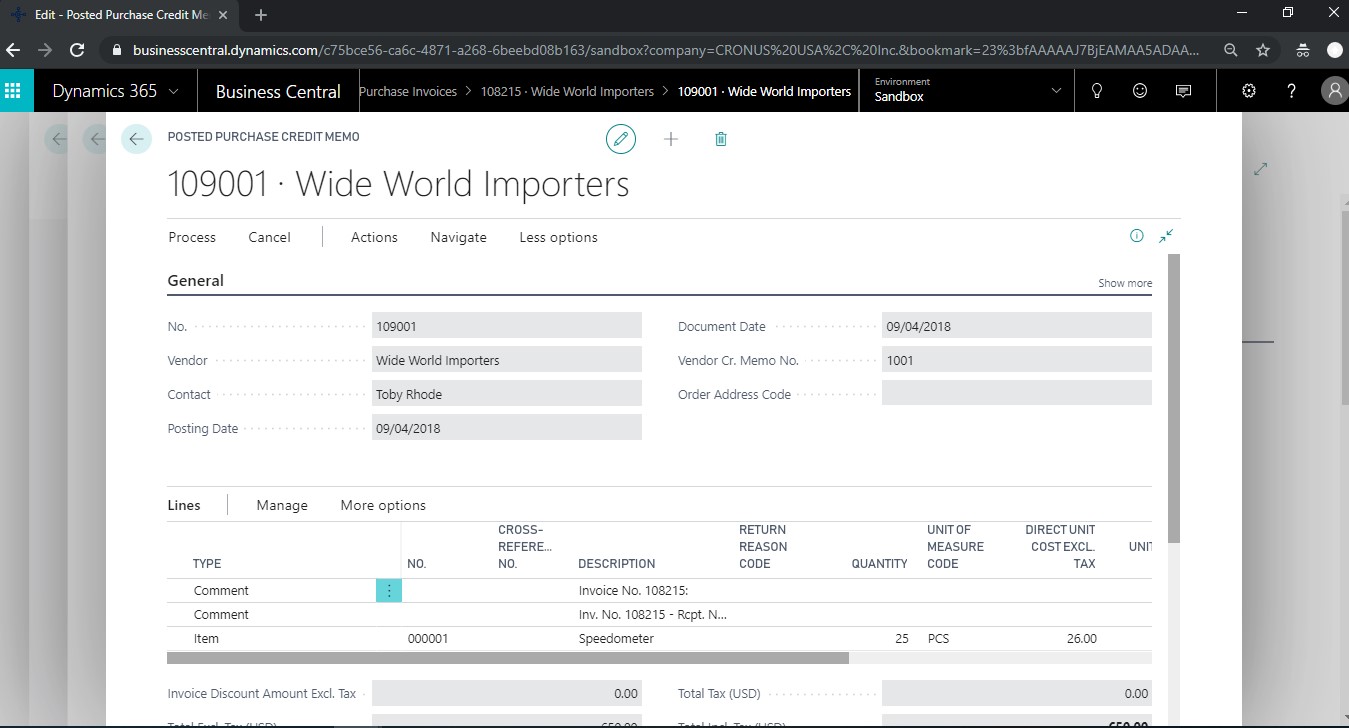
- Choose Show Corrective Credit Memoto view the posted purchase credit memo that voids the initial posted purchase invoice.
Conclusion:
This feature reduce the effort of users to create manual credit memo and again create new purchase invoice.
The post Correct Posted Purchase Invoices – Dynamics 365 Business central appeared first on CloudFronts - Microsoft Dynamics 365 | Power BI | Azure.
*This post is locked for comments