




 32,738
 Like
Like Share
Share
 Report
One of the most requested features for Power BI that has been brought up on ideas.powerbi.com is now available for preview for Power BI Desktop, the decomposition tree. A decomposition tree can use to perform root-cause analysis by viewing how individual categories in a group contribute to the whole
The decomposition tree has been initially introduced as part of the Performance Point dashboard on SharePoint and it got quite poppular since then.
In order to enable the power bi dekstop – decomposition tree, follow the steps below:
- Download the latest version of Power BI Dekstop from the following link
- Go to “Options and Settings” > “Options”
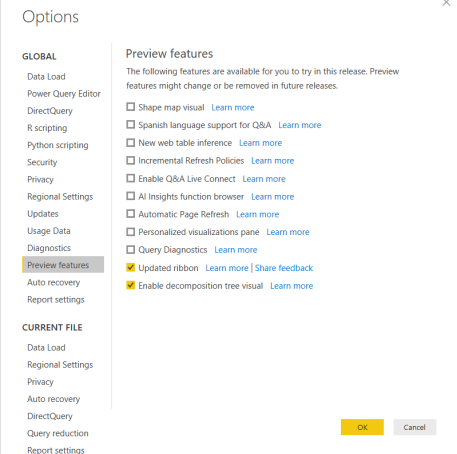
- Once enabled, you will have a new visualation, “Decomposition Tree” as illustrated below:

Decomposition Tree – Sample Report
In order to demonstrate how decomposition tree works, i have prepared the following data set including multiple dimensions which are ( Country, City, Business line and Type). The fact value for the data set is the “Sales Amount”
Once the data set is connected to the Power BI, we can add a new visualization for the “Decomposition Tree” considering that the decomposition tree requires two buckets which are:
- Anlalyze by: this is where you put the “fact” or the “numeric” value which you want to analyze and break down
- Explain by : this is where you add multiple “dimensions” or the classification by which the fact value will be analyzed and broken down.

Here is the result:

As illustrated above, the decomposition tree allows you to drill down starting from the fact (in our example is the sales amount) and break it down into the root details. As you click on any of the nodes,you will have a (+) sign, to add ( High Level ) , ( Low Level ) or manually select any level.

Best Regards,
Mahmoud M. AlSaadi
*This post is locked for comments