DevOps pipelines are crucial for implementing Application Lifecycle Management (ALM) in Dynamics 365 projects. They facilitate the transportation of solutions across different environments. However, certain challenges may arise during deployment.
For instance, if a solution includes a Connection Reference that points to an invalid Connection component ID in the target system, the associated Cloud Flows will be deactivated upon import. You can read more about resolving this issue in one of my posts: Resolving Deactivated Cloud Flows in D365 Power Automate ALM: A DevOps Pipeline
The deployment process may involve remapping Connection References, updating Environment Variables, or sharing Canvas Apps with predefined Azure Security Groups. To address these scenarios, the pipeline can update solution files to align with the target environment. This can be achieved using XML transformation tools, although this process can be complex and time-consuming. Alternatively, PowerShell scripts can be executed in the pipelines post-deployment to modify the imported components with the correct links and values.
Fortunately, Microsoft offers a dedicated mechanism that can be configured within the Power Platform Build Tools. For more details, refer to the official documentation: https://learn.microsoft.com/en-us/power-platform/alm/conn-ref-env-variables-build-tools
The Deployment Settings file can also be generated from a solution using the Power Platform CLI:
To use this mechanism, we start by creating the Deployment Settings file. This file contains a JSON structure that defines the components to be updated with the required values for each target environment. Using the generated Deployment Settings file, the following components can be adapted to match the target environments:
- Connection IDs for Connection References
- Environment Variable Values
- Security Groups for sharing Canvas Apps
- Workflow Owners
For example, let’s imagine we need to set all Connection References to use a single Dataverse Connection in the target system. Since Connections are not solution-aware and cannot be deployed, simply deploying the solution via DevOps pipelines would result in the Connection References pointing to the Connections defined in the development environment (DEV). However, we can configure the deployment pipelines to adapt the Connection References upon deployment with the correct Connection IDs from the target environment.
We start by exporting the solution and using the Power Platform CLI to generate a sample Deployment Settings file.
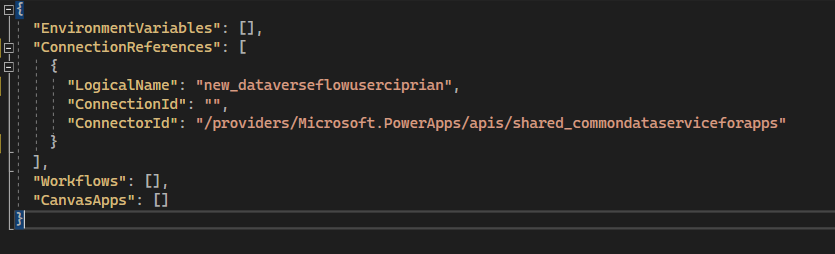
Fig. 1 CLI Generated Deployment Settings
From the sample file, we notice that the solution contains a connection reference for the Dataverse Connector with an empty Connector ID value.
In the target system, the Dataverse Connection ID can be retrieved by navigating to https://make.powerapps.com and opening the existing Dataverse Connection details or creating a new connection.
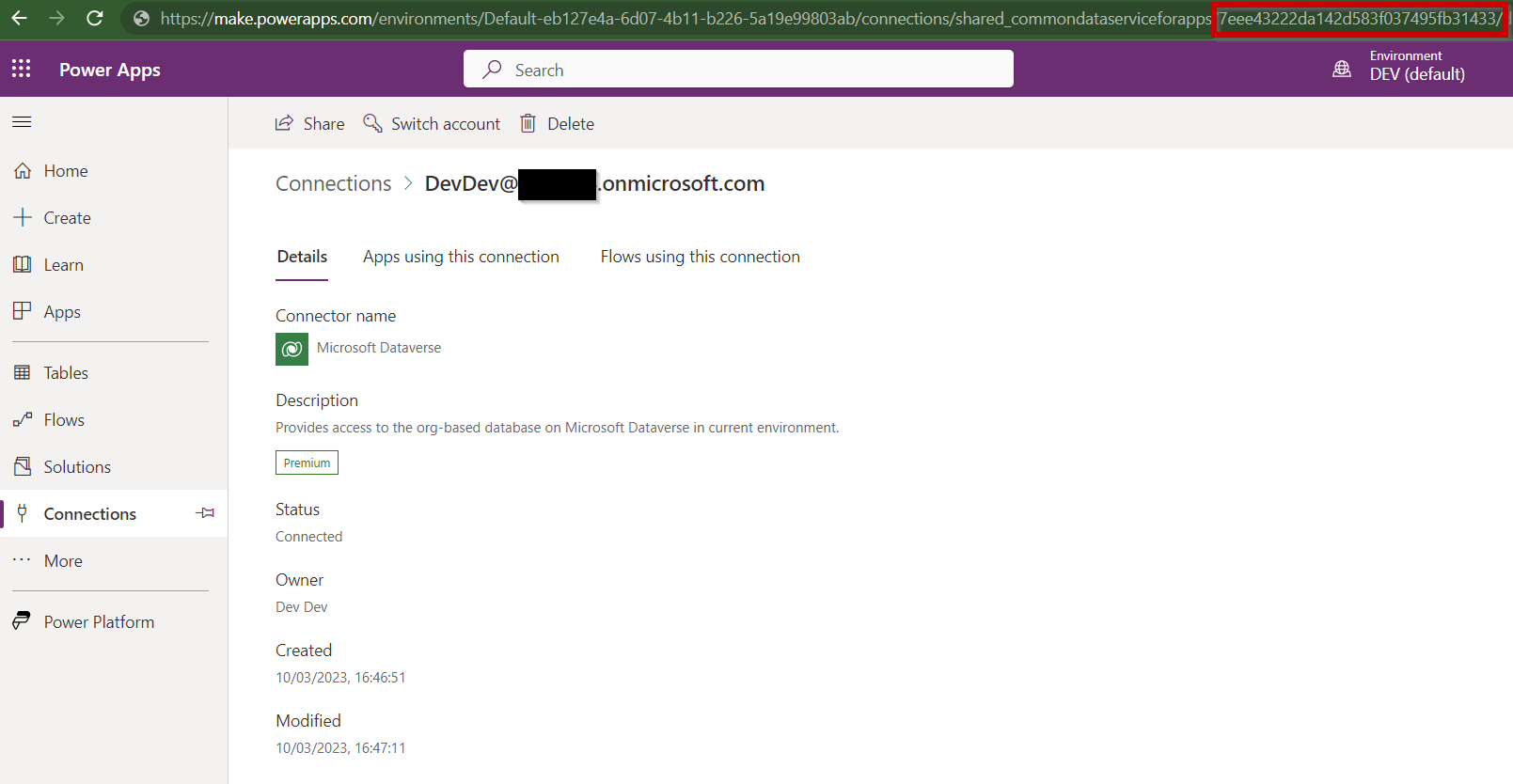
Fig. 2 Dataverse Connection ID
The Dataverse Connection ID will be used to fill the “ConnectionId” in the Deployment Settings file.
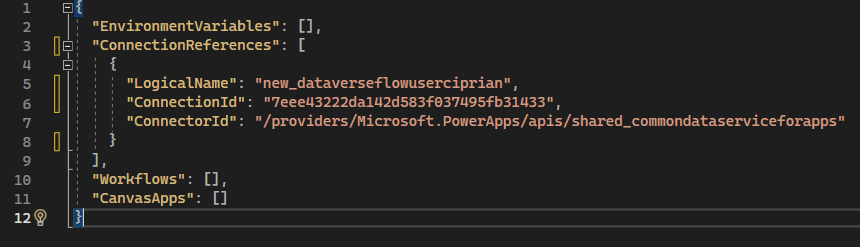
Fig. 3 Updated Deployment Settings File
A good approach is to create a Deployment Settings file within a structured folder that represents the target environment. This organization will simplify the configuration of deployment pipelines.
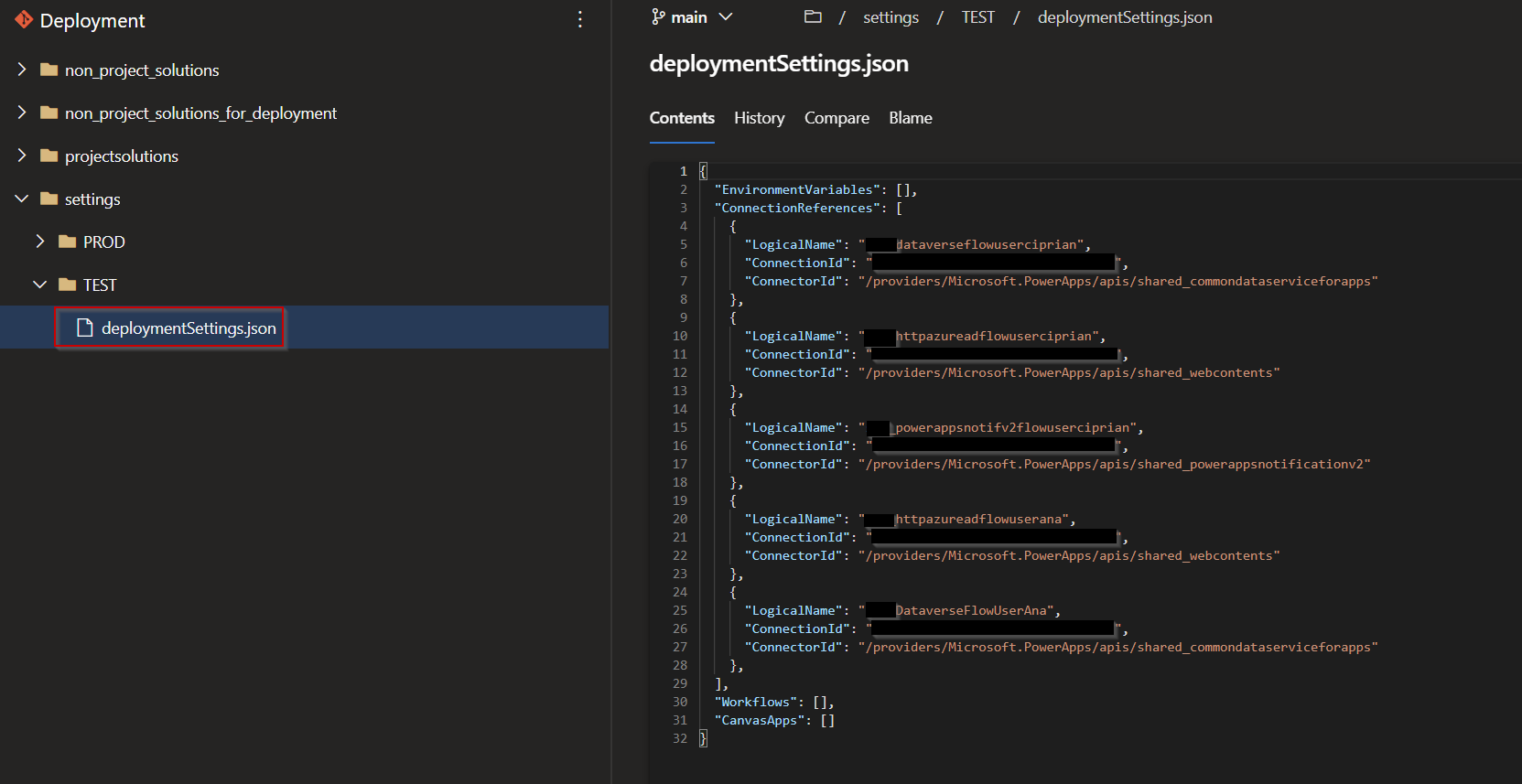
Fig. 4 Deployment Settings File Definition
With the Deployment Settings file defined, the next step is to include this file in the deployment pipeline. Since deployment pipelines utilize artifacts generated in the build pipelines, a practical solution is to add the Deployment Settings file to the build pipeline artifact. This can be accomplished using the “Copy File” task.
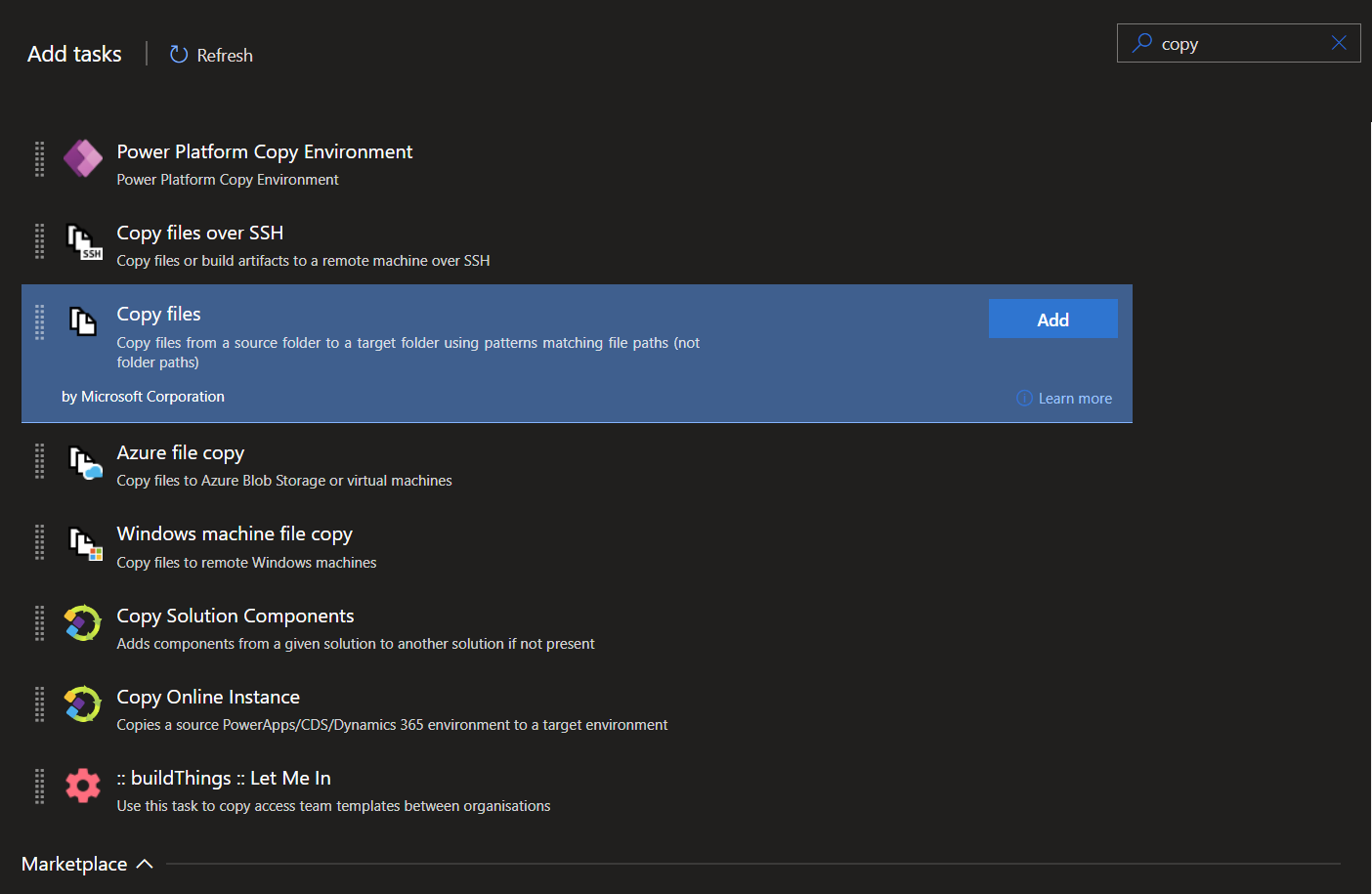
Fig. 5 Selecting Copy Files Task
This task will be configured to copy the entire “Settings” folder defined in the repository, including the Deployment Settings files for all target environments.
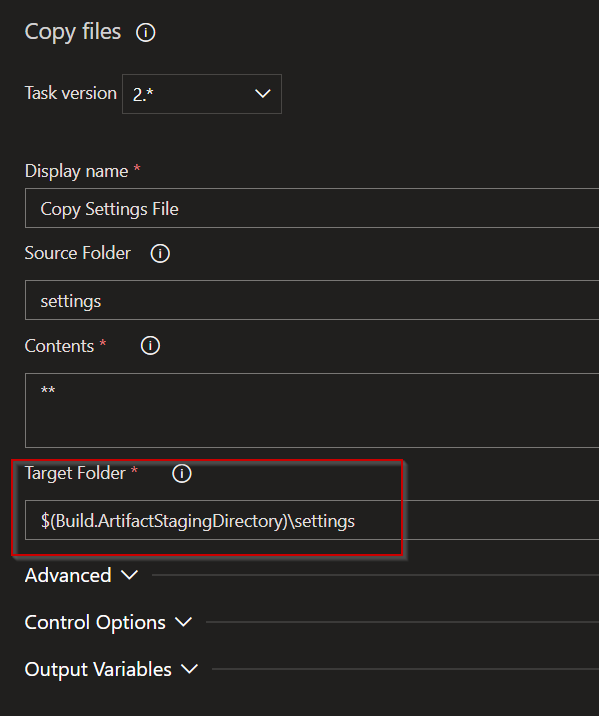
Fig. 6 Configuring Copy File Task
After configuring the “Copy Files” task, the artifact generated by the build pipelines will include the settings folder. This folder can then be processed by the release pipelines.
The release pipelines utilize the Power Platform Import Solution task, which allows for the configuration of the Deployment Settings file.
 Fig. 7 Power Platform Solution Import Configuration
The configuration described above is making use of “Task Groups”, allowing dynamic configuring of the path to the relevant setting file using variables.
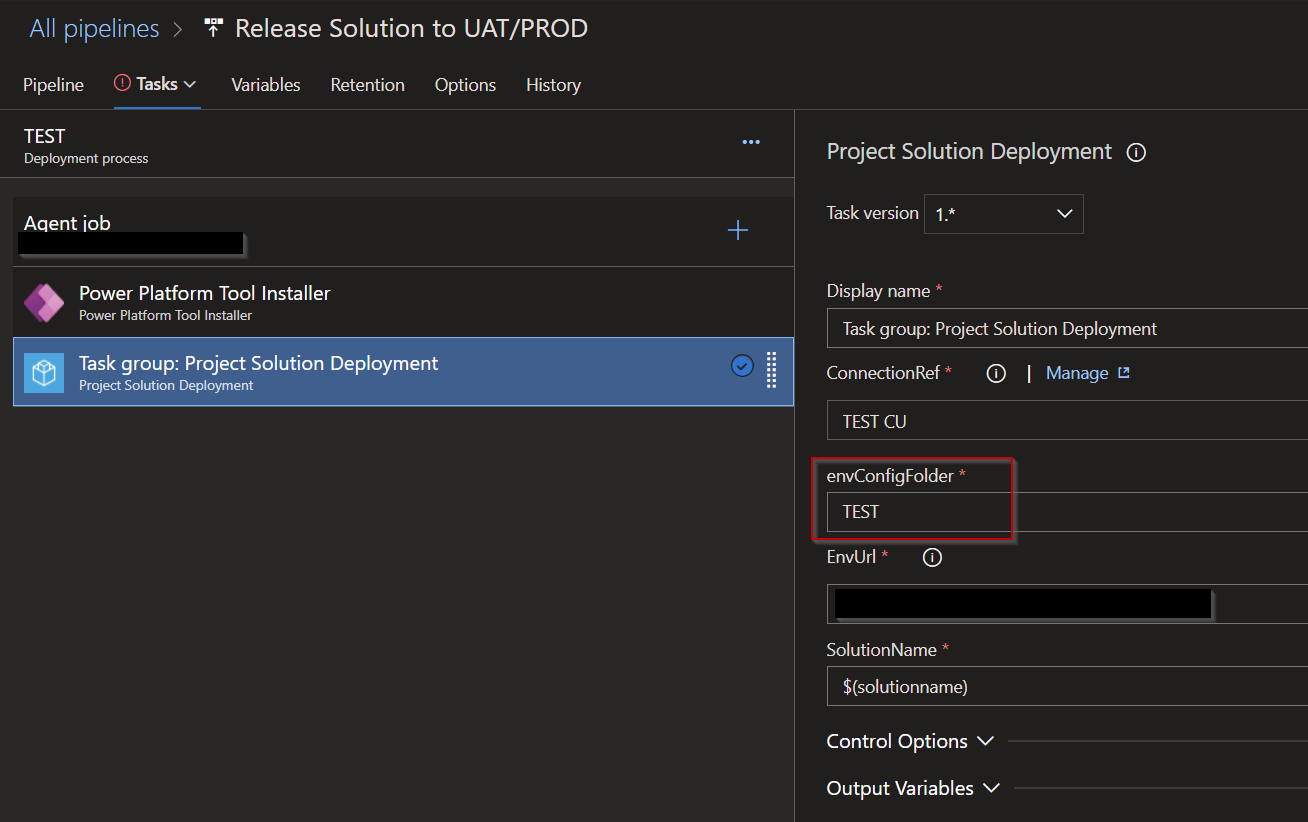
Fig. 8 Task Group Configuration
The release pipelines are now configured to use the provided Deployment Settings files.


