




 22,769
 Like
Like Share
Share
 Report
There are a number of different ways to record paying vendors with credit cards in GP. This is a topic that comes up periodically in newsgroups and I would like to share what I have personally found to be the most straightforward and comprehensive way. This is a long one but at least there will be lots of pictures. Even so, you may want to get comfortable and grab a cup of coffee first. Don’t say I didn’t warn you. 
There are typically three important goals that companies have when paying their vendors with credit cards:
- Most of the purchases need to be recorded against the actual vendors. Especially for inventory purchases.
- Monthly credit card statements need to be reconciled quickly so there is no delay in paying the bills and no huge unapplied payments sitting in GP because it takes so long to reconcile and enter the statements.
- There are many ‘one time’ or ‘miscellaneous’ vendors that are paid with credit cards. While it is not important to track these purchases under individual vendors (as in # 1 above), it is still important to keep track of who the vendor was and to make it easy and fast to reconcile these purchases on the statement (as per # 2 above).
Keeping these goals in mind, let’s walk through a few examples. I will be using Dynamics GP 10.0 for the navigation and screen shots, but this process is the same in any version of GP. Please click on the screen shots to see them larger/clearer.
First we need to create a payables vendor for each credit card. The important step here is to create a different vendor for each distinct account that you get billed for or pay. If you have three American Express accounts that get billed and paid separately, create three vendors. For our example I will create one AMEX vendor (Cards > Purchasing > Vendor):

Next step is to set up a Credit Card (Microsoft Dynamics GP > Tools > Setup > Company > Credit Cards). I typically use the Vendor ID for the Card Name (unless your vendor ID is something like 12345). To set up a credit card to pay vendors select Used by Company, choose Credit Card and enter the Vendor ID associated with the credit card vendor:
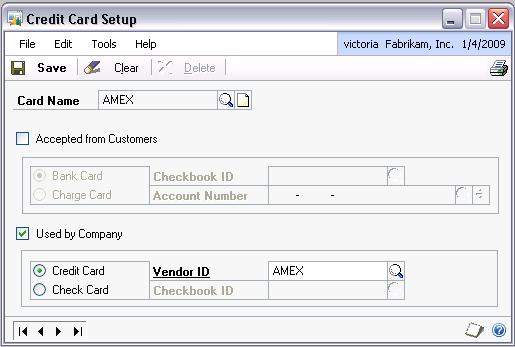
That is all the setup required. Now you are ready to enter transactions. There are a number of typical scenarios:
Scenario 1: You purchased non-inventory items from a vendor want to track and pay them with a credit card. You have not posted the invoice yet.
This can be handled in one transaction (Transactions > Purchasing > Transaction Entry). Enter the transaction like you would normally enter a non-inventory payables invoice, then enter the amount you paid with the credit card on the bottom right:

When you tab off the Credit Card amount, the Payables Credit Card Entry window will pop up. Choose the credit card and date. Important: to accomplish our goal # 2, we need to change the Receipt Number to include whatever will help us match this purchase with the line item on the credit card statement. This Receipt Number will become the invoice number under the credit card vendor. Typically the date and the ID (or name) of the vendor you are paying is enough:

Note that I put the date in a little strangely: 081219 for December 19, 2008. This is by no means a requirement, but a ‘trick’ that I have gotten used to as a nice additional sorting mechanism for my transactions. I will remind you of this a little later on in the example.
If there are multiple charges from the same vendor on the same date, you will need to come up with unique Receipt Numbers, so either use the last few digits of the Document Number (081219 STAPLES 462), add a letter to the end (081219 STAPLES A) or something similar. While you may not be able to fit the entire vendor ID or name in here, usually you can get enough in to allow easy reconciliation.
The GL distributions on this may be surprising if you have not entered similar transactions before:

It is crediting the Accounts Payable account because you still owe that money to the credit card vendor. However, the type of that distribution is CASH because you are entering a ‘payment’. If you have a different Accounts Payable account set up for the credit card vendor, you will see that account here, not the Accounts Payable account for the vendor you are entering this transaction under (STAPLES in this case).
Once posted, what this will accomplish:
-
Creates an invoice under the STAPLES vendor.
-
Creates a payment under the STAPLES vendor and applies it to the invoice in # 1 above.
-
Creates an invoice under the AMEX vendor. This invoice is open (unpaid) at this point.

STAPLES vendor

AMEX vendor
Scenario 2: You have already posted the payables invoice under the correct vendor or you have purchased inventory items and have posted the invoice in POP.
Since the invoice is already posted, we just need to enter the payment side, which is done as a Manual Payment (Transactions > Purchasing > Manual Payments). The Vendor ID will be who you are paying, the Payment Method is Credit Card, once you choose that you will see a lookup for the Credit Card Name. For the Document No. enter the date and the vendor you are paying as this will become the invoice number under the credit card vendor. In this example, we have already posted an invoice for DELL, now we are recording that we paid them with a credit card:

Enter the amount paid by credit card and Apply just like you would any other payment. Again the GL distributions may not be exactly what you are expecting:
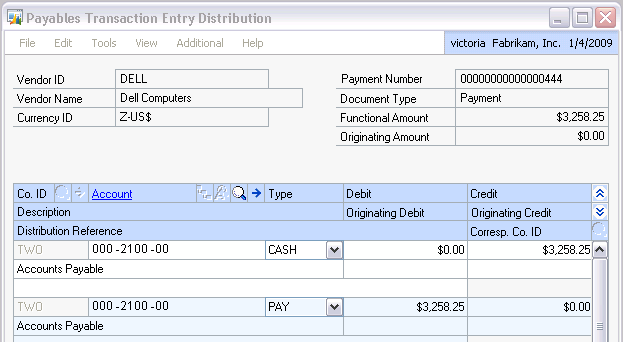
The CASH type distribution is recording the payment, but since it was made with a credit card and not cash, it is crediting Accounts Payable (this will be the Accounts Payable account from the credit card vendor). The PAY distribution is recording the payment to the original vendor (DELL in this case). Basically, this transaction moves the liability from one vendor to another.
Once posted, this will add a payment to the DELL vendor and an open invoice to the AMEX vendor:

DELL vendor

AMEX vendor
Note the order of the transactions for the AMEX vendor - they are sorted in correct date order, even though they are in different years. This is because of how I entered the date with the year first and using 6 digits. Again, not a requirement, but it makes your credit card vendor invoices sort automatically with the default sorting GP uses.
Scenario 3: You purchased something from a ‘one time’ or ‘miscellaneous’ vendor using a credit card. You do not really want to clutter up your Vendor list, as you might only buy from this vendor once or twice.
This should be entered as a payables invoice directly under the credit card vendor (Transactions > Purchasing > Transaction Entry). The vendor ID will be AMEX in my example and the Document Number will have the date and the name of the vendor. I also put the full name of the vendor in the Description, as there any many times with this scenario where the full name will not fit into the Document Number:

Having the full name in the Description will make it much easier to search for this vendor in SmartList. Once posted, this will show as another open invoice under the AMEX vendor.
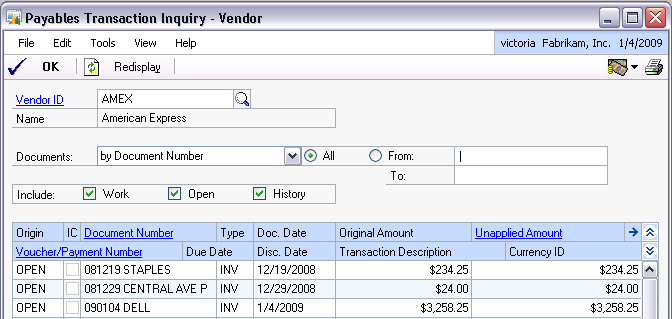
When you receive your credit card statement, open the Payables Transaction Inquiry window (Inquiry > Purchasing > Transaction by Vendor), uncheck History and Work, and you will have a list of all open (unpaid) transactions to reconcile to the statement. And if you have used my date ‘trick’ they will even be sorted very closely to what should be on the statement:

Of course you can get this list of transactions in SmartList as well and export it to Excel if that is preferable. Typically I find that with this method I just check off the transactions I already have in GP on the credit card bill and circle the ones I still need to record.
This method is certainly not for every company out there paying vendors with credit cards. However, it may provide some solutions for many. My goal is simply to offer options.
I have gotten feedback in the past that this method is very time consuming because you have to enter all the individual transactions instead of one transaction for the entire credit card statement. In a few cases that is true. But in many other cases I have seen companies take days to reconcile the AMEX bill once it is received. In those cases, this method may provide a viable alternative.
I would also encourage companies with a high volume of credit card transactions to log in online periodically (virtually every credit card company/bank offers this feature now) and spot check to see if they have all the transactions in GP that the list online shows. If not, this can help get the information from those card holders that typically lag in getting you their receipts or tend to lose them before the statement even shows up. And it is a lot easier to remember what happened last week than what happened a month and a half ago.
Posted in Dynamics GP Tagged: Dynamics GP, Payables


*This post is locked for comments