







Getting started with Microsoft Bot Framework
 Nishant Rana
 11,325
Microsoft Employee
11,325
Microsoft Employee
 Like
Like Share
Share
 Report
To get started with Bot Framework, download the visual studio template for Bot Application from the following location
http://aka.ms/bf-bc-vstemplate
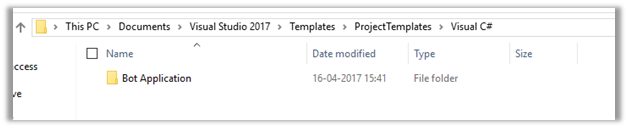
Extract it and put the content at the following location. (Visual Studio 2017 in my case)
C:\Users\<<ComputerName>>\Documents\Visual Studio 2017\Templates\ProjectTemplates\Visual C#
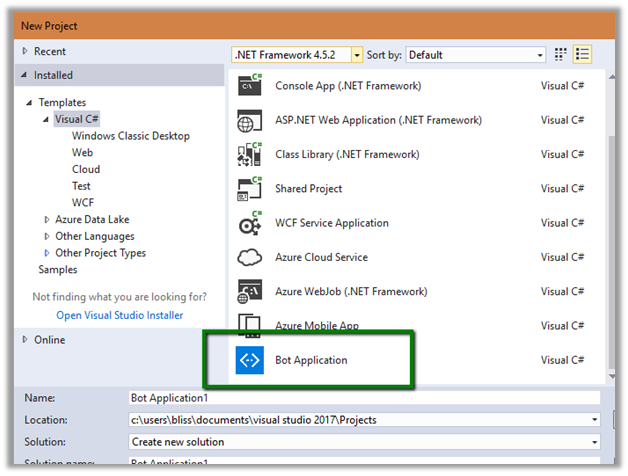
Open Visual Studio and select Bot Application template to create a new project
This is how the basic structure of the bot application looks like
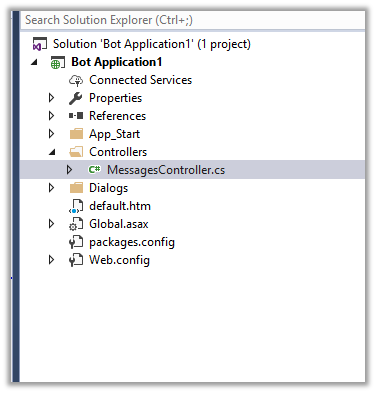
The most important part here being the MessageController class.
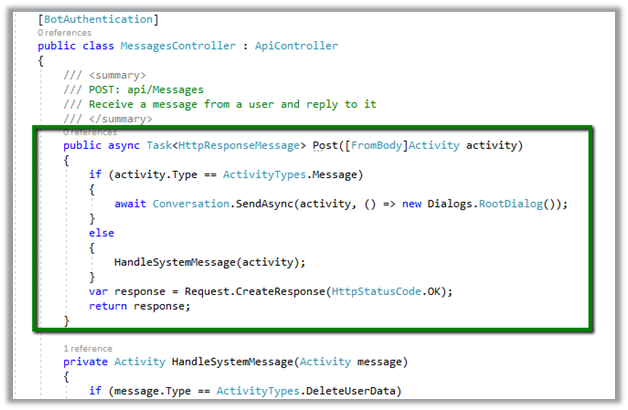
The class has the Post method which handles the message sent by the user/client termed as Activity. The Post method handles the Activity of type Message.
Below is the list of different type of Activities
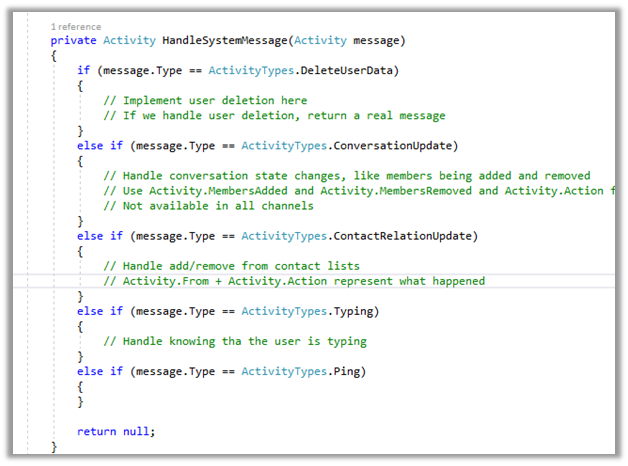
DeleteUserData is when the client\user requests for Deletion of all the user data, ConversationUpdate is when a new member is added or removed from the conversation, Typing is when user is typing the message etc.
Now to test this sample application, we need to first download the Bot Emulator.
https://emulator.botframework.com/
Now run the bot application.
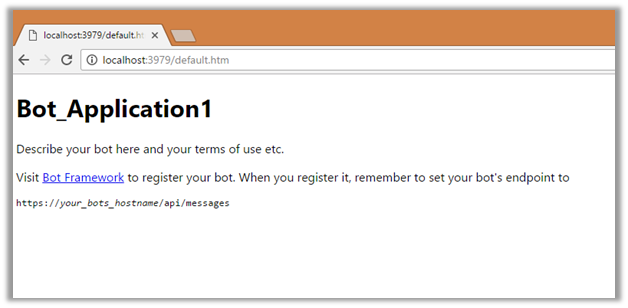
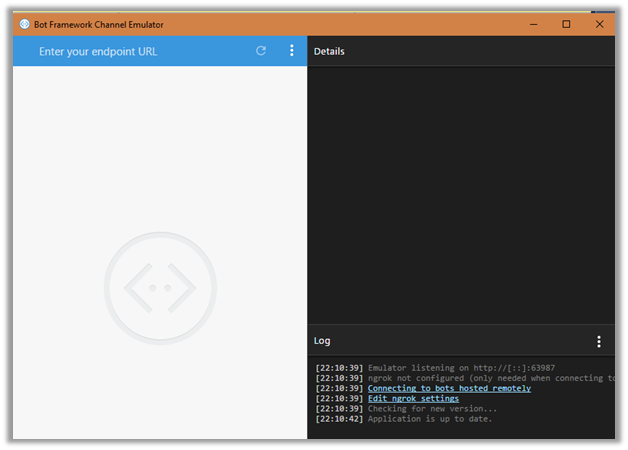
And next start the emulator
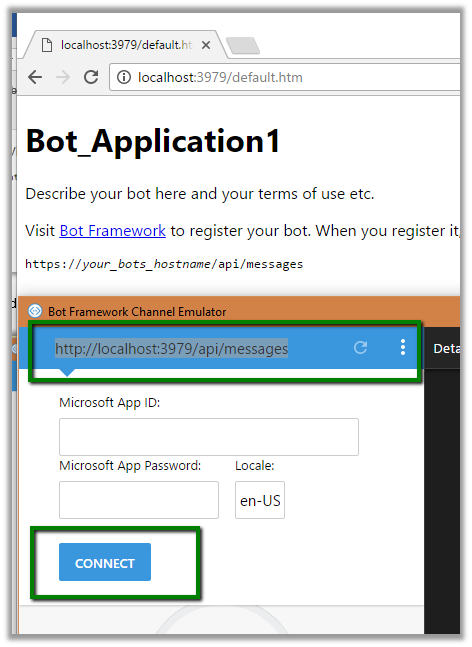
Enter the URL and click on Connect. We will leave App ID and Password as blank as we are testing it locally.
Just type in the message and we’d get the response back.
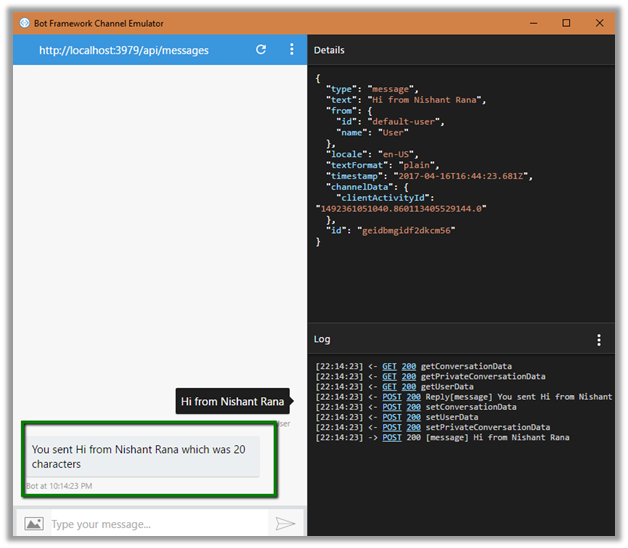
Details section shows the JSON message which could be useful for debugging and testing purpose.
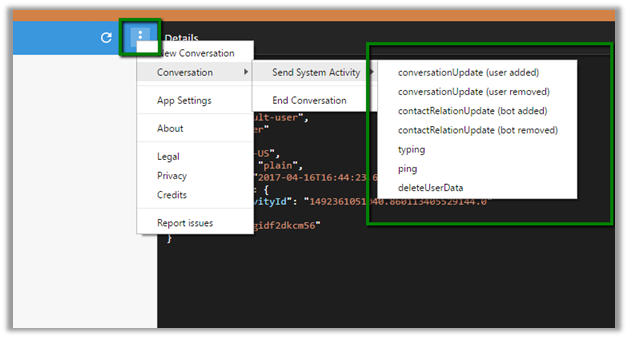
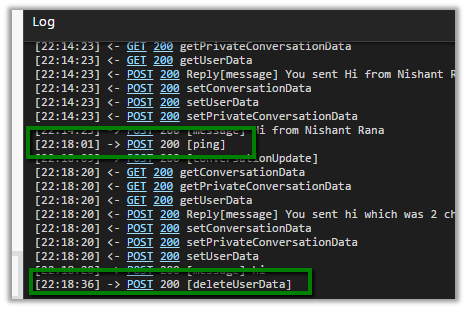
Apart from sending message we can simulate other Activity Type from within the emulator
Hope it helps..
Filed under: Bot, Microsoft Dynamics 365 Tagged: Bot, Microsoft Dynamics 365


This was originally posted here.
*This post is locked for comments