







Implementing SmartView for Microsoft Dynamics GP: Installing SmartView External
 Ian Grieve
 22,784
 Like
Like Share
Share
 Report
 This post is part of the Implementing SmartView for Microsoft Dynamics GP series were I am taking a look at the SmartView product from eOne Solutions which provides another way of using SmartLists.
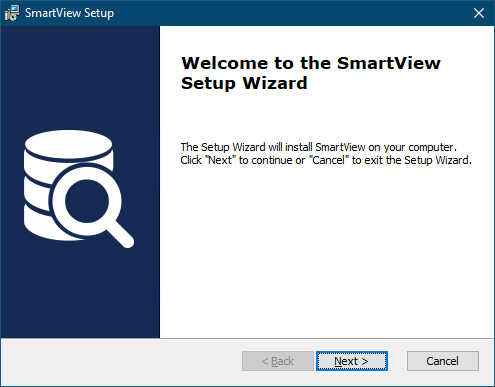
Once you have SmartView External downloaded, extract and run the installer. Click Next on the welcome step:
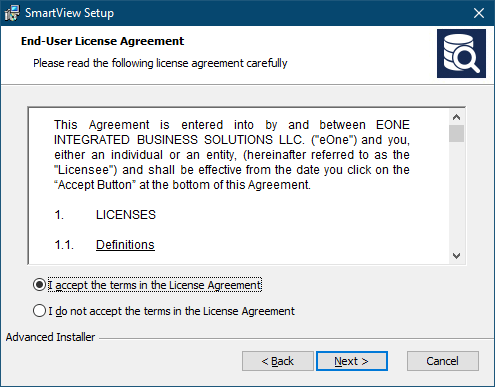
Accept the terms of the End-User License Agreement and click Next:
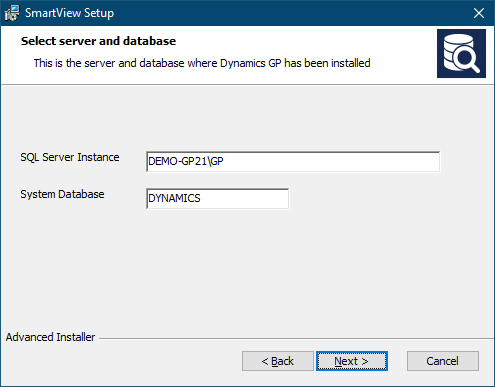
Enter the SQL Server Instance and ,em>System Database of the instance of SQL Server hosting your Dynamics GP databases and click Next:
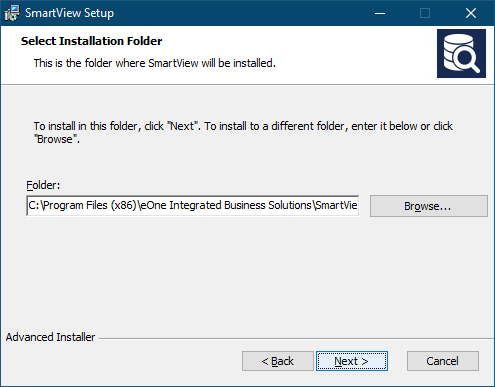
Check the installation path and change if necessary and then click Next:
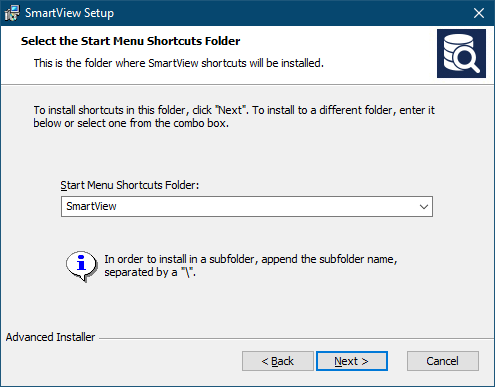
Check and aed the Start menu shortcuts folder into wich SmartView is to be added and click Next:
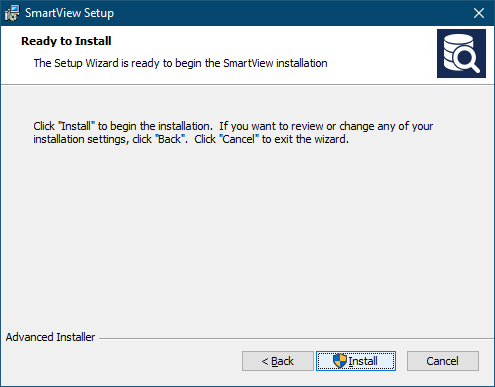
Click Install to begin the installation:
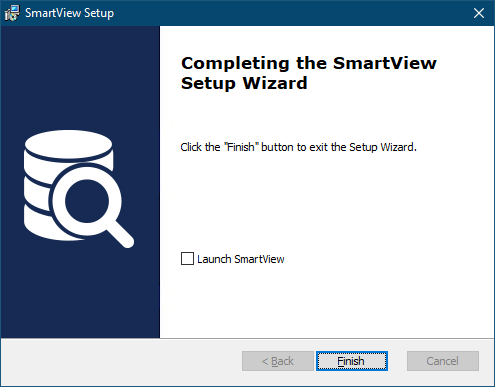
Once the installation has finished, click Finish to close the installer:
SmartView will now be available on the Windows Start menu. Before users can log into it, they will need a user account created, which I will cover in the next post.
Read original post Implementing SmartView for Microsoft Dynamics GP: Installing SmartView External at azurecurve|Ramblings of an IT Professional
This was originally posted here.
*This post is locked for comments