




 Like
Like Share
Share
 Report
Introduction:
Dynamics 365 has two different type of form one is classic and other one is UCI. Now sometimes we want certain field to be visible on UCI and some on classic form.
Description:
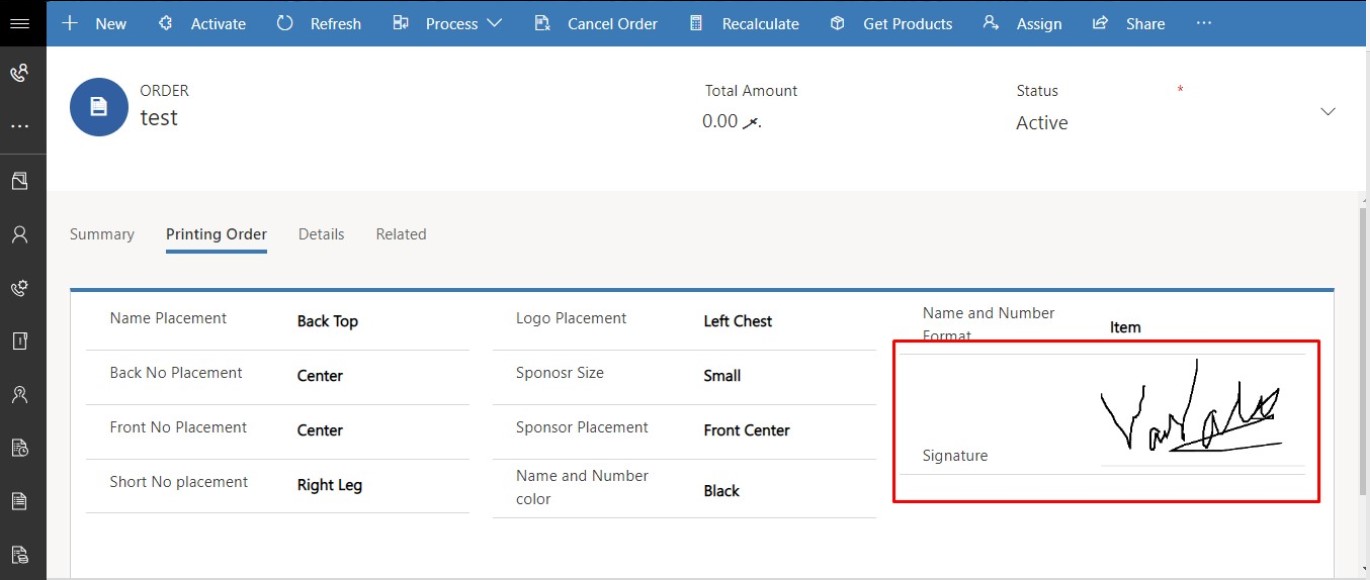
We had a requirement where we wanted to show certain field on UCI, but it should be hidden on classic form. For example, signature field is not supported on classic form in Brower, but it works on UCI and tablet version.
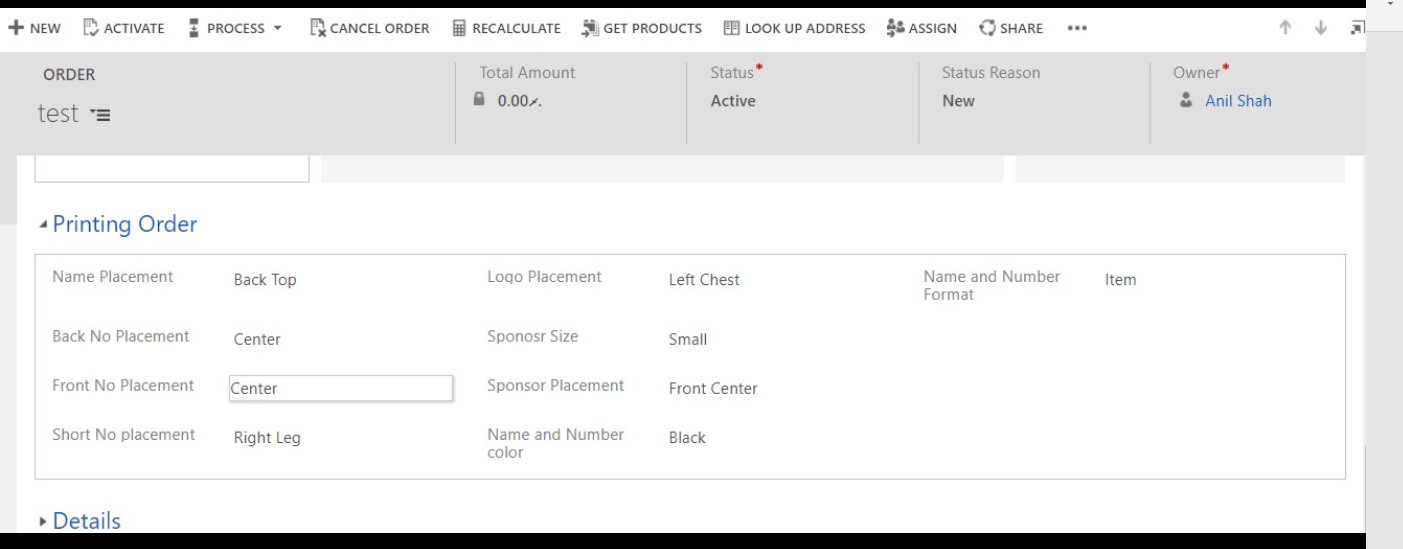
Here we wanted to hide the signature field on browser and it should work as it is in the UCI.
Here is the code. We need to call this script on onload of the form
function hideFieldonOrderWeb(executionContext) {

debugger;

var clientContext = Xrm.Utility.getGlobalContext().client;

var device = clientContext.getFormFactor();

var formContext = executionContext.getFormContext();

var isUCIForm = isUCI();

if (isUCIForm == false && device == 1) {

formContext.getControl("cf_signature").setVisible(false);

}

else {

formContext.getControl("cf_signature").setVisible(true);

}

}

function isUCI() {

var globalContext = Xrm.Utility.getGlobalContext();

var appURL = globalContext.getCurrentAppUrl();

var ClientURL = globalContext.getClientUrl();

if (appURL !== ClientURL) {

return true;

}

return false;

}
Explanation:
We are checking form type and we are getting value as 1 which is same for both web and UCI. So we additionally need to check app type by using the code isUCI().
| Value | Form Factor |
| 0 | Unknown |
| 1 | Desktop |
| 2 | Tablet |
| 3 | Phone |
By this way you can hide the control.
On UCI – Signature is visible
On browser – Signature field is hidden
The post Hide UCI in Dynamics 365 appeared first on CloudFronts - Microsoft Dynamics 365 | Power BI | Azure.
*This post is locked for comments