





Changing Configuration keys in Dynamics 365 – Maintenance mode

 817
817 Like
Like Share
Share
 Report
Going into License configuration to enable or disable a configuration key you’ll probably see the warning:
This form is read-only unless the system is in the maintenance mode. Maintenance mode can be enabled in this environment by running maintenance job from LCS, or using Deployment.Setup tool locally
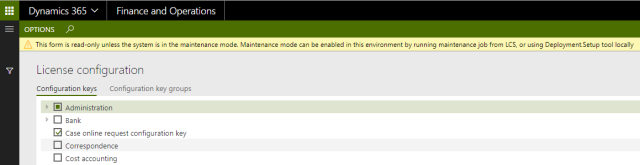
Here’s how to work around that in all but production environments:
- Tell the other users working on that environment, since you’ll be restarting the IIS during the process.
- Log on to the server running the AOS service and start up a command prompt in Administrator mode
- Run the following statement where you change K to the correct drive for your AOS service:
K:\AosService\PackagesLocalDirectory\Bin\Microsoft.Dynamics.AX.Deployment.Setup.exe –metadatadir K:\AosService\PackagesLocalDirectory –bindir K:\AosService\PackagesLocalDirectory\Bin –sqlserver . –sqldatabase axdb –sqluser <SQL admin user id> –sqlpwd <SQL users password> –setupmode maintenancemode –isinmaintenancemode true
- Restart the IIS with the iisreset command
This leaves the environment in maintenance mode. This doesn’t mean non-functional; but you probably would like to leave the maintenance mode as soon as possible.
When you are done you run this script from a command prompt in Administration mode (again replace K with the appropriate drive letter):
K:\AosService\PackagesLocalDirectory\Bin\Microsoft.Dynamics.AX.Deployment.Setup.exe –metadatadir K:\AosService\PackagesLocalDirectory –bindir K:\AosService\PackagesLocalDirectory\Bin –sqlserver . –sqldatabase axdb –sqluser <SQL admin user id> –sqlpwd <SQL users password> –setupmode maintenancemode –isinmaintenancemode false
Restart you IIS once more and you’re back on track.
This was originally posted here.
*This post is locked for comments