







Changes in Permission Sets in Business Central
Views (2)
 Olister Rumao
 3,967
3,967
 Like
Like Share
Share
 Report
Introduction:
In this blog I will be discussing about Permission Sets as Objects and how they are different from Permission Sets in earlier versions of NAV/BC. Also, I will share some insights on my experience with Permission Sets.

Pre-requisites:
- Understanding of Permission Set Objects
- Understanding of how Permission Sets work.
Books & References:
Demonstration:
1. Permission Set as Data:
In earlier version of NAV / Business Central, the Permission Sets were stored as data. Meanwhile, you would get the Permission Sets configured as Data in your Database. Generally when you upgrade from NAV, you will get this data upgraded automatically.

You can import/export permission sets as XML files.
2. Permission Set as XML:
For every PTE it is mandatory to have your own Permission Sets. We create these permission sets as XML files for Business Central PTEs. For rest of the Base Application, Microsoft had in database and can be exported as XML File.
To generate Permission Sets as XML file, you can hit Ctrl + Shift + P > Generate permission set as XML file containing current extension object.
To generate Permission Sets as XML file, you can hit Ctrl + Shift + P > Generate permission set as XML file containing current extension object.
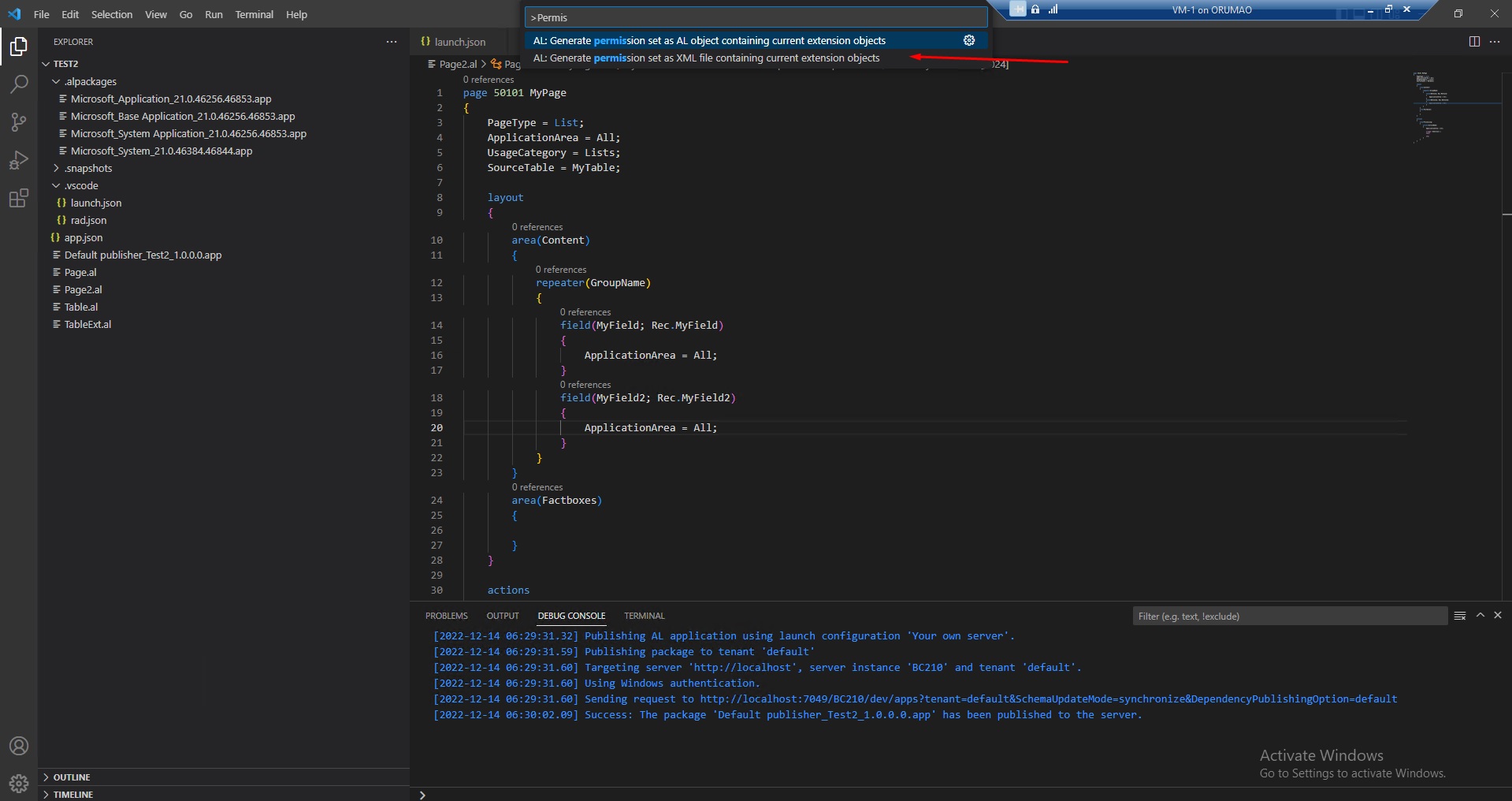
you will see an XML file created in your project.

2. Permission Set as Permision Object:
Recently in last year, Microsoft introduced Permission Set as object. For every PTE it is mandatory to have your own Permission Sets.
To generate Permission Sets as XML file, you can hit Ctrl + Shift + P > Generate permission set as AL Object containing current extension object > Provide your permission set name

This will create AL file in your project.

In order to use Permission Sets from Extension, you will need to enable the highlighted property UsePermissionSetsFronExtensions set to TRUE.
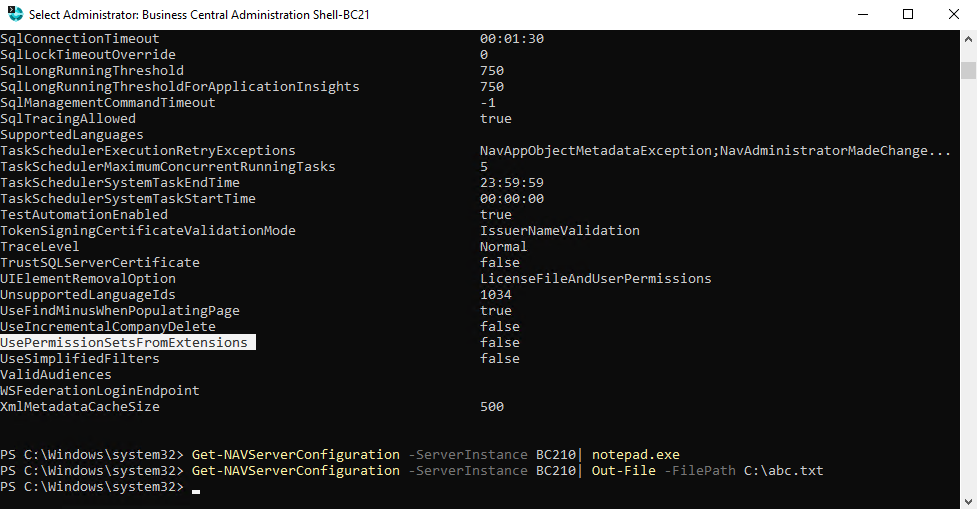

Also, for specific localization, there should be a localization specific Permission Sets.

3. To Upgrade Permissions Sets from XML to AL objects:
As per of Upgrade from older versions of NAV/ BC to latest BC, you will need convert your XML permission sets to AL objects.
You can generate AL Objects using Convert-PermissionSets powershell module in Upgrade Permission Sets.
You can generate AL Objects using Convert-PermissionSets powershell module in Upgrade Permission Sets.
You can run the Powershell Scripts as follows -
Import-Module "Your Path\Convert-PermissionSets.psm1"
Convert-PermissionSets -DatabaseServer <ServerName> -DatabaseName <DatabaseName> -Destination "TargetPath"

Conclusion:
I hope this blog provides information to help you in your journey to upgrade from NAV to BC.
Cheers!!
Cheers!!
*This post is locked for comments