




 5,994
5,994 Like
Like Share
Share
 Report
Recently i got chance to experience the D365 Package deployment, and here is the guide i have followed.
I was going to install Update 11 for Microsoft Dynamics 365 Finance and Operations:
I ended up completing the following steps:
- Browse to https://lcs.dynamics.com/
- Click on the Shared asset library button
- Select Software deploy-able package
- Download Dynamics 365 Unified Operations Platform Update 11 and copy downloaded archive to specific folder manually created on VM. For instance, C:\Update11
- Right-click on the downloaded zip-file, select Properties and click on the Unblock
- Extract archive file to C:\Update11\AXPlatformUpdate folder
- Open Command prompt application as Administrator, change current folder to C:\ C:\Update11\AXPlatformUpdate by the following command:
cd C:\Update11\AXPlatformUpdate
- Run the following command:
AXUpdateInstaller.exe generate -runbookid=”DevBox” -topologyfile=”DefaultTopologyData.xml” -servicemodelfile=”DefaultServiceModelData.xml” -runbookfile=”DevBox-runbook.xml”
- Run the following command:
AXUpdateInstaller.exe import -runbookfile=”DevBox-runbook.xml”
- Run the following command:
AXUpdateInstaller.exe execute -runbookid=”DevBox”
- Wait until it’s completed. In a nutshell, there are 16 steps that must be completed.
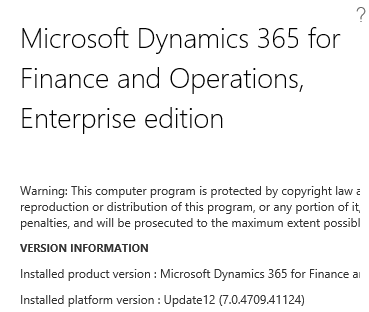
After completion you can check About form and you will notice that platform version has been changed.
*This post is locked for comments