







Adding View Shortcut in SiteMap
 Mahendar Pal
 45,095
 Like
Like Share
Share
 Report
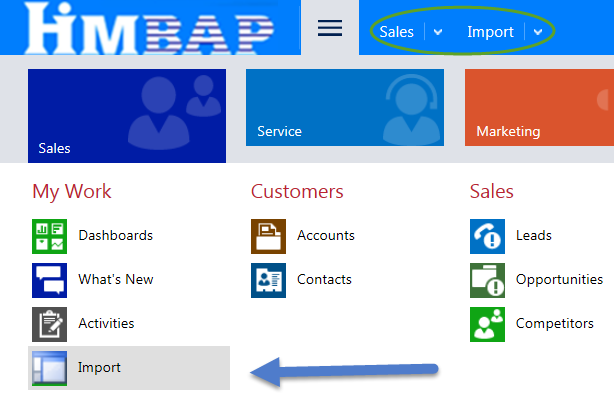
Some time while working on CRM implementation, your client may ask you to add a direct shortcut to some view in SiteMap, let’s say, a shortcut of imports view. If you want to see imports view, you need to navigate to Settings->DataManagement->Imports. So if we need to add shortcut to this view, we can use SiteMap editor for this. In our earlier articles we have demonstrated how to add direct link using entity name, but here we want to show specific view, we can show view using URL attribute of subarea. So let’s follow below steps to do it.
1. Connect to your CRM Organization using XrmToolBox.exe
Note: Please follow our earlier article if you don’t have XrmToolBox for how to get and setup connection to CRM organization http://himbap.com/blog/?p=1702
2. Navigate to Settings->DataManagement->Imports and select all Import view.
3. Get view URL by following below steps
 4. Copy two things from this URL, entity code and viewid
 5. Select SiteMap editor under tools list and click on Load SiteMap button to load default sitemap from your organization.
6. Right click on existing group and select SubArea option let’s say we want to add under MyWork.
7. Use below URL under URL property of SubArea,
/_root/homepage.aspx?etc=4412&viewid=%7b67D6C645-8EF4-4512-A8CE-09DADB6B7F1B%7d
8. Click on Save and then click on Update SiteMap button.
9. Navigate to CRM and you should get it like below:
Reference: https://msdn.microsoft.com/en-us/library/gg328483.aspx
HIMBAP | Need any help in Microsoft CRM Contact US
*This post is locked for comments