




 Like
Like Share
Share
 Report
Introduction:
Many people face issues in installing Voice of Customer solution on v9 environment and trying repeatedly to install the solution but failed. Below is the error that usually people get.
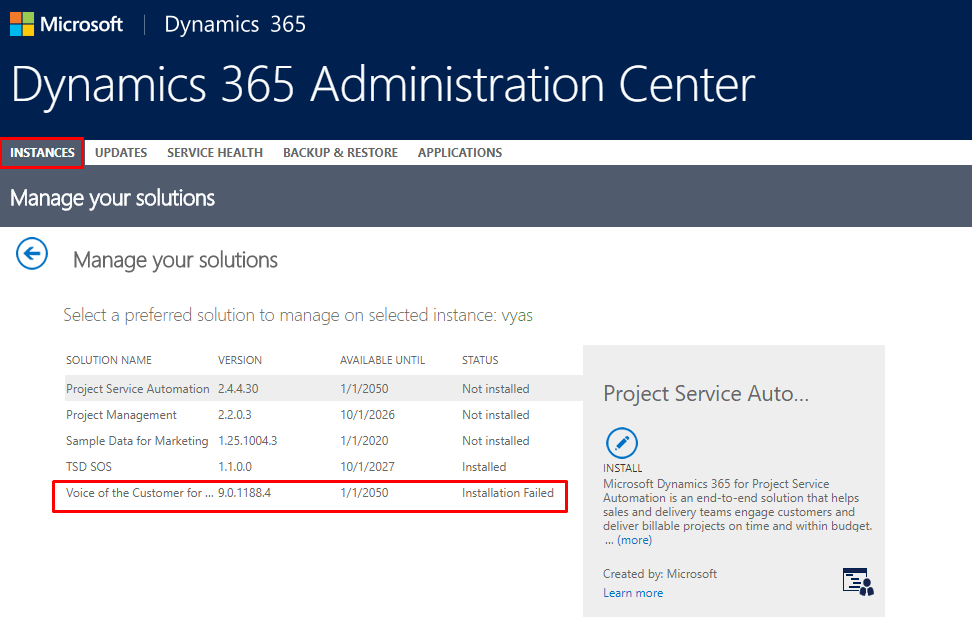
How to install?
Installing Voice of Customer is an easy process. If you are facing some error, you might be doing something wrong. The steps on how you can install Voice of Customer solution are listed below.
The Voice of the Customer for Dynamics 365 solution can be installed from Dynamics 365 Administration Center. It is compatible with Dynamics 365 version 8.2 and later.
- Sign in to your Dynamics 365 solution as administrator.
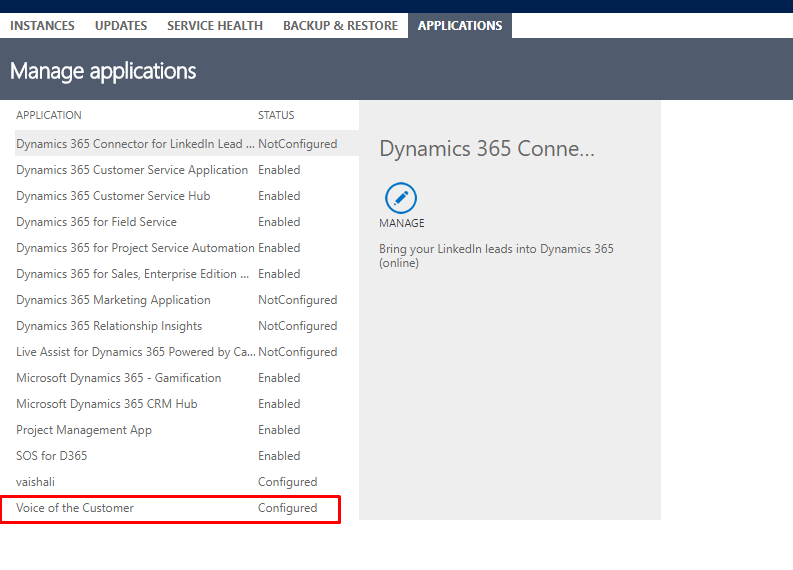
- Go to the Dynamics 365 Administration Center, and then select the Applications
- Select the application row titled Voice Of The Customer, and then select Manage.
- From the Dynamics 365 Instancedrop-down list, select the instance where you want to install the solution.
- Accept the license terms.
- Select Install.
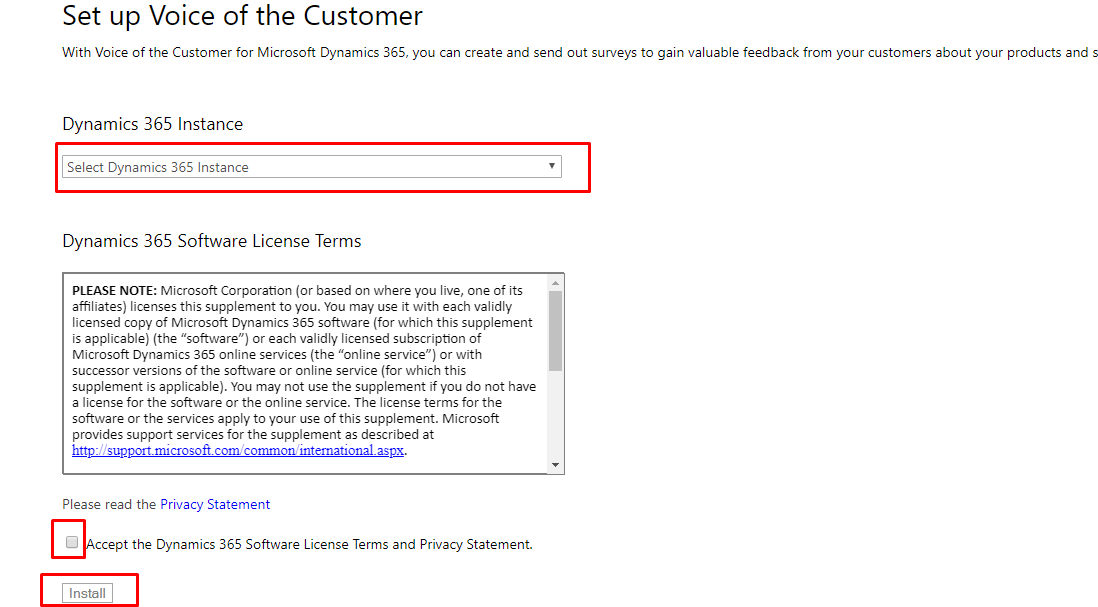
By following the above steps you can see the solution gets configured properly.
Note:
- You must be a tenant administrator to install the solution.
- The list of instances only displays the organizations with Dynamics 365 version 8.2.
The post Voice of the Customer failed to install appeared first on CloudFronts - Microsoft Dynamics 365 | Power BI | Azure.
*This post is locked for comments