




 487
487 Like
Like Share
Share
 Report
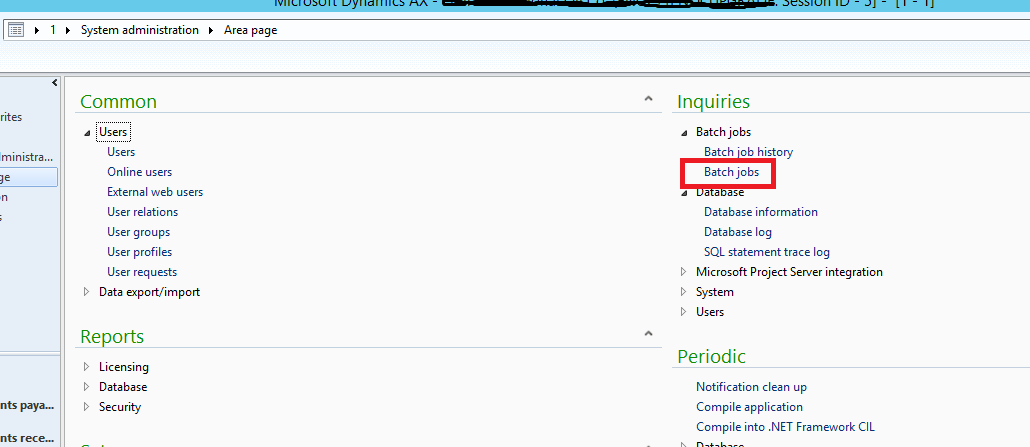
1. Go to system administration module -> Inquiries -> Batch jobs -> batch jobs
2. It will open a screen of batch jobs. Click on File and select new. A record for batch job will be added. Now add job description and select view tasks.

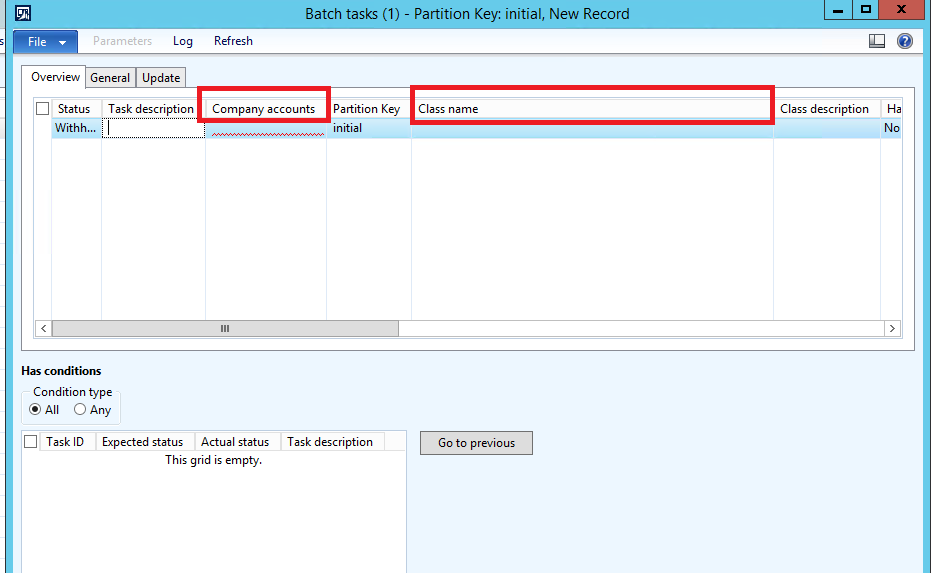
4. For class click on text box and it will open list of class.
Note : Your class should extend RunBaseBatch. Then it will be visible in below screen shot.
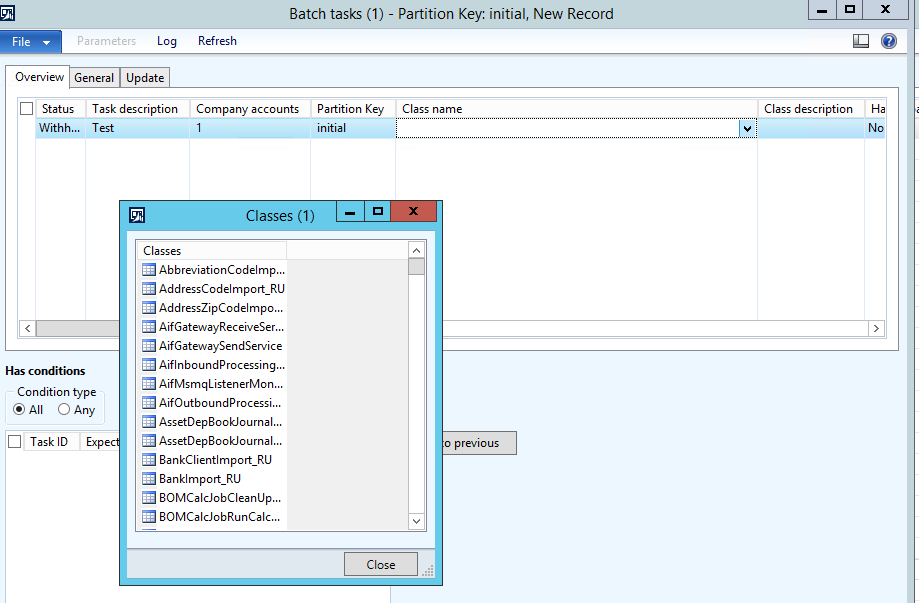
5. Now set batch group and run location. I have selected server as run location and batch group empty.

6. Now close task screen and you will be back on batch job main screen. Here you can set recurrence of batch job. For this you will select recurrence and add parameters according your requirements.

7. Now you will be observing that you job is in withhold status. In order to start its execution. Change its status to waiting by clicking on functions drop down. Select change status then waiting option.

Keep checking your job by refreshing it. Its status will be change from waiting to executing and then to ended. There are chances you job might encounter errors. You can check them by clicking on log button available in action pane.
*This post is locked for comments