




 10,796
 Like
Like Share
Share
 Report
As we saw in Part I of this post, how can we search best suitable resources for our project and later add (secure) them on project. This part of the post will continue to explain how can we assign those resources (Partially or fully) on project activities (Project work breakdown structure) and add more resources in project directly from work breakdown structure.
Assigning resources to each activity in project task
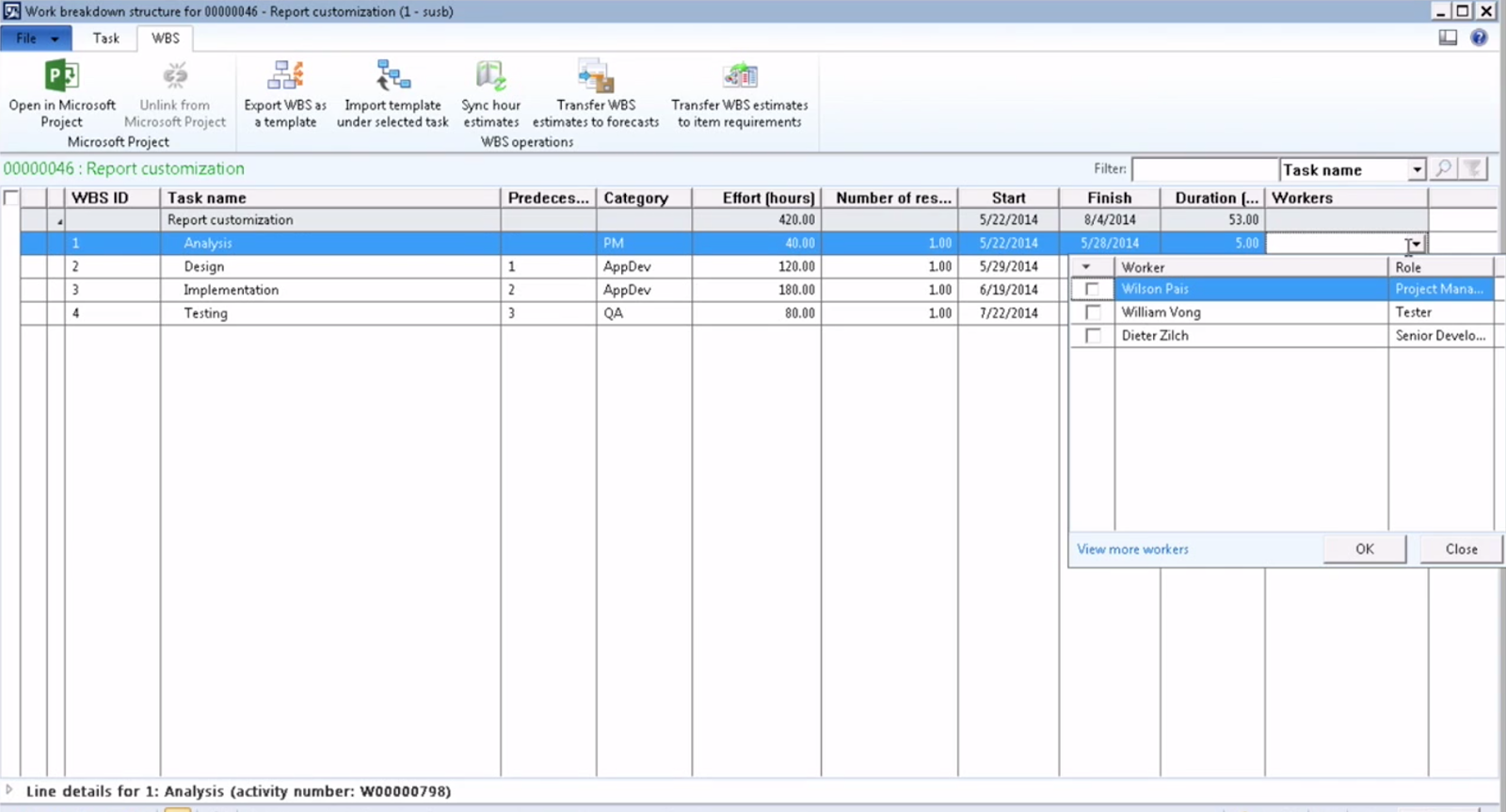
Let’s start assigning resources against each activity, as you can see we have some Analysis task needs to be done and in many organizations, project managers do analysis as well. So I will book Wilson to be the project manager on this project. I book Wilson, and see what happens if you want to drill down into detail of worker assignment.
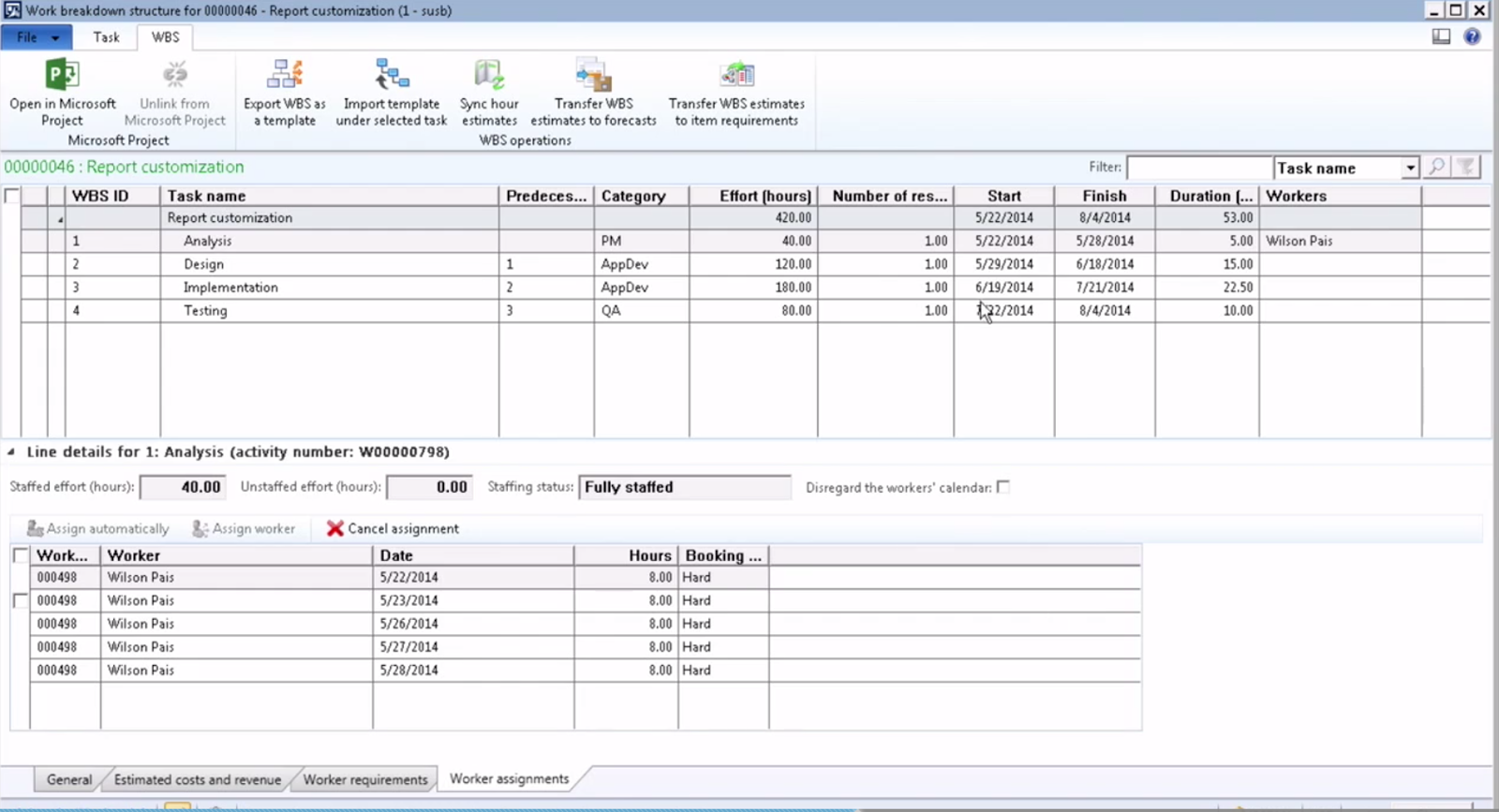
As you can see, during this start and end date, which I'm pointing to here, Wilson has been booked for 40 hours, which is the effort hours specified on the task.
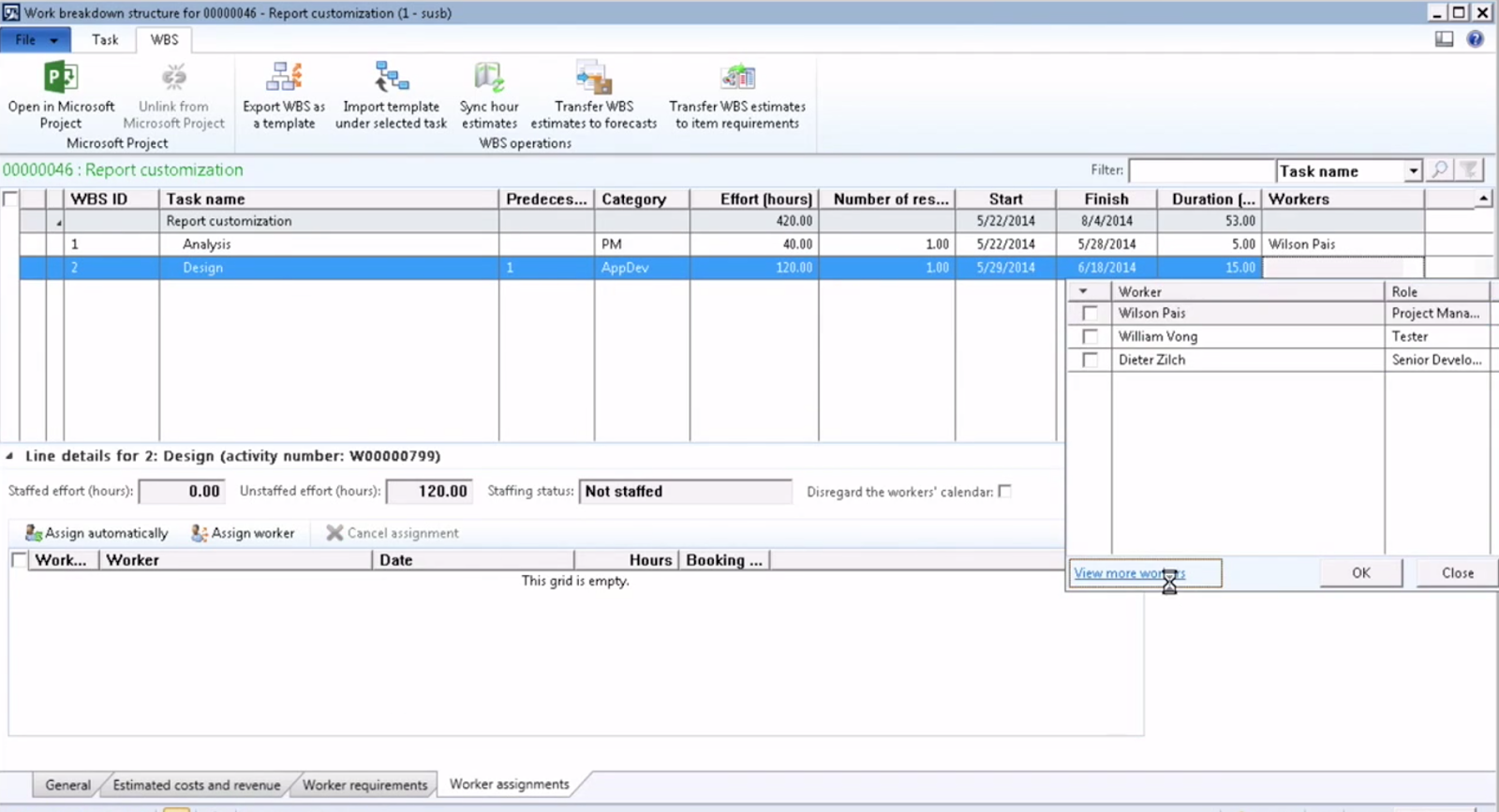
In some cases, you might not want to distribute the efforts equally like that. That's where you can do differently, where you can click view more workers, where it will show you not only those three resources that are already on the project and have been highlighted here, but also other resources.
Now you have the option to choose another resource, or, for example in this scenario, I will go with William.

Partially book a resource on project
But this time, instead of all of his capacity, I choose to just book 50 percent of his capacity. If I close, now you will see that William is being booked on this task, which is a design, for example, but you still can see that this task is partially staffed.
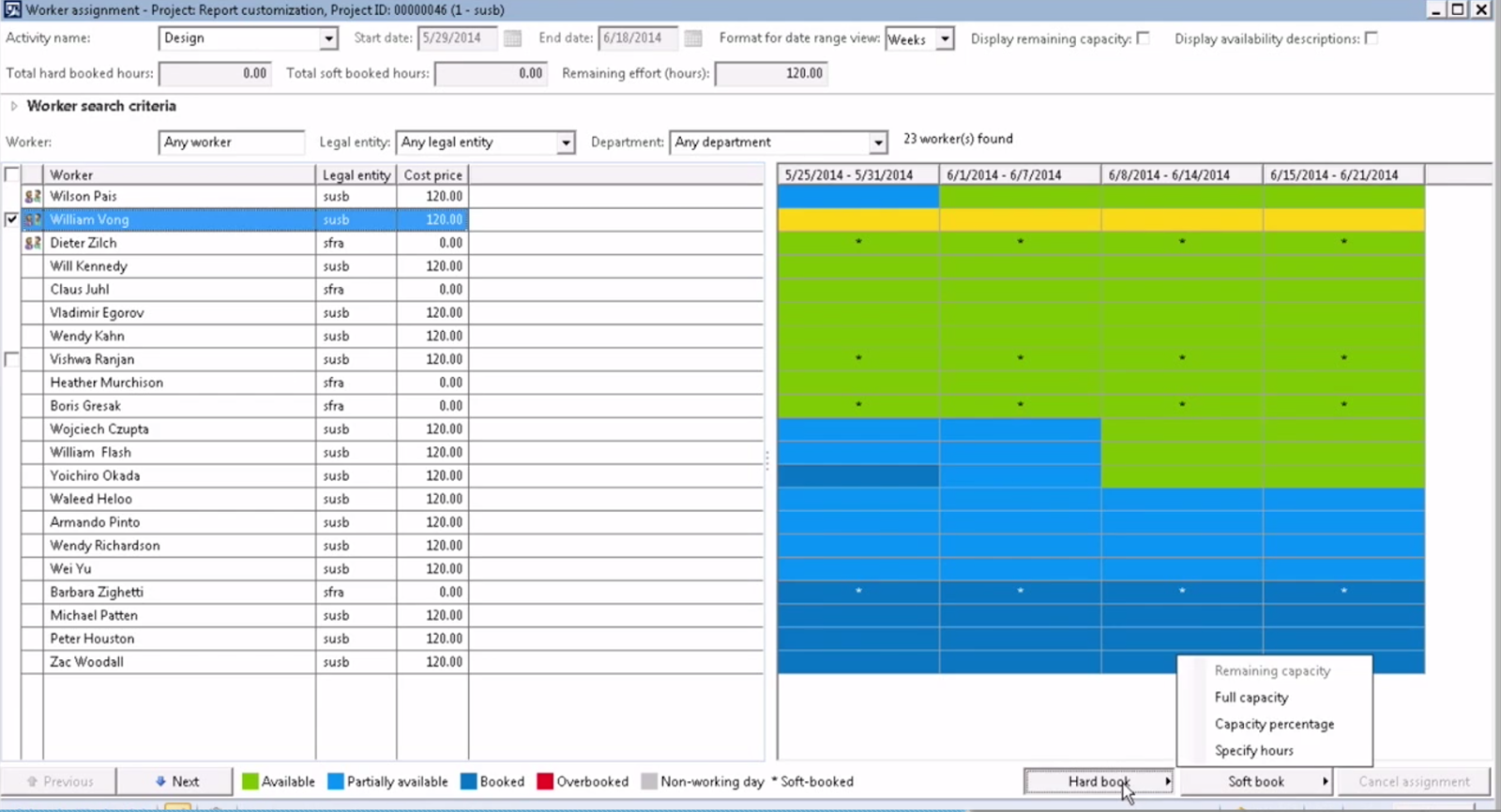
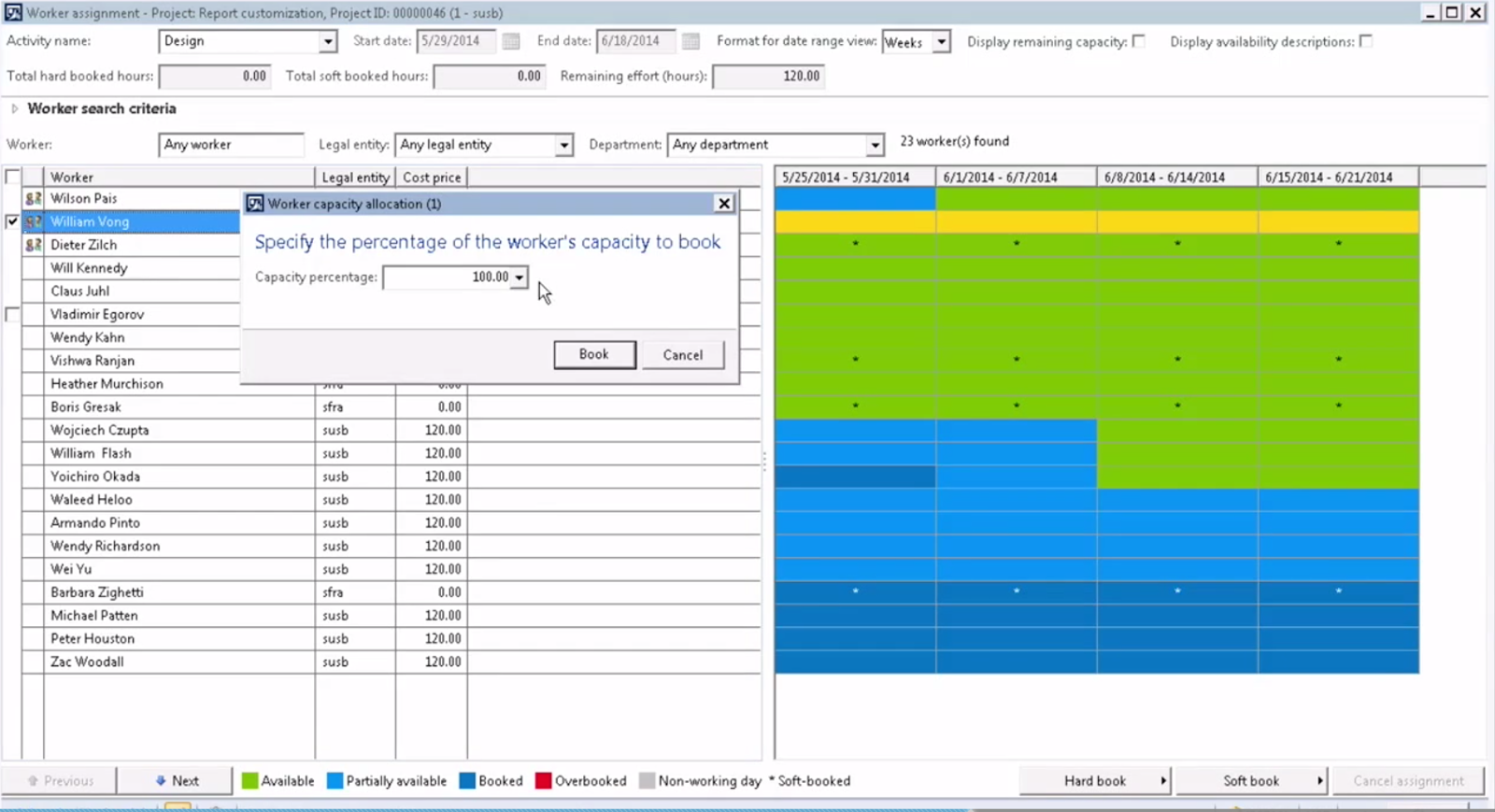

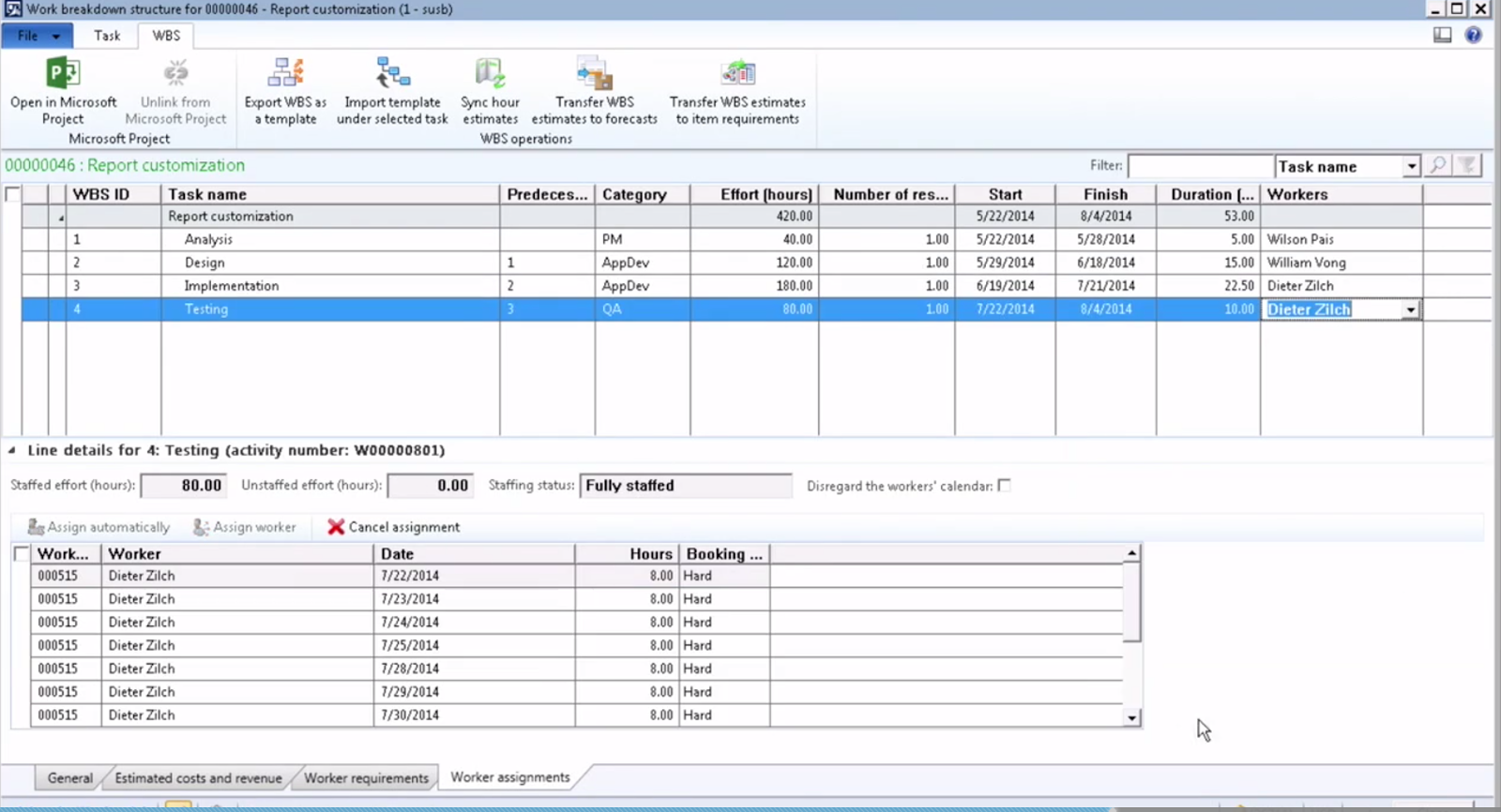
If I come back here, you can see that parts of his capacity has been booked, but still I have more hours to book. So for this example, I will continue with booking resources, and when I'm done, you will see that all the resources that I want, I have a fully staffed project.
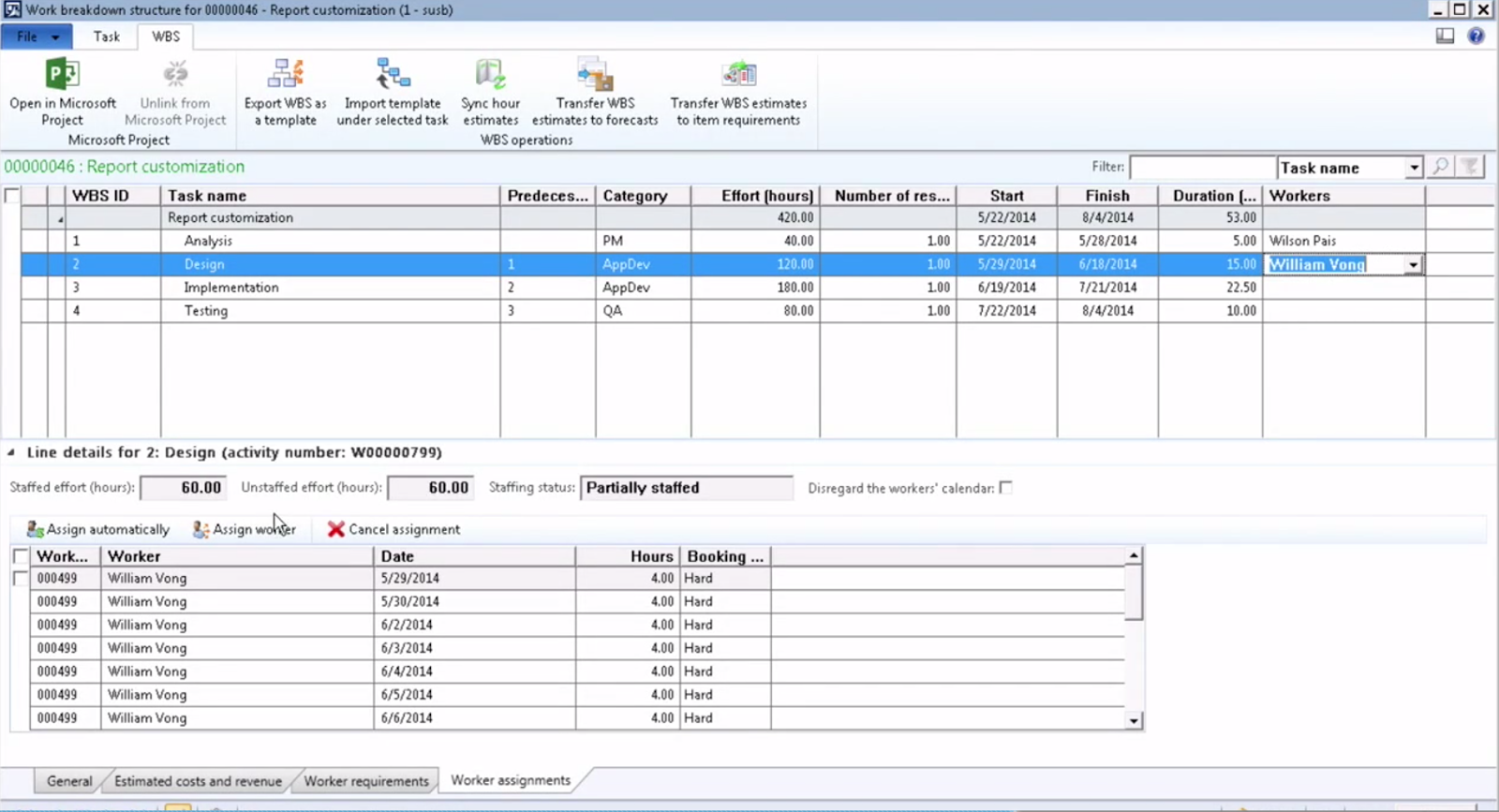
I keep selecting the resources that I want, and for example, I want Dieter to work on this task as well.
And now we go back to the project team, and we want to emphasize a little bit of the difference here.

You will see that the project manager, Wilson in this scenario, has 96 hours booked against the project but just 40 hours of his time has been assigned on the activities. Same for the other two resources that I have on the project.
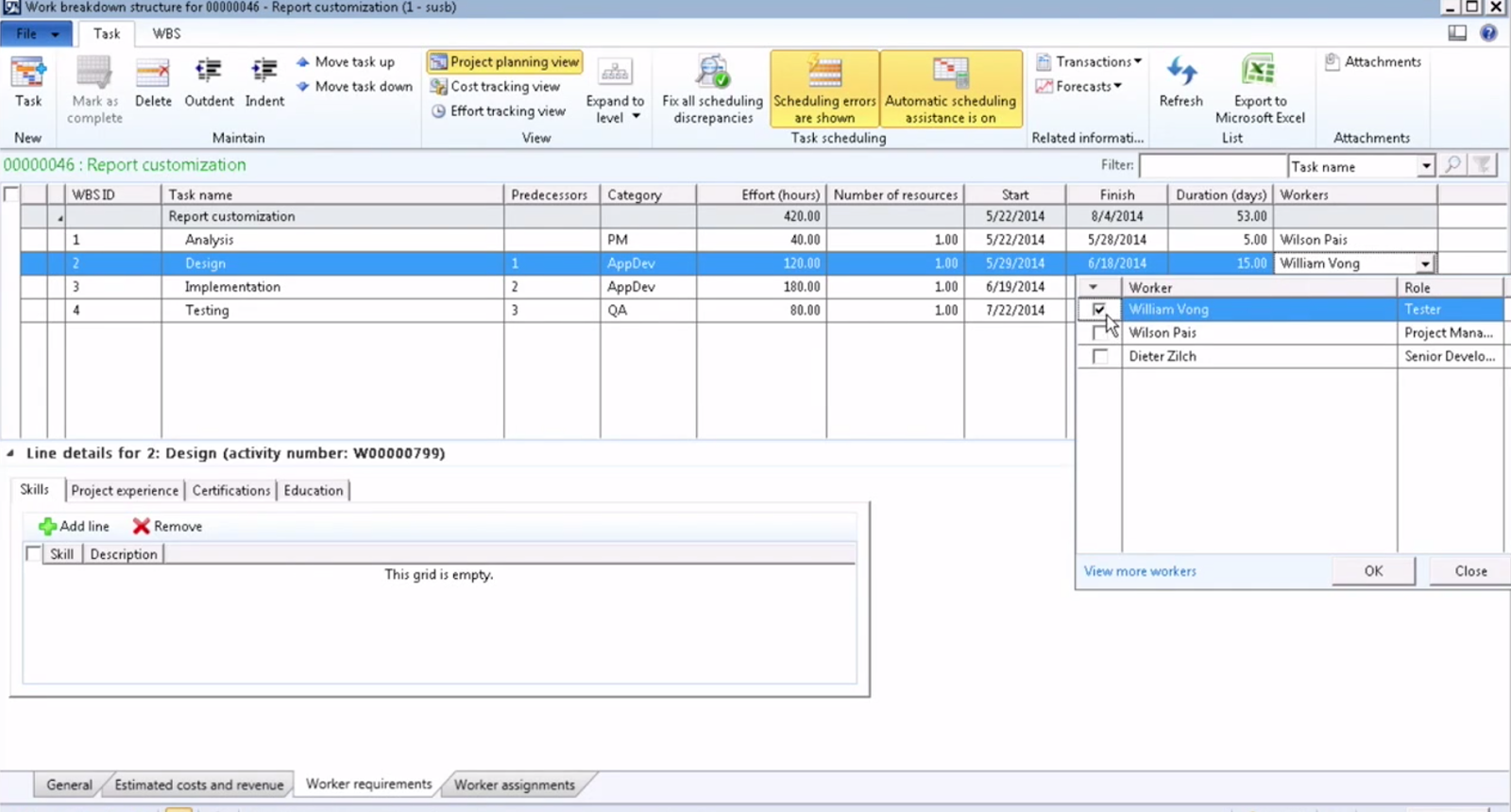
I open up the project plan again and during this period of time, I just have 40 hours, 120 hours, and 180 hours. So, again, the focus here is that the effort hours specified on the tasks will function as the cap, and the capacity of resources will be assigned up to satisfying the effort hours, or the cap. At any point of time, you can also specify a specific qualification that you have on the task here. So you can add other skills that you need.

Part III will cover how can we release resouces from a project and Automatically assign resources on a project.
*This post is locked for comments