






Dynamics GP Trial Balance in Excel using FRx
Views (6250)
 Victoria Yudin
 22,769
 Like
Like Share
Share
 Report
While I work with SQL and Crystal Reports every day, there are some reports that are just easier created elsewhere. One example is a GL Trial Balance that you want to export to Excel. There are many ways of handling this requirement, I like using FRx for it. Below are steps by step instructions on how to set this up, from start to finish it should take no more than 10 minutes:
- Create a new Row format with one line encompassing all your accounts:
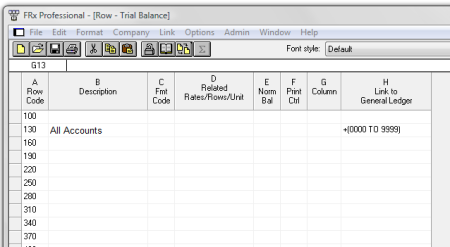

If you have any unit accounts, make sure to exclude them unless you want to see them on the Trial Balance.
- Create a Column format to show the columns you want, here is an example showing the beginning balance, net change and ending balance:


You can do a lot of different things here, for example, I sometimes use a version that will show the net change for each month individually.
- Create a new Catalog and change the following default settings:
- Set Detail level to Financial & Account
- On the Report Options tab check:
- Display rows with no amounts
- Display reports with no active rows
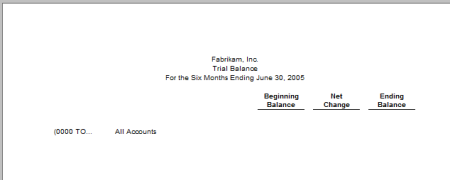
- Generate the report, you will get something like the following in the DrillDown Viewer:
- Now to get this into Excel:
- Go to File > Export > Worksheet File > Formatted Excel
- Select a file name and destination
- On the Export Selection window uncheck Financial report and check Detail (supporting) report
- Click OK and FRx will automatically open Excel with your detailed Trial Balance:

- You can also set this up to print to Excel automatically (skipping the steps above to have to Export from the DrillDown Viewer). To do this:
- Go to the Output tab, then the Output Options tab
- Change the drop-down option to Formatted Excel and pick a destination and the other settings as desired


This was originally posted here.
*This post is locked for comments