




 310
310 Like
Like Share
Share
 Report
Author Note
All content, including samples, images and writings can be found in my GitHub repo.
This specific article appears here.
Revisions
02/12/2023 - Updated link.
Summary
Microsoft Power Apps Canvas Appspromoting a Canvas App as a Featured or Hero app which can be used as communication devices during crisis, internal training, etc. From there the article will discuss other scenarios useful for monitoring Canvas Apps with the Power Apps Administration PowerShell cmdlets. To wrap up, the article will go into activity events taken within the Power Platform.
Featured and Hero Apps
Once your enterprise begins creating Power Apps, one thing users will begin to notice is abundance of apps in your Power Apps environment. The Power Apps Player has functionality to allow users to search for a specific app but knowing what to look for and who published it can be a challenge. By default Power Apps provides views which can help distinguish apps created or favorites by a user.
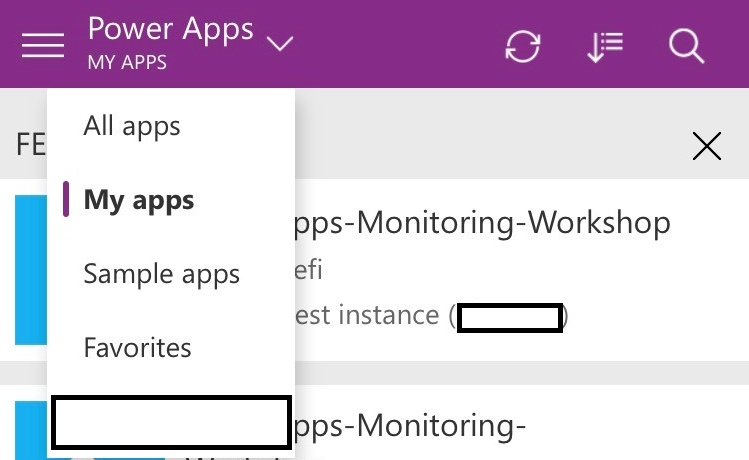
For an enterprise, the ability to quickly create and promote an app is key driver for choosing Power Apps as a platform. In a real world example, consider the COVID-19 crisis. An enterprise may want to push out an app that allows users to check in, provide emergency contacts, or stay up to date on the latest news. An example of such as app is the Crisis Communication Template, developed by Microsoft. Luckily Power Apps provides a mechanism to set an app to be a featured app which will prominently display in a specific view allowing users to quickly find and open the app.
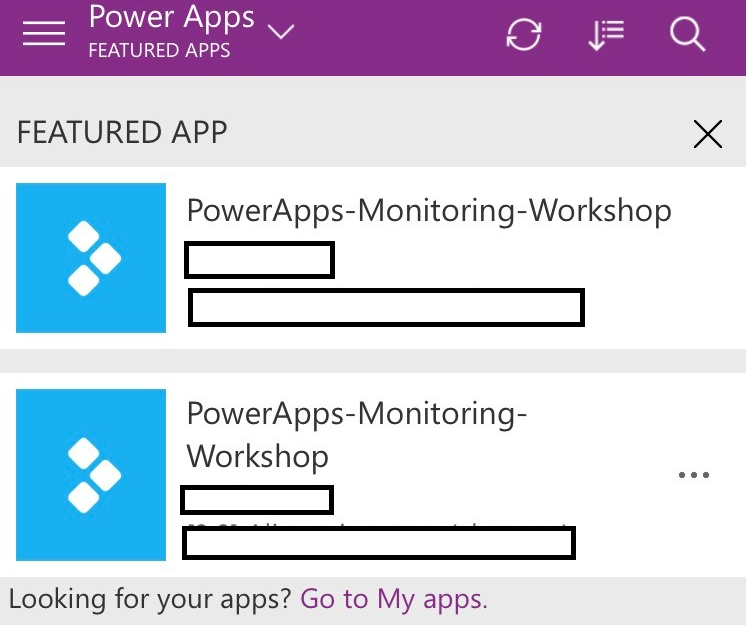
As shown above, multiple featured apps can be added to a list available to all Power Apps users within the organization.
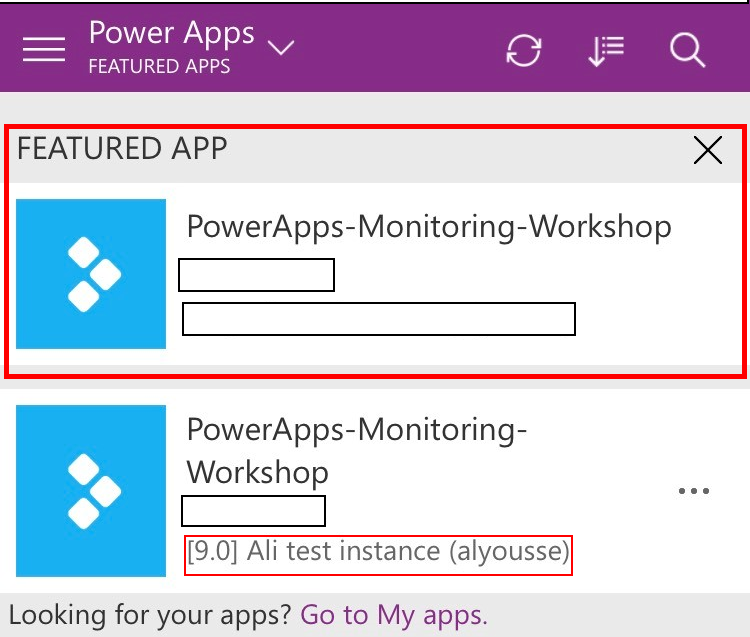
A Hero App, is an app that will be shown at the top of default list for Power Apps. This is also extended to other lists, even the Featured List. The Hero App will also be given the headline "FEATURED APP" to help distinguish it from other apps. As described in Pat Dunn's article, Discoverability in the Enterprise, there can be only one Hero App for an organization. Also detailed in the article are the PowerShell cmdlets needed to create Featured and Hero Apps.
Using PowerShell to create Featured and Hero Apps
To set an app as a Featured or Hero app, two PowerShell cmdlets are required. Before using the cmdlets, the specific modules that contain them need to be downloaded for use. The article, PowerShell support for Power Apps, has step by step instructions of how to get and work with the modules.
Install the Modules
To download the modules as an administrator, use the following command in PowerShell:
Install-Module -Name Microsoft.PowerApps.Administration.PowerShell
If you don't have admin rights, use the following PowerShell command:
Save-Module -Name Microsoft.PowerApps.Administration.PowerShell -Path
Import-Module -Name Microsoft.PowerApps.Administration.PowerShell
Be mindful of the -Path argument if working with automation such as Azure DevOps Pipelines.
Connect to Power Apps
To connect to your Power Apps tenant, run the following command in PowerShell:
Add-PowerAppsAccount
That command will prompt you for credentials. Using the -Username and -Password arguments, a script can run passive authentication without user input.
Get Environment and Canvas App Identifiers
Once connected, you'll need the Canvas App identifier to set as the Featured or Hero App. A quick way for a Power App Maker or Admin to find the values needed are to navigate to the app itself and get the identifiers from the URL. The below URL is from my app I want to set as a Featured App:
https://make.powerapps.com/environments/{Environment ID}/apps/{Canvas App ID}/
This approach works well today if the URL continues to show the Canvas App Identifier. Another approach is to use PowerShell to get the App Id. The Environment Id can be found using the Get-AdminPowerAppEnvironment cmdlet (EnvironmentName) while the App Id can be found in the Get-AdminPowerApp cmdlet (AppName). Combining those values we can now use the Featured and Hero commands in PowerShell.
Set Canvas App as Featured or Hero App
To mark an app as a Featured App use the following PowerShell cmdlet:
Set-AdminPowerAppAsFeatured -AppName {AppName}To mark an app as a Hero App use the following PowerShell cmdlet:
Set-AdminPowerAppAsHero -AppName {AppName}When the commands are run, a response is sent back with a success HTTP code and headers including a request identifier. To confirm the Power App is Featured or Hero, a user can navigate to the Power Apps Player to view.
As an administrator, I'll want tighter control and visibility into these actions as well as other lifecycle events for Power Apps. Capturing when apps are created and destroyed, updated and restored are integral to better understanding usage patterns and ensuring governance is applied. To find out more, refer to Part 2 where we will begin to search the Unified Audit Log for activity and audit logs.
Other Useful Power Apps Administration PowerShell Tasks
The PowerShell module for Power Apps Administration tasks is an extremely useful way to view and take action on environments, apps, flows, connectors and permissions. The PowerShell Support for Power Apps page contains a list of common operations an administrator would find useful for governing an organization's use of the Power Platform and its environments. Some commands I'd like to call out are:
| Command | Description |
|---|---|
| Get-AdminDlpPolicy | Displays all of the Data Loss Prevention Policies |
| Remove-AllowedConsentPlans |
Can be used to remove the ability for uses to create trial licenses. NOTE: It is important to note that when using Remove-AllowedConsentPlans all existing plans of the specified type will be removed from all users in the tenant and will not be recoverable. |
| Set-AdminPowerAppOwner | Changes the owner of a Power App. This is useful for reassigning if someone leave the organization. |
| Set-AdminFlowOwnerRole | Changes the owner of a Power Automate Flow. Again, useful for reassignment. |
| Recover-AdminPowerAppEnvironment | Recover a Power App Environment |
The "Get" cmdlets can all be used for reporting and logging of the current state of an environment. The below command from the examples on the Power Apps PowerShell page shows how to use the OutputFilePath argument to write to a text file.
Get-AdminPowerAppsUserDetails -OutputFilePath '.\adminUserDetails.txt' –UserPrincipalName 'admin@bappartners.onmicrosoft.com'
Consider the use of these commands with techniques discussed in Part 2 of Canvas Apps - Auditing and Activity Logs for additional logging capabilities.
Activity Events for Canvas Apps
What events are audited?
The events audited by the Office 365 Security and Compliance Center allow for administrators to search across multiple services offered including Power Apps. These logs are collected at the SDK layer, meaning one action can actually trigger multiple event logs in the log store. Events collected include app lifecycle actions such as when an app is created, edited or deleted. User actions include launching an app or modifying permissions.
Common Audit Properties
Each audit record includes common properties that can be used to help search or even correlate events together. Fields such as precise time stamps, the specific Canvas App, the operation performed and Identity of the record.
| Field name | Description |
|---|---|
| Date | Date and time of when the log was generated in UTC |
| App Name | Unique Identifier of the Power Apps Canvas App |
| Id | Unique GUID for every row logged |
| Result Status | Status of the row logged. Success in most cases. |
| Organization Id | Unique identifier of the organization from which the log was generated. |
| CreationTime | Date and time of when the log was generated in UTC |
| Operation | Name of operation |
| UserKey | Unique Identifier of the User in Azure AD |
| UserType | The audit type (Admin, Regular, System) |
| Additional Info | Additional information if any (e.g. the environment name) |
The Identity value is key as it can help us better understand a chain of events. Consider the events that take place when promoting an app as a Featured App. Marking an app as featured creates three events:
MarkPowerAppAsFeatured
PublishPowerApp
UpdatePowerApp
The same goes with promoting a Hero app as well as other events such as restoring a Canvas App from a previous version.
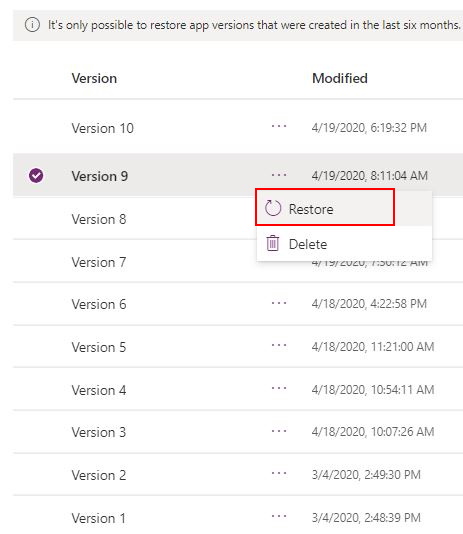
In Part 2, we will cover these events in detail to show how they are connected to paint a broader picture.
List of Events
The table below shows the events captured for Power Apps including life cycle events of app, user modifications and when a user launched a specific Canvas App. For an up to date reference check out the Activity logging for Power Apps Audit Schema document.
| Event | Description |
|---|---|
| Created app | When the app gets created for the first time by a maker |
| Launched app | When the app gets launched |
| Marked app as Featured | Every time the app is marked as Featured |
| Restored app version | The version of the app when restored |
| Edited app | Any updates made to the app by the maker |
| Published app | When the app is published and is now made available to others in the environment |
| Edited app permission | Every time a user's permissions to the app is changed |
| Deleted app | When the app is deleted |
| Marked app as Hero | Every time the app is marked as Hero |
| Deleted app permission | Every time a user's permissions to the app is removed |
Life Cycle Events
Life cycle events include when a maker creates an app, edits and publishes an app. Other events include restoring an app to a prior version as well as the previously mentioned promoting to a featured or hero app.
Launched Event
The Launched event is a highly asked for event that captured the precise time that a user logins into an app. This audited event allows admins to see the user's Azure identifier and which app they logged into. Not shown is the user's session identifier but this can be found within the specific Canvas App run which will be discussed later.
Edited App Permission Event
The Edited App Permission event is of interest as it shows when and who shared an app. The permission level (CanEdit or CanView) given, the owner who shared and when they shared the app is audited.
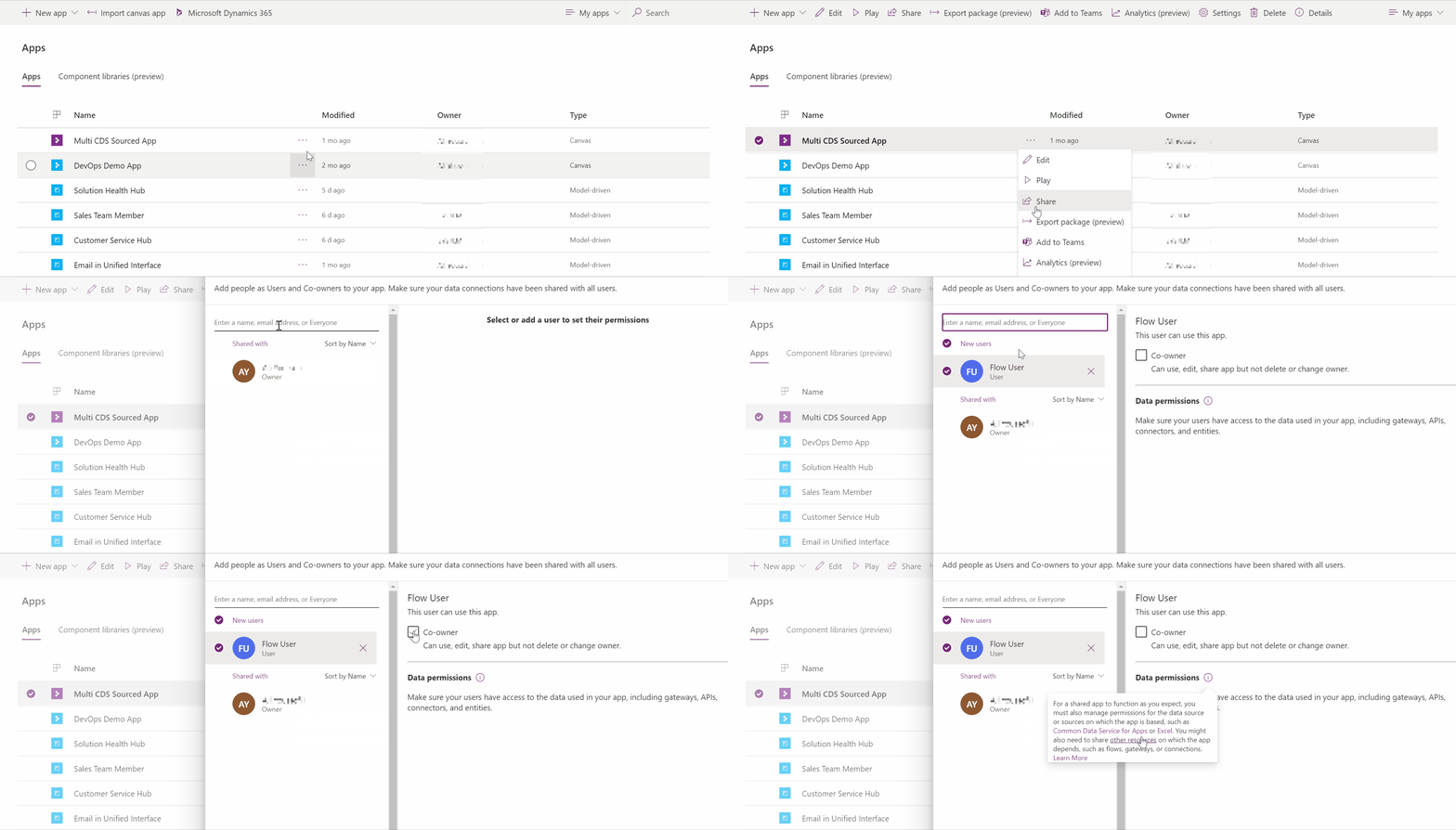
Resources can be shared and specifically for the Common Data Service connector, security roles can be assigned for use with the connector, which will also assign the security role to the user within the environment.
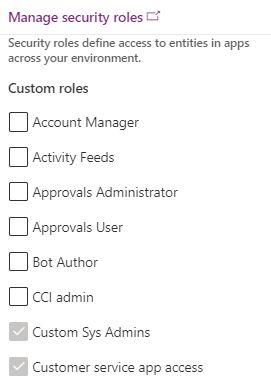
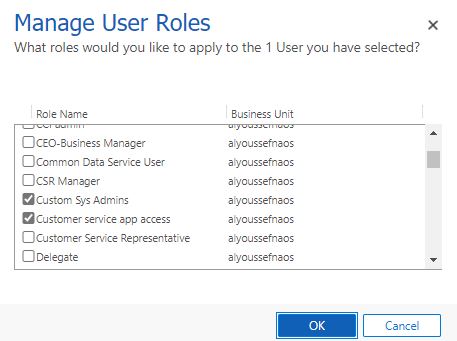
In the image above, I gave the user the "Custom Sys Admins" security role for the Common Data Service connector. Navigating to the user roles within the Model Driven App I can see the user now has the same security role. Consider the implications before adding a security role to a Canvas App user. For further reference, check out the Security Model for Common Data Service.
Next Steps
In this article we have covered getting started with the Power App Administration PowerShell module and cmdlets for Featured and Hero App promotion. Continue exploring the capabilities of this module as it pertains to your Power Apps Canvas App administrative operations.
We have also covered the what activities are currently captured for Power Apps Canvas Apps. Discussed in Part 2 are techniques to view the audit logs within the Microsoft Purview Compliance Portal as well as automated techniques.
This article is designed to supplement the article on Power App Analytics, which provides more of an all up view of Canvas App usage. Combining these two documents, an administrator can now track analytic metrics as well as the events that define those metrics.
If you are interested in learning more about specialized guidance and training for monitoring or other areas of the Power Platform, which includes a monitoring workshop, please contact your Microsoft representative for further details.
Your feedback is extremely valuable so please leave a comment below and I'll be happy to help where I can! Also, if you find any inconsistencies, omissions or have suggestions, please go here to submit a new issue.
Index


*This post is locked for comments