




 22,769
 Like
Like Share
Share
 Report
A few versions ago Microsoft introduced the ability to enter a negative payment (Cash Receipt) for a customer in Microsoft Dynamics GP. I have now worked with a number of customers that have these negative payments sitting on customer accounts who needed help getting rid of them. Below is what this typically looks like when you’re looking at the customer’s transactions:
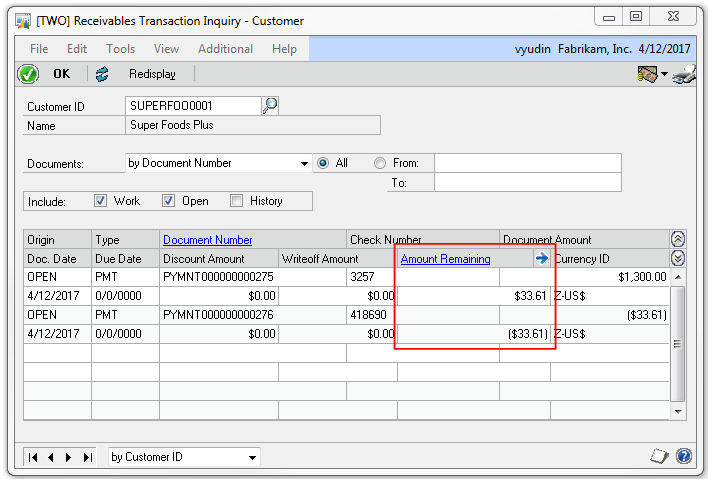
The customer balance is zero, but they have these two transactions are sitting there unapplied – kind of messy, as they print out on statements and you may not want customers to see this. Plus if you do any kind of reporting on unapplied transactions, these will keep showing up on there. Unfortunately, as simple as it seems it should be to apply these to each other, you cannot. Remember in Dynamics GP you can only apply a credit transaction (like a Payment, Credit Memo or Return) to a debit transaction (like an Invoice or Debit Memo). You cannot apply a payment to a payment, nor can you apply an invoice to an invoice. So, what to do?
Well, first get yourself a cup of whatever beverage you like drinking when you’re doing tedious, mind numbing work, then follow the steps below. I have added navigation paths and screenshots for each step to illustrate (click on each screenshot or gallery to see a bigger, clearer version). Also, I am using the same document and GL date for all of these, I would recommend you do the same. In fact, it might be easier to change your GP user date upfront if you are looking to use something other than the current date.
- Create a Debit Memo for more than the amount of the negative payment amount. I usually double it and round up to be safe. Debit AR and credit a Suspense account. (Transactions | Sales | Transaction Entry)


- Create a Credit Memo for a penny less than the Debit Memo in step 1. Debit the same Suspense account that you used in step 1 and credit AR. (Transactions | Sales | Transaction Entry)


- Post the Debit Memo and Credit Memo. (Transactions | Sales | Receivables Batches)

- Apply the Credit Memo from step 2 to the Debit Memo in step 1. (Transactions | Sales | Apply Sales Documents)

- Apply the negative payment to the Debit Memo. (Transactions | Sales | Apply Sales Documents)

- Apply the positive payment to the Debit Memo. This will leave a penny balance on the Debit Memo. (Transactions | Sales | Apply Sales Documents)

- Change the writeoff account for underpayments to Suspense (or the account you used for steps 1 and 2). You can either change this at the customer level (Cards | Sales | Customer | Accounts ) or the company level, if you are doing this for multiple customers at the same time (Microsoft Dynamics GP | Tools | Setup | Posting | Posting Accounts | Sales).


- Make sure writeoffs are allowed for this customer. (Cards | Sales | Customer | Options)

- Use Sales Write Off routine to write off the remaining $0.01. You can be very specific here and only choose to write off the one customer/transaction desired. If you have been using a date other than your GP user date for the transactions in the steps above, you may want to change the GP user date now to match what you used, since this routine will run as of the GP user date. (Microsoft Dynamics GP | Tools | Routines | Sales | Write Off Documents)


- (Optional) Change the writeoff account back on either the customer or the posting account setup.


That should do it. While the process is quite messy, your customer now does not have any transactions with unapplied amounts:

Another benefit of this process? After going through it a few times you will never want to enter another negative payment. 
Filed under: Dynamics GP, GP 10.0, GP 2010, GP 2013 Tagged: Dynamics GP, featured, Receivables


*This post is locked for comments