




 401
401 Like
Like Share
Share
 Report
In my previous articles, we have discussed the structure of EFT file and how to generate ABA file in Business Central.
Important step in EFT payments processing is to set Vendor Bank Account Information correct. Let's take a look at that today!
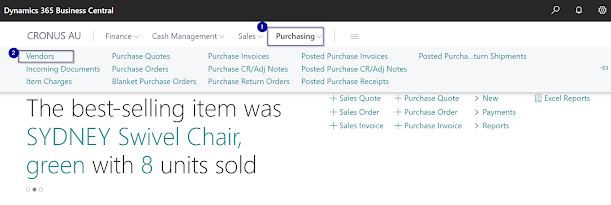
1. Please navigate to Vendors under Purchasing and open relevant Vendor Card:
2. On Vendor Card, navigate down to Payments Tab to enable EFT payment field. Under Vendor Bank Account Code, please click on the drop down arrow to select +New for a new Vendor Bank Account.


Transfer Tab.

Now, you are all set to run EFT payments in Dynamics 365 Business Central!
Please comment below if there are any questions that I can help.
#businesscentral #msdyn365bc #erponsulting #technologythesedays #microsoft #dynamics365businesscentral #eft #abafile #bankingbusinesscentral #bankaccountsetup
*This post is locked for comments