




 1,229
1,229 Like
Like Share
Share
 Report
If you ever used DIXF/DIEF for AX 2012 R3 you would have noticed a host of odd error messages. Most of the time dixf is not installed or the service is not running.
Below is a common example of one of these errors:
“Could not load file or assembly ‘Microsoft.Dynamics.AX.DMF.PreviewGrid, Version=6.2.0.0, Culture=neutral, PublicKeyToken=31bf3856ad364e35’ or one of its dependencies. The system cannot find the file specified.”
Possible issues:
- DIXF is not installed
- DIXF is installed but service not working
- Check if the file in the processing group is available
- Check if the folder where the file is store is accessible by the AOS account
Lets get into the details for each of the above:
1) DIXF is not installed: Verify that the Data Import/Export Framework DLLs are present in C:\Program Files (x86)\Microsoft Dynamics AX\60\Client\Bin folder. You should see the following:
- Dynamics.AX.DMF.PreviewGrid.
- Dynamics.AX.DMF.ServiceProxy.dll
- DMFconfig.xml
- Dynamics.AX.DMF.DriverHelper.dll
Possible Resolution: Copy the DLLs from the installation location (C:\Program Files\Microsoft Dynamics AX 2012 Data Import Export Framework Client Component) to the C:\Program Files (x86)\Microsoft Dynamics AX\60\Client\Bin folder.
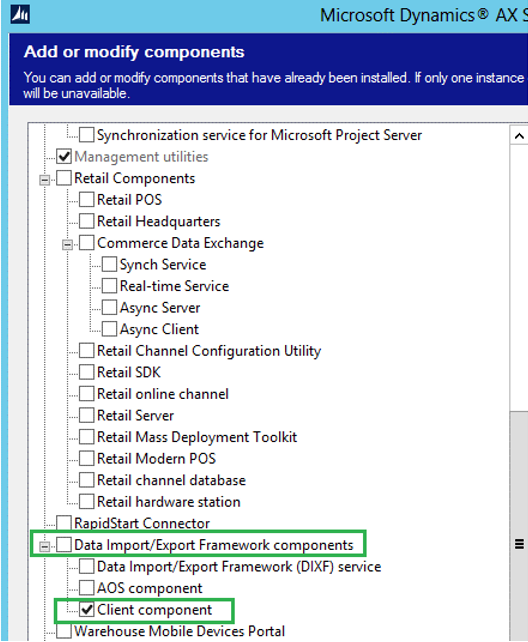
If you can’t find it then just reinstall DIXF using the below options in the installation setup. Also reinstall if after you copy the dlls but it still doesn’t work just to be safe.
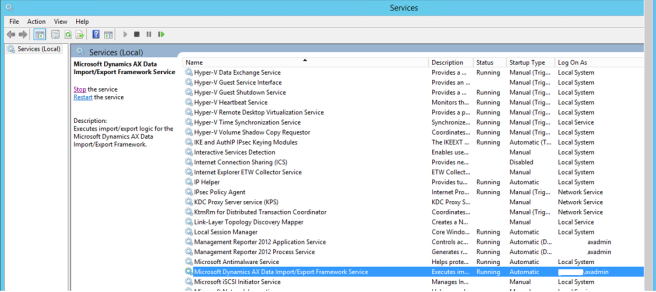
2) DIXF is installed but service not working: Connect to server and check the windows services and make sure that the highlighted Data import/export service is working.
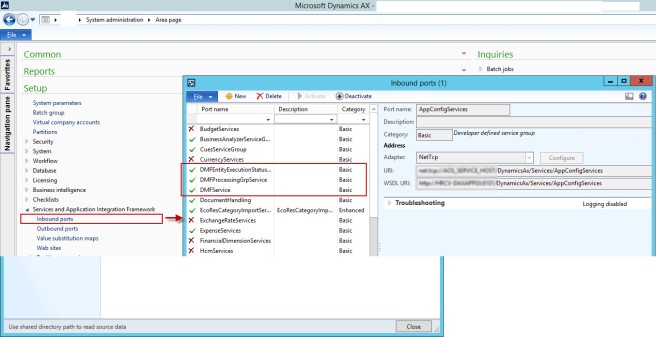
Navigate to the System admin–>Setup–>Services and Application integration Framework–>Inbound ports
Make sure the DMF services have a check mark against it, if not click on the record and select the activate button on top.
3) Check if the file in the processing group is available: Make sure physically the same file name is available at the folder location specified.
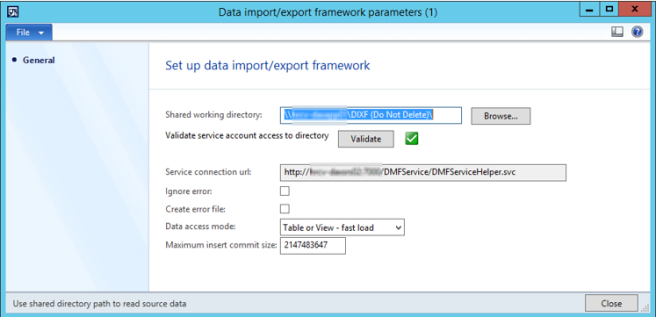
4) Check if the folder where the file is store is accessible by the AOS account: In AX navigate to the Data import export framework module–>Setup–>Data import/export framework parameters.
In this form make sure there is a directory and click validate to make sure if the folder is accessible by the AOS account.
If you have tried all of the above and still it hasn’t worked n some rare cases the installation might have got corrupted so I suggest uninstalling and reinstalling as mentioned in step1. Happy importing…


*This post is locked for comments