web
You’re offline. This is a read only version of the page.
close
Skip to main content

Announcements

No record found.

News and Announcements icon
Community site session details

Community site session details

Session Id :
Dynamics 365 Community / Blogs / Hardik’s Dynamics Dojo / Outbound Integrations using...

Outbound Integrations using Business Events

HardikPatel523 Profile Picture HardikPatel523 234

Because integrations are not only about receiving data 😄

We already talked about how external systems can send data into Dynamics 365 using Custom Services.
If you missed that one, here’s the blog:
But now comes the other side of the story.
What if SCM itself wants to say:
Hey… price changed 👀”
“Customer order updated 🚨”
“Somebody changed SalesPrice at 6 PM on Friday… good luck.”

And that is exactly where Business Events enter the scene.

The Problem Nobody Notices Initially

Imagine this.
Your SCM system has:
  • Thousands of sales orders
  • Multiple integrations
  • Pricing engines
  • External commerce systems
  • Power Platform flows
  • Analytics systems
Now somebody changes:
  • Sales Price
  • Quantity
  • Discount
And your external system still thinks the old price is valid.
Congratulations 🎉
You now have:
  • Wrong invoices
  • Angry customers
  • Integration mismatch
  • That one support ticket marked as “URGENT”
The biggest problem?
SCM knows the data changed.
But external systems do not.
That gap is dangerous.

So… What are Business Events?

Business Events are SCM’s way of broadcasting:
“Something important happened.”
 
Instead of external systems continuously asking for updates, SCM pushes notifications automatically.
Simple.
Think of it like:
  • YouTube notification bell
  • WhatsApp message
  • Delivery app update
SCM becomes event-driven.
And honestly… event-driven systems feel much more modern compared to “run batch every 5 minutes and pray.”

Real-Life Analogy 🛵

Imagine a warehouse manager.
Without Business Events:
Every store manager keeps calling warehouse every 2 minutes:
    “Any stock update?”
    “Any stock update now?”
    “Now??” 
Chaos.
With Business Events:
Warehouse proactively sends:
    “Stock updated.”
    “Shipment dispatched.”
    “Price changed.”
Cleaner. Faster. Smarter.
Less drama for everyone.

Where Business Events are Super Useful

Business Events are amazing for:
  • Sales order updates
  • Inventory changes
  • Shipment confirmations
  • Production order status
  • Customer creation
  • Pricing updates
  • Warehouse operations
Basically:
“If another system should know immediately… use Business Events.”

Our Scenario (Example)

We want SCM to send:
  • SalesId
  • ItemId
  • Quantity
  • SalesPrice
Whenever Sales Price changes on SalesLine
External systems can then:
  • Update ecommerce pricing
  • Trigger approvals
  • Notify analytics systems
  • Sync downstream applications

Business Event Architecture (Simple Version)

Here’s the flow:

SalesLine Updated
       ↓
Business Event Triggered
       ↓
SCM Packages Event Data
       ↓
Event Sent to Endpoint
       ↓
Power Automate / Azure / External System Consumes It

Nice and clean.
No polling.
No unnecessary APIs.
No “did data change?” loops.

Step 1 — Create the Business Event Contract

The contract defines: “What data should go outside SCM?” 
Example:
[DataContract]
public final class SalesPriceChangedContract extends BusinessEventsContract
{
    private SalesId   gSalesId;
    private ItemId    gItemId;
    private Qty       gQty;
    private AmountCur gSalesPrice;

    [DataMember('SalesId')]
    public SalesId parmSalesId(
        SalesId _salesId = gSalesId)
    {
        gSalesId = _salesId;
        return gSalesId;
    }

    [DataMember('ItemId')]
    public ItemId parmItemId(
        ItemId _itemId = gItemId)
    {
        gItemId = _itemId;
        return gItemId;
    }

    [DataMember('Qty')]
    public Qty parmQty(
        Qty _qty = gQty)
    {
        gQty = _qty;
        return gQty;
    }

    [DataMember('SalesPrice')]
    public AmountCur parmSalesPrice(
        AmountCur _salesPrice = gSalesPrice)
    {
        gSalesPrice = _salesPrice;
        return gSalesPrice;
    }

    protected void new(
        SalesLine   _salesLine)
    {
        gSalesId        = _salesLine.SalesId;
        gItemId         = _salesLine.ItemId;
        gQty            = _salesLine.SalesQty;
        gSalesPrice     = _salesLine.SalesPrice;
    }

    public static SalesPriceChangedContract constructFromSalesLine(
        SalesLine   _salesLine)
    {
        return new SalesPriceChangedContract(
                    _salesLine);
    }

}
Very similar to packing a courier box 📦
You decide:
  • What goes inside
  • What external systems receive

Step 2 — Create the Business Event Class

Now we create the actual Business Event.
[BusinessEvents(classStr(SalesPriceChangedContract), 'SalesPriceChanged', 'SalesPriceChanged', ModuleAxapta::SalesOrder)]
class SalesPriceChangedBusinessEvent extends BusinessEventsBase
{
    private SalesLine   gSalesLine;
    
    private SalesLine parmSalesLine(
        SalesLine   _salesLine = gSalesLine)
    {
        gSalesLine = _salesLine;

        return gSalesLine;
    }

    [Wrappable(true)]
    public BusinessEventsContract buildContract()
    {
        return SalesPriceChangedContract::constructFromSalesLine(this.parmSalesLine());
    }

    protected void new(
        SalesLine           _salesLine)
    {
        this.parmSalesLine(_salesLine);
    }

    public static SalesPriceChangedBusinessEvent constructFromSalesLine(
        SalesLine               _salesLine)
    {
        return new SalesPriceChangedBusinessEvent(
                                _salesLine);
    }
}
This class basically says: “Hey SCM, whenever triggered, send this data outside.”

Step 3 — Trigger the Event When Price Changes

Now comes the important part.
We only want event when Price actually changes
Not every update.
Because sending unnecessary events is how integrations become “creative problems.”
Example:
[ExtensionOf(tableStr(SalesLine))]
final class SalesLine_Extension
{
    public void update()
    {
        AmountCur oldPrice = this.orig().SalesPrice;

        next update();

        if (oldPrice != this.SalesPrice)
        {
            SalesPriceChangedBusinessEvent::constructFromSalesLine(this).send();
        }
    }
}

Now SCM sends event only when: Old price ≠ New price
Simple and efficient.

Important Setup in Dynamics

After deployment:
Go to:
System administration
→ Setup
→ Business events
→ Business events catalog


Now go to the Business Events Catalog.
You still might not see your newly created Business Event there immediately.
Classic “I deployed it but where did it go?” moment 😄
To refresh the list, click on: Manage → Rebuild Business Event Catalog
This forces SCM to reload and scan all available Business Events again. After the rebuild completes, your event should appear in the catalog.


Now to activate it, you need an endpoint.

Setting Up Azure Endpoint for Business Events ⚙️

Before SCM can send Business Events outside, we need an endpoint where events will be delivered.
For this setup, we will use:
- Azure Service Bus
- Queue
- Azure Key Vault
- Azure App Registration

Step 1 — Create Service Bus Namespace

Go to: Azure Portal
→ Service Bus
→ + Create
Fill required details and select: Pricing Tier = Standard
After creation, go to: Shared Access Policies
→ RootManageSharedAccessKey
Copy the: Primary Connection String
Save it for later use.

Step 2 — Create Queue

Inside the Service Bus Namespace: Queues
→ + Queue
Enter queue name and create it.
Example:
sales-price-events
Save the queue name.

Step 3 — Create Azure Key Vault

Go to: Key Vaults
→ + Create
Create a new Key Vault and copy its: DNS Name
Now go to: Secrets
→ Generate/Import
Store the Service Bus connection string as a secret.

Step 4 — Create Azure App Registration

Go to: Azure Active Directory
→ App Registrations
→ New Registration
Create a new app.
Then go to: Certificates & Secrets
→ New Client Secret
Create a secret and immediately copy its value.
Also copy: Application (Client) ID from the Overview page.

Step 5 — Grant Key Vault Access

Go to: Key Vault
→ Access Policies
→ Add Access Policy
Grant:
- Get
- List
permissions for secrets to your registered Azure App.
Save the policy.
That’s it ✅
Your Azure endpoint setup for Business Events is ready.
Now to back to Business event catalogue, and then endpoints and click on New.


For our example we will use Azure Service Bus Queue. Click on Next.
Fill the required information from Azure portal that we created in earlier step


Important Note : Make sure Batch Management Services is running in your system.
Now activate the business event:
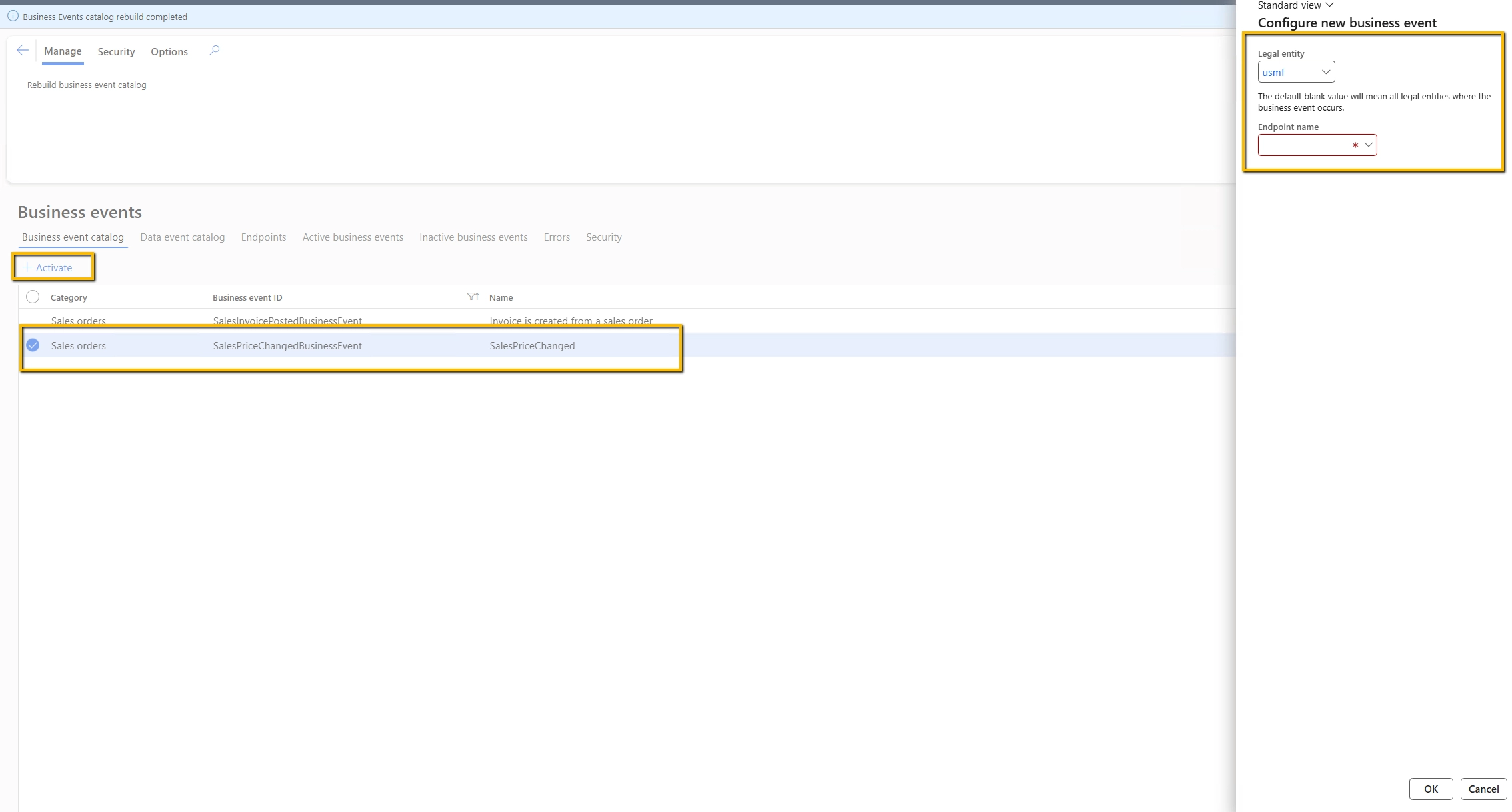


Viewing the Messages Sent from Dynamics 365 SCM 📩

To verify whether SCM is successfully sending Business Events, go to the Service Bus Explorer in Azure portal and click on Peek from Start.
This will display all the messages currently available in the queue.
When you select an individual message, the complete JSON payload sent from SCM will be visible.
For our Sales Price Change example, the message would look something like this:

{
  "SalesId":"SO-10245",
  "ItemId":"A1001",
  "Qty":25,
  "SalesPrice":1499.99
}

This is the exact payload that external systems like Power Automate, Azure Functions, middleware, or ecommerce platforms can consume and process.

Real Developer Scenario 😄

A developer once triggered Business Event on every SalesLine update.
Result:
  • 40,000 unnecessary events
  • Integration queue explosion
  • Support calls
  • One exhausted DevOps engineer
Moral of the story: Trigger events only for meaningful changes.
Your infrastructure team will silently thank you.

Traditional ApproachBusiness Events Approach
Batch jobs every few minutesReal-time notifications
Poll database repeatedlyPush only when needed
Delayed updatesImmediate communication
Heavy database loadLightweight
Harder scalingCleaner architecture
“Hope it synced”Event traceability

Junior vs Senior vs Architect Thinking

RoleThinking
Junior Developer“Event is sending successfully.”
Senior Developer“What if duplicate events happen?”
Architect“How will this scale for 10 million events?”
That mindset shift changes careers.

Debugging Tips from Real Projects

Check Business Event Batch Jobs

Sometimes event is correct…
but batch processing is stopped.
Classic SCM moment.

Validate Endpoint Independently

Do not immediately blame SCM.
Sometimes:
  • Azure endpoint is down
  • Authentication expired
  • Firewall blocked request
And developers spend 2 hours debugging innocent X++ code 😄

Final Thoughts

Business Events are one of the cleanest ways to build modern outbound integrations in Dynamics 365 SCM.
Key takeaways:
  • SCM can publish real-time updates
  • Avoid polling architecture
  • Send only meaningful events
  • Keep payloads lightweight
  • Think about retries and scalability
  • Event-driven architecture scales beautifully
Great developers build features.
Smart developers build reliable integrations.
But the best architects build systems that communicate without being asked.

Comments
