




 3,569
3,569 Like
Like Share
Share
 Report
What is a Rich Text Editor control? A Rich Text Editor control will allow you to enter formatted text and the ability to include images with minor effort where the input/output is HTML. It will enhance the user experience and increase productivity.
The below steps will show you how to enable the Rich Text Editor control for multiline text fields in Dynamics 365 form.
- In the form customizations, open the properties of a multiline text field
- Go to Controls tab > Add control
- Scroll down, and select Rich Text Editor Control
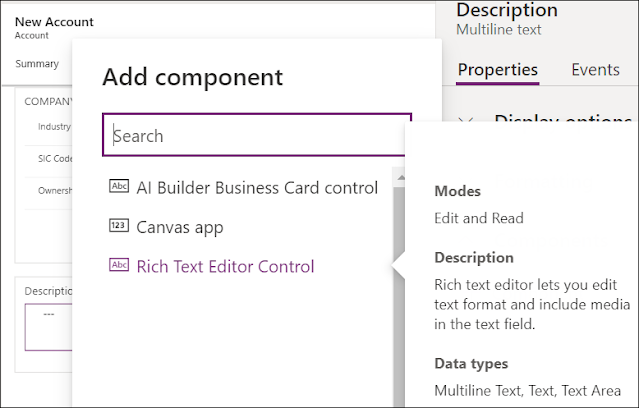
- Click OK, Save, then publish
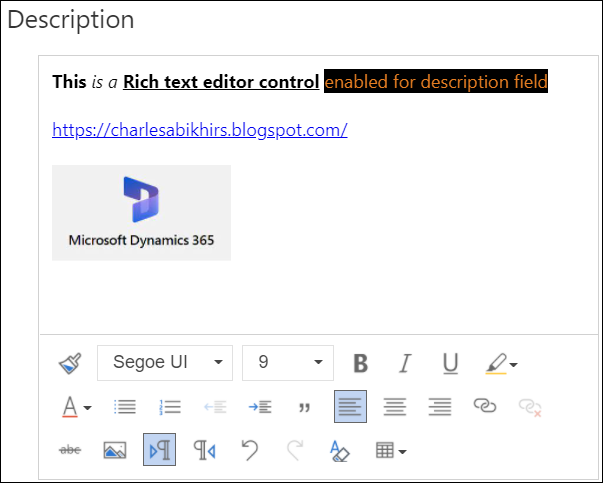
- Once published, the user can now format the text in the field and add images as well
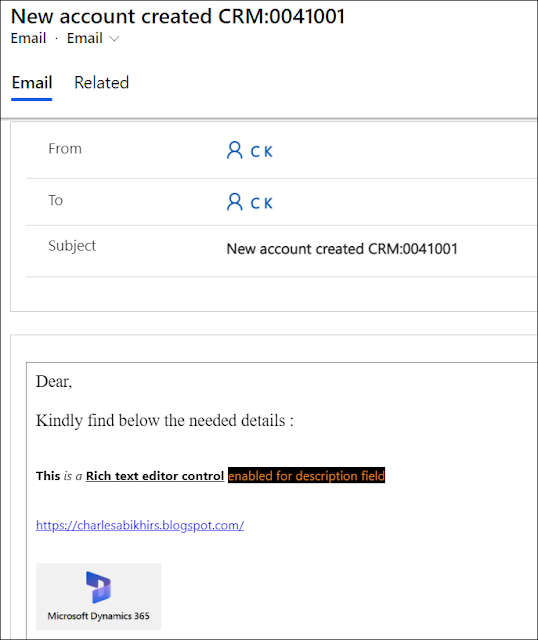
- If you are using this field in an email content sent from a workflow, the format will be kept as is
Bonus Tips:
- Previously, you won't be able to disable this field in JavaScript; however, it is possible now
- The format will get lost in Word Template and you need to rebuild it as needed
- If you disable an already enable Rich Text Editor, the data inside the fields will be displayed as HTML tags
- You can use custom Rich Text Editor by entering a JSON file as a web resource file and referencing to this web resource relative path
For more user experience and enhancements ideas, you can check this link for some custom controls that can be used like:
Hope This Helps!
*This post is locked for comments