







Cascading Form Fields In D365 Marketing
 Megan V. Walker
 1,841
Most Valuable Professional
1,841
Most Valuable Professional
 Like
Like Share
Share
 Report
There are so many cool features in the Dynamics 365 Marketing App, some are significant sections of the app with major functionality while others are just neat little things that make your life easier. Using optionsets (yes, still optionsets in Marketing, not choice(s)!) in your Marketing Forms is really easy to do. Create a form field, then add it to your form. You can show it as a dropdown list or a set of radio buttons. Did you know you can use them as cascading form fields? It’s not that new, but is often a lesser-known or forgotten about feature. Let’s take a look!
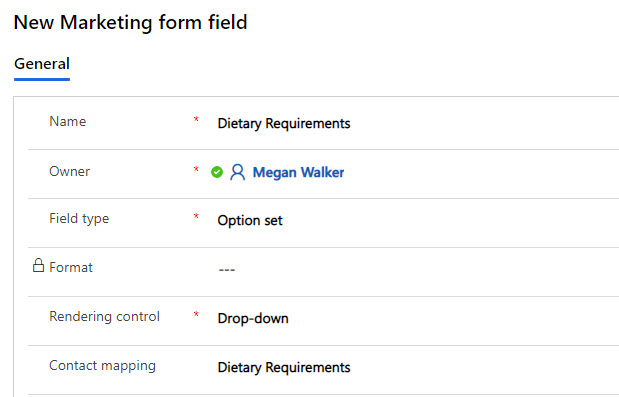
You (or your System Administrator) must have first added a Choice field to a table (entity) in your environment. In this example we will look at two fields, one asking if someone has any dietary requirements, then a second one asking which menu item they would like to select. Not all meals should be available for the different dietary requirements, so we will link the two fields together and determine which values should be available in the Menu Selection field once the Dietary Requirements value has been selected. Here we have our first field that has been set up as a Form Field in the Marketing App.
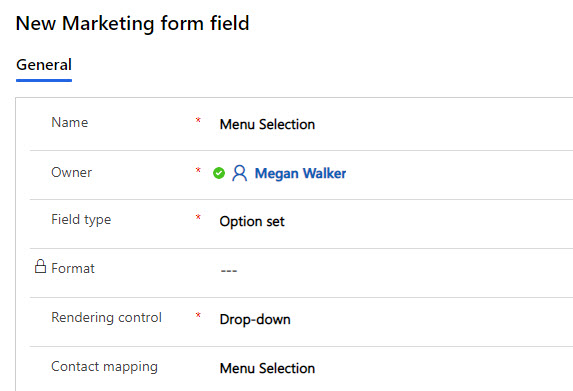
And we’ve got the same for the second field.
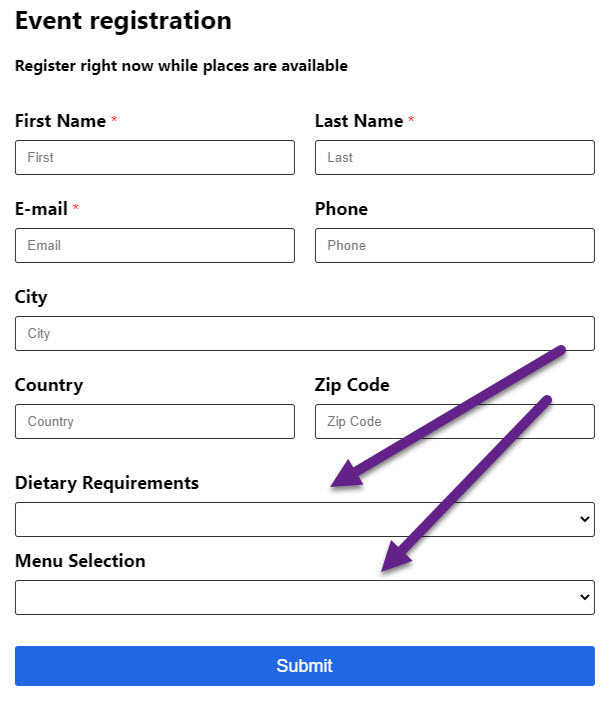
Now we add both fields to our Marketing form.
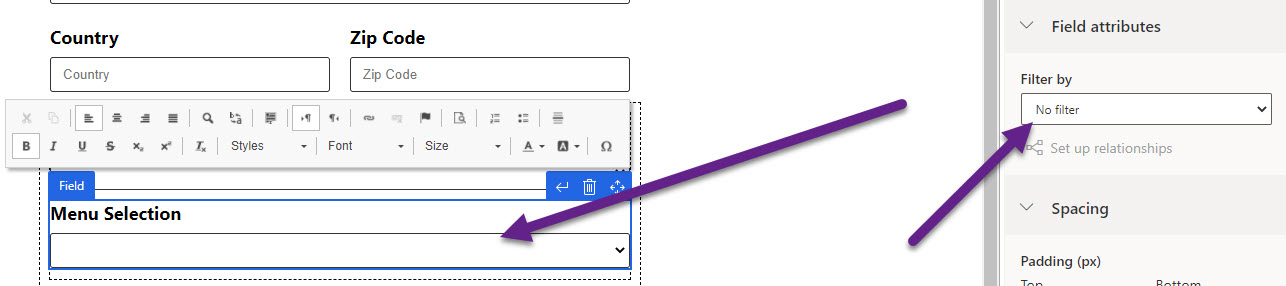
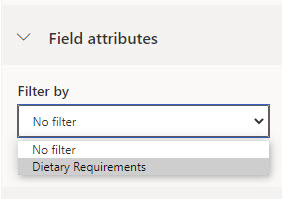
Once you have both fields added, you’ll need to click on the second field, which will become the child field which will link back to the first, or parent field. You’ll see a section appear called Field attributes. Click on the dropdown for Filter by.
Then you’ll see the first optionset field available in the list. Go ahead and select that one.
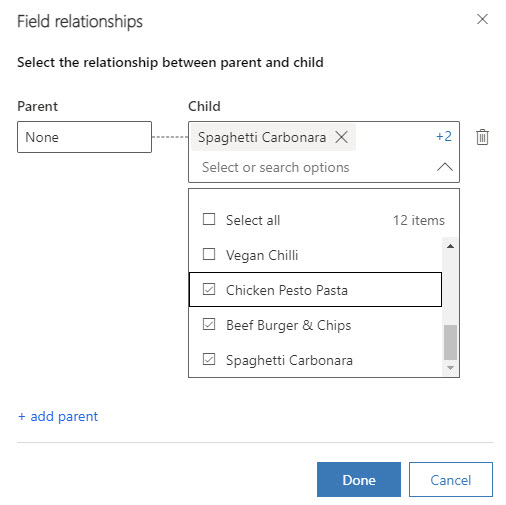
Here is where we will define the relationship between the two fields. The parent will show all of the values from the first field. Then on the right, in the Child box, select all the values that relate to the value from the Parent.
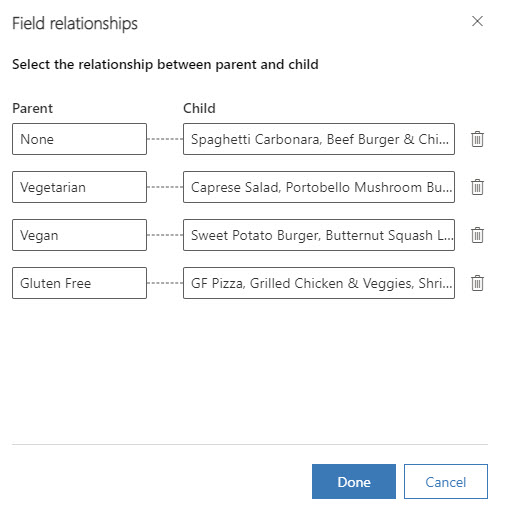
We keep going until they have all been mapped, then click Done.
Now when someone completes the form, they can pick their Dietary Requirements from the first drop down.
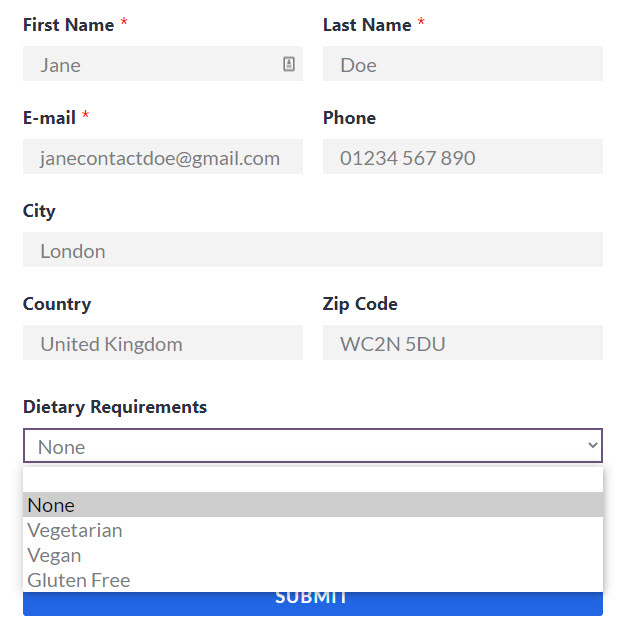
This will then filter the second dropdown and only show menu selections available for the dietary requirements they selected. Simple to set up, and a smooth user experience for the person filling out the form!

This was originally posted here.
*This post is locked for comments