




 21
21 Like
Like Share
Share
 Report
Do you know, that Microsoft Copilot Studio is going to allow you to integrate with Microsoft Entra Agent Id?
Alright, let me humour you.
Agent identities bring identity governance and visibility to agents, enabling your organization to build, discover, manage, and secure agent identities on a unified platform across all services.
When this feature is enabled, agents created in Copilot Studio are automatically linked to an agent identity, which can be viewed and managed in the Microsoft Entra admin center. You can configure how agent identities are applied at the environment level for Copilot Studio agents in the Power Platform admin center.
All authentication activities are logged in Entra ID and are accessible through the Microsoft Entra admin center. When the first agent identity is created in an environment after enabling this setting, a blueprint named Microsoft Copilot Studio agent identity blueprint is added to your tenant. Along with this, an agent identity blueprint principal is created.
This principal is essential because it holds the privileges required to create agent identities and agent users within the tenant.
Enabling Entra Agent Identity for Copilot Studio
When you enable the Entra Agent Identity for Copilot Studio setting in the Power Platform admin center, every agent created in Copilot Studio is automatically assigned an agent identity. This identity ensures secure authentication and governance for agents, and it can be managed alongside other identities in the Microsoft Entra admin center, providing a unified approach to identity management.
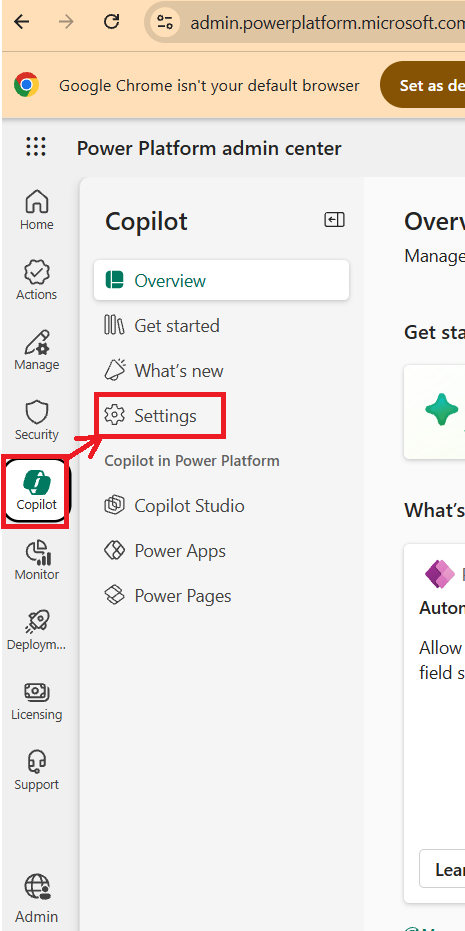
From the list that bubbles up, under the Copilot Studio section, select Entra Agent Identity for Copilot Studio.
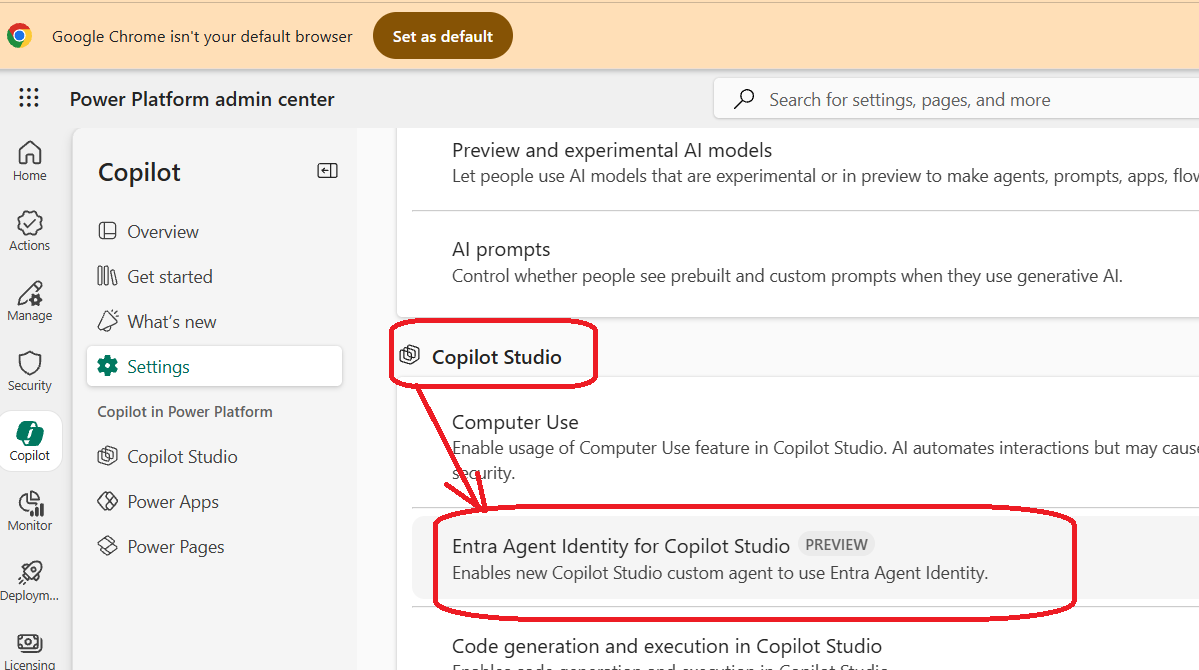
From here, select the environment where you want to enable the identity >> Edit setting >> Click/select On:

Click Save.

Click on Advanced from here:
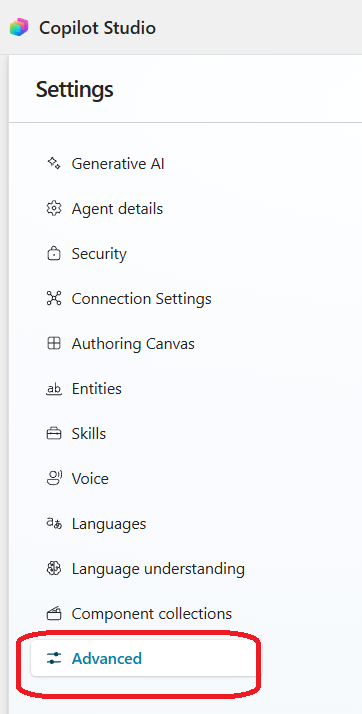
Under the metadata >> you can retrieve all the details of the agent:

And you could see the agent identity details:

Which you can visualize by visiting Azure Portal >> App registration >> app details:

The highlighted one is the one which we saw in our Copilot Studio Agent.
Alright, let me humour you.
Agent identities bring identity governance and visibility to agents, enabling your organization to build, discover, manage, and secure agent identities on a unified platform across all services.
When this feature is enabled, agents created in Copilot Studio are automatically linked to an agent identity, which can be viewed and managed in the Microsoft Entra admin center. You can configure how agent identities are applied at the environment level for Copilot Studio agents in the Power Platform admin center.
All authentication activities are logged in Entra ID and are accessible through the Microsoft Entra admin center. When the first agent identity is created in an environment after enabling this setting, a blueprint named Microsoft Copilot Studio agent identity blueprint is added to your tenant. Along with this, an agent identity blueprint principal is created.
This principal is essential because it holds the privileges required to create agent identities and agent users within the tenant.
Enabling Entra Agent Identity for Copilot Studio
When you enable the Entra Agent Identity for Copilot Studio setting in the Power Platform admin center, every agent created in Copilot Studio is automatically assigned an agent identity. This identity ensures secure authentication and governance for agents, and it can be managed alongside other identities in the Microsoft Entra admin center, providing a unified approach to identity management.
Why Enable Agent Identity?
Turning on this setting helps:- Improve security by giving each agent a unique identity.
- Simplify governance and compliance through centralized identity management.
- Enable visibility and control over authentication activities in Entra ID.
Prerequisites
You must be having Power Platform tenant admin or Environment admin roles.How to do it
In the Power Platform admin center, go to the Copilot tab on the side bar, then select Settings.From the list that bubbles up, under the Copilot Studio section, select Entra Agent Identity for Copilot Studio.
From here, select the environment where you want to enable the identity >> Edit setting >> Click/select On:
Click Save.
Retrieve Agent identity details
Let’s go to Copilot studio >> Select your environment >> Agents tab >> select the Agent >> click on the settings:Click on Advanced from here:
Under the metadata >> you can retrieve all the details of the agent:
And you could see the agent identity details:
Which you can visualize by visiting Azure Portal >> App registration >> app details:
The highlighted one is the one which we saw in our Copilot Studio Agent.
*This post is locked for comments