




 2,863
2,863 Like
Like Share
Share
 Report
In this series of blog posts, I’m going through the steps to integrate Dynamics 365 Portals and Dynamics 365 for Customer Insights. The use case is that we want to see which knowledge base articles pages were viewed, and which searches were performed on the portal before a customer submitted a case. In this post, I’m going to enable the integration between Dynamics 365 Portals and DCI, and create the link between contact profiles and portal interactions.
Enabling the Integration in Dynamics 365 Portals
The first step is connecting your portal with DCI:
- Login to the Microsoft Azure Portal (https://portal.azure.com/).
- Open your DCI resource, and note the API Endpoint on the Overview screen.
- Under Instance Management, click on Keys. Take note of the name of your Policy (usually it’s RootManageSharedAccessKey, or you can create a new one specifically for this purpose).
- Click to open the key, and note the Primary Key.
- Login to your Portal management area (O365 Admin -> Dynamics 365 Administration Center -> Applications, and click Manage after selecting your Portal application).
- Click Portal Analytics and then Configure Portal Interaction Tracking.
- Enter the API endpoint address, policy name and shared keys from the previous steps, accept the Terms and Conditions, and click Configure.

Creating the Link Between Dynamics 365 Profiles and Portals Interactions
As part of linking DCI and the Portal the supported interactions are automatically created. The interactions include viewing a knowledge article, viewing a blog post, viewing a forum thread, and performing a portal search. However, linking profiles with these interactions does not happen automatically. In the previous blog post in this series, we setup a profile for Contacts. To link a contact to an interaction, follow these steps:
- Login to the Microsoft Azure Portal (https://portal.azure.com/).
- Open your DCI resource, click on Links on the Overview screen, and click Add.
- Enter a name (for example, contact_viewknowledgearticle). This will auto-fill the description and display names.
- For Interaction Type, select your interaction (for example, portal_viewknowledgearticle).
- For Profile Type, select contact_yourorgname.
- For Profile Key Group, select crmrecordid. Then choose portal_contactid as the Interaction Properties for the Profile Key Group
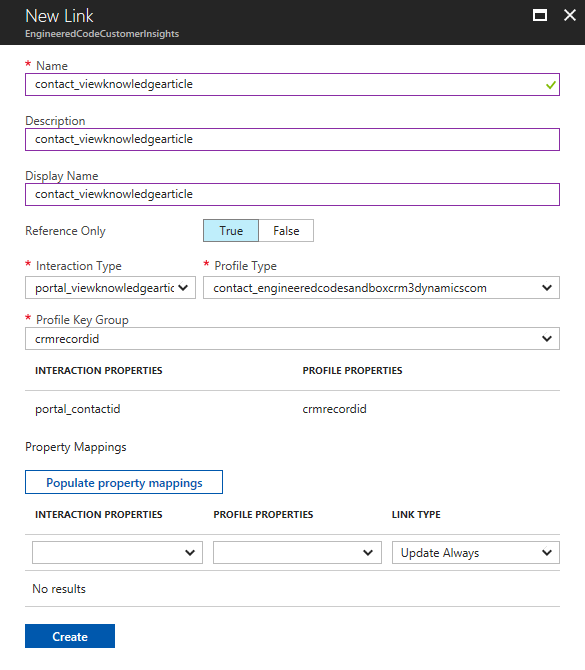
- Click Create.
Repeat these steps for the other interaction types (portal_search, portal_viewblogpost, and portal_viewforumthread) if desired.
At this point, if you perform a portal search or view a knowledge article as a logged in user, these interactions will be tracked in DCI.
In my next post, I’m going show you how to include a visual timeline of interactions on the Case form in Dynamics 365.
The post Capturing Dynamics 365 Portals Interactions in Customer Insights In an Hour or Less – Part 3 – Linking Contact Profiles and Portal Interactions appeared first on Engineered Code.
*This post is locked for comments