




 2,263
2,263 Like
Like Share
Share
 Report
Long journey
It’s almost a year after the launch of AL. And I guess you know, that the only supported operating system was Windows … before that moment.
During DirectionsNA team announced that now AL is supported on MacOs!
That was a small tweet from Stan, but that’s a huge step forward.
We, MacOS users, waited for that moment more than a year!
Anyway, there are some differences in developing apps comparing to Windows experience.
First, and the most important. On-Premise Sandboxes – are not supported. So, the only available option is Cloud Sandbox. And here we have the second difference – in the way how we connect to it.
Hands on - New extension created on MacOs
Let’s create a simple extension for Business Central on MacOs.
Step 1. Open VS Code with AL extension installed
Next scenario I will cover from my brand new MacOS Mojave desktop!
- Download VSCode for MacOS
- Install AL extension from VSCode marketplace
The magic here – you have the same marketplace for Win and MacOs! So, any VSCode extensions available on Win will should work on MacOs =)
Step 2. Open/clone/create AL project
To create a new AL project on MacOS, we use Shift+Cmd+P

Step 3. Connect to cloud Sandbox and download symbols
We see the difference between Windows and MacOS experience on this step. Docker Sandboxes could be created only on Windows. So, I will use cloud sandbox.
Press Shift+Cmd+P and choose AL: download symbols
AL will give you some id. You should:
- open browser
- go to https://microsoft.com/devicelogin
- paste this id there
- sign in your Business Central Cloud Sandbox
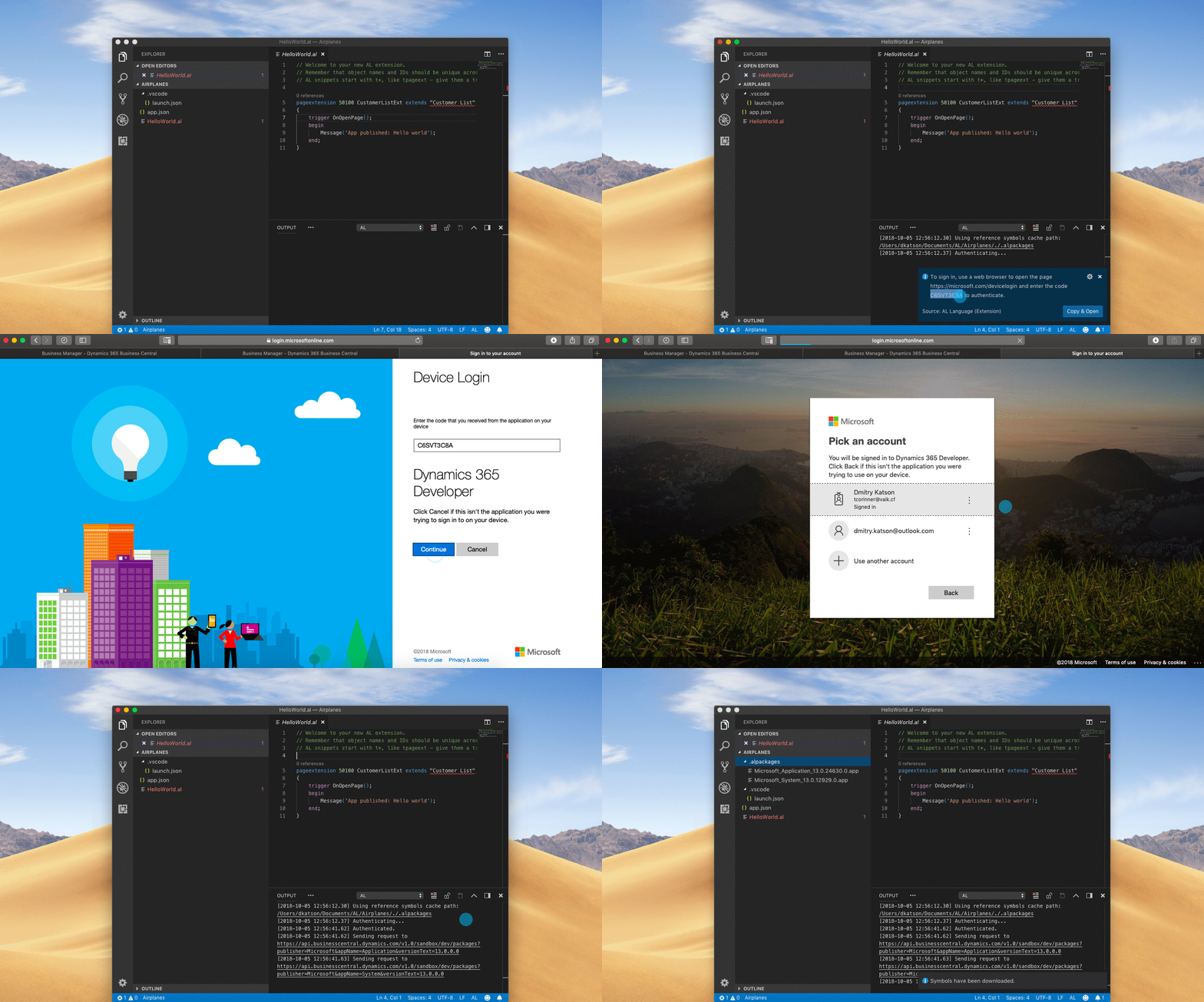
That’s it. Symbols are downloaded, and VSCode is connected to cloud sandbox from this moment. Every time you will run AL: Publish command, your app will be published on THAT sandbox.
If you would like to connect to another cloud sandbox, simply run AL: Clear credential cache and repeat current step.
Step 4. Create an App
My app will show the list of different aeroplanes models. Very simple example. What I really want to check, if other AL extensions (that I use a lot) also work on Mac.
ALRunner
I have external web service, where I have a list of all aeroplane models. The idea – to have this list inside of Business Center and upload data from this external web service. Usually, I use ALRunner for that task. Let’s see if it works on Mac.
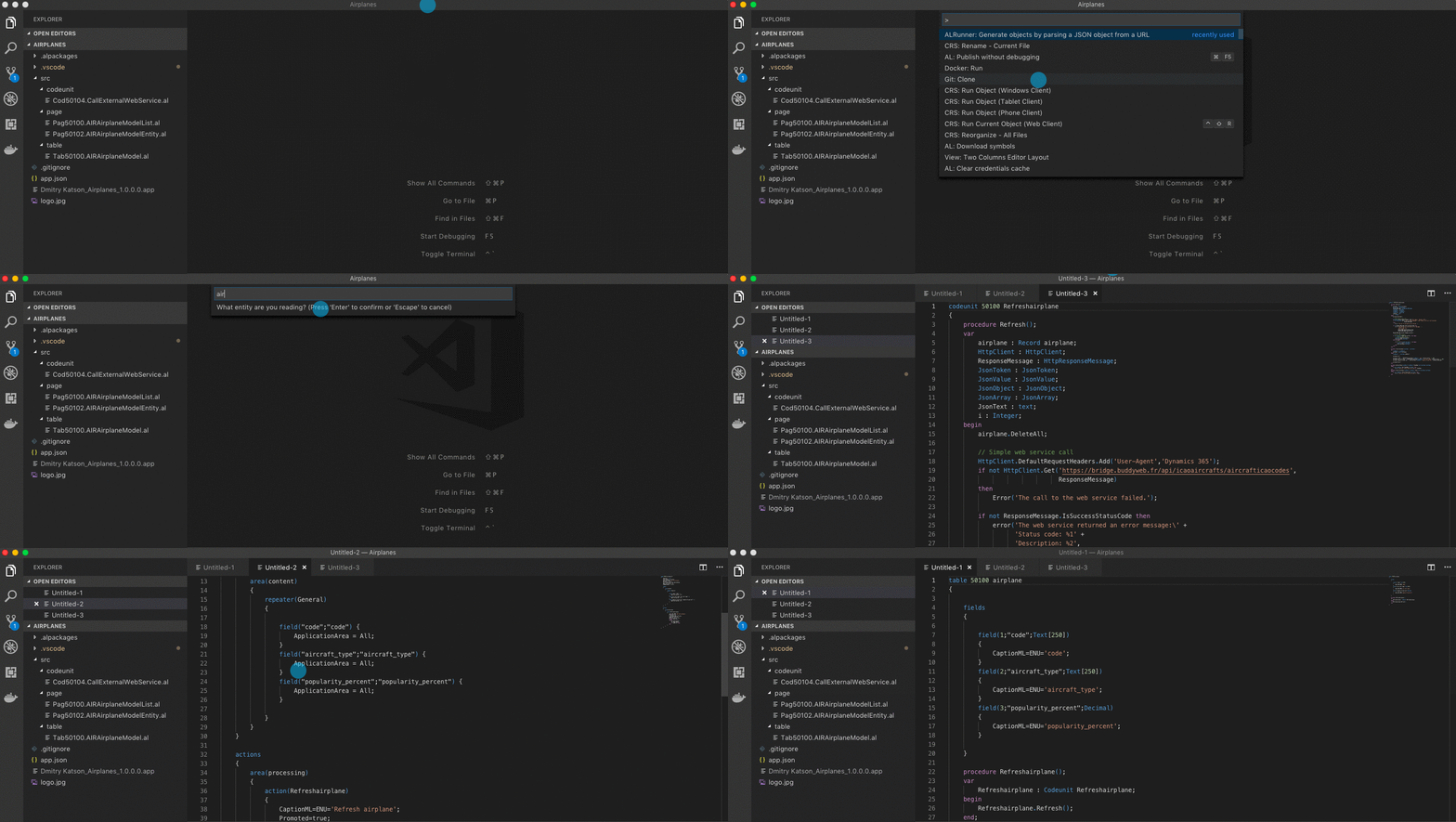
Unfortunately, it does not work. Not a problem, I’ll do it manually.
[Updated]. It works! Thanks, Tobias Fenster for fixing. Check that you have REST extension installed and enabled.
AL
I did not find any differences in the way we code, except some shortcuts:
- Editing support through IntelliSense (Fn + Ctrl + Space)
- Command palette (Cmd+Shift+P)
I created a new table the same way, as I did before in Windows.
]
If I will find something unusual in the future, I’ll update my post.
AL Outline
With this extension, you can create pages/reports for your tables and investigate the structure of .app and .al files.

Works!
Next, I will manually add codeunit to call external web service.


CRS AL Extension
Now let’s follow AL naming guidelines. With CRS AL Extension I’m going to rename files and place them in the right hierarchy.

Works!
Now I’m ready to publish my app to the cloud sandbox.
Step 5. Publish
When you run AL: Publish without debugging on MacOs, the process will send your app, publish and install directly to the cloud sandbox.


The result – your app in the cloud, directly from MacOs!
Without VM, without Docker. Just MacOS, VSCode and AL!
Brilliant!
*This post is locked for comments