




 6,230
6,230 Like
Like Share
Share
 Report
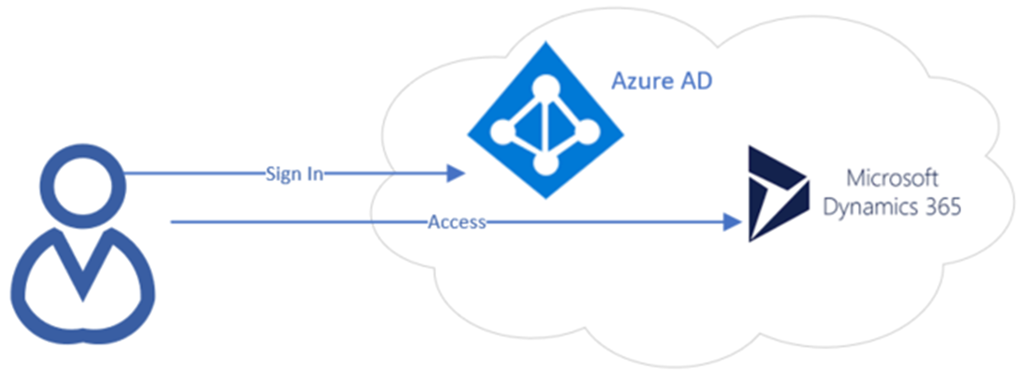
For a typical setup of a Dynamics 365 Online instance, authentication is done against Azure Active Directory using OAuth2.0 as an authentication method with an access bearer token issued.
But occasionally we come across Dynamics 365 Online instance setup against ADFS which involves a two-step process before an access SAML bearer token is issued.
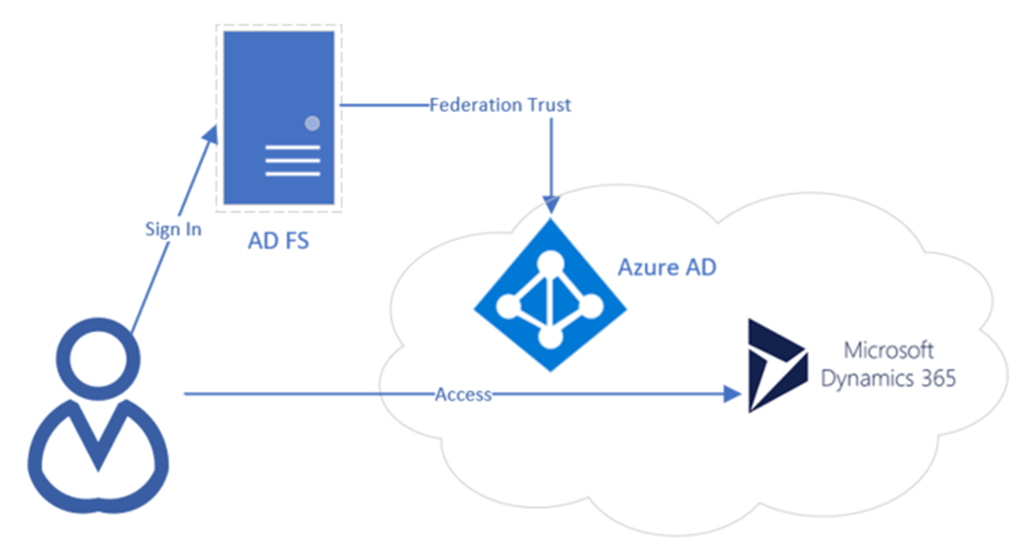
Here are the steps required to authenticate with ADFS using User Credentials.
1. Get User Realm by Sending HTTP GET Request to User Realm Endpoint
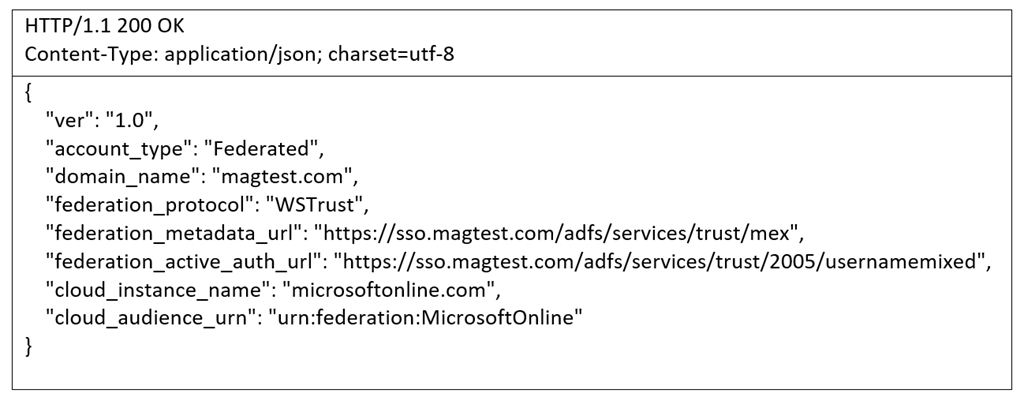
The User Realm endpoint for any Dynamics CRM 365 Online instance would be https://login.windows.net/common/UserRealm/<username>?api-version=1.0
HTTP GET Request:

HTTP Response:
2. Get SAML Access Token by Sending HTTP POST Request to ADFS Service Endpoint
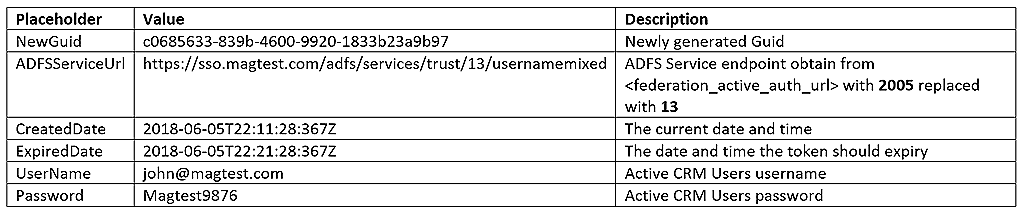
The ADFS Service endpoint would be <federation_active_auth_url> from the JSON response in previous step but replacing 2005 with 13. In this example the endpoint would be https://sso.magtest.com/adfs/services/trust/13/usernamemixed
The body content of the HTTP Request will contain the following SOAP Request
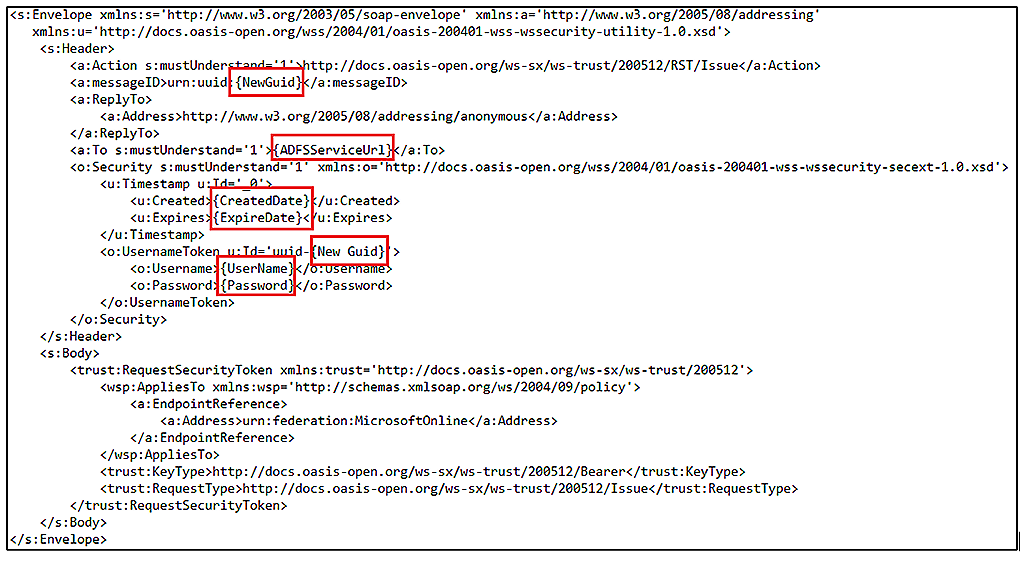
HTTP POST Request:

HTTP Response:
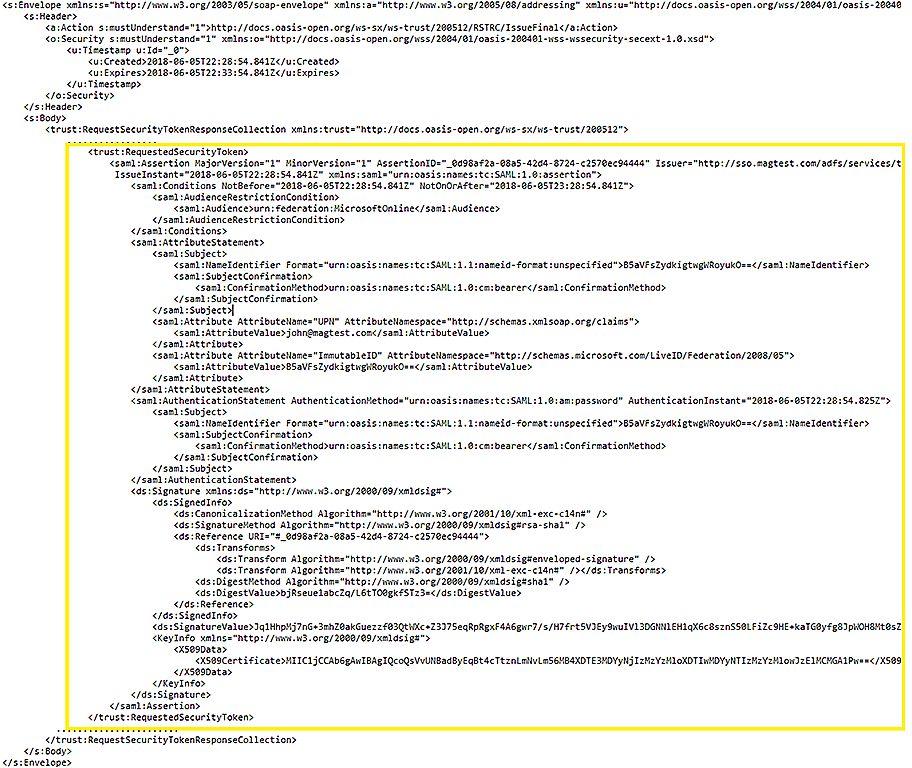
3. Extract XML content Between the <trust:RequestedSecurityToken> Element, Remove Any Indenting then Encode to Base 64 String

4. Get SAML Bearer Access Token by Sending HTTP POST Request to Token Endpoint
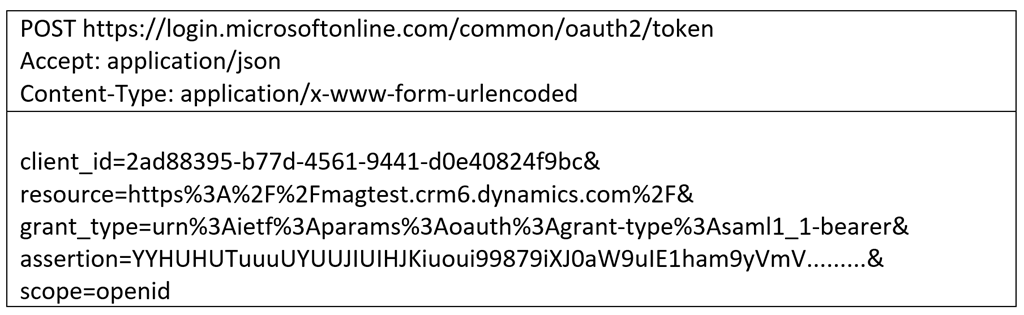
The Token URL endpoint for any Dynamics CRM 365 Online instances would be https://login.microsoftonline.com/common/oauth2/token
The body content of the HTTP Request will contain the following and will be URL encoded

HTTP POST Request:
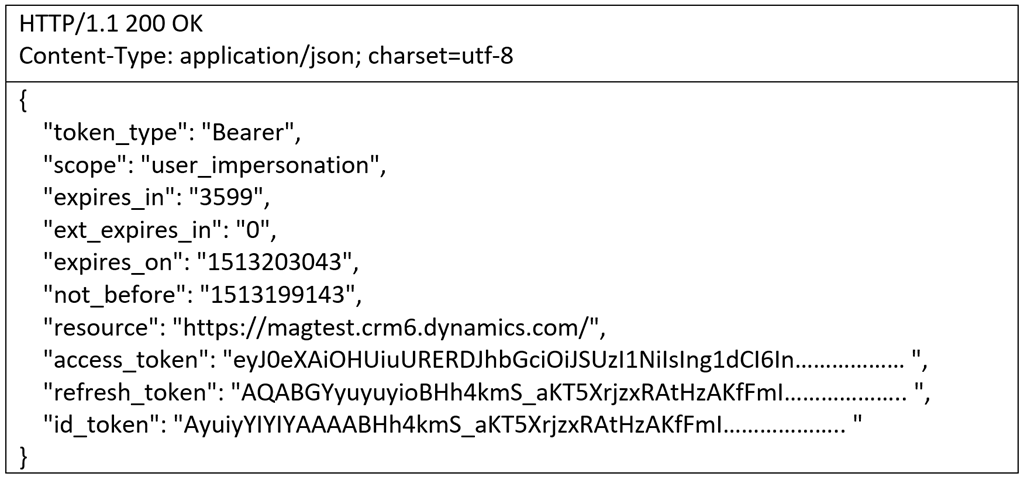
HTTP Response:
5. Set the Authorization Header of the HTTP GET Request
From HTTP Response in step 4,extract out the string value of the access token key which will be the SAML bearer token.
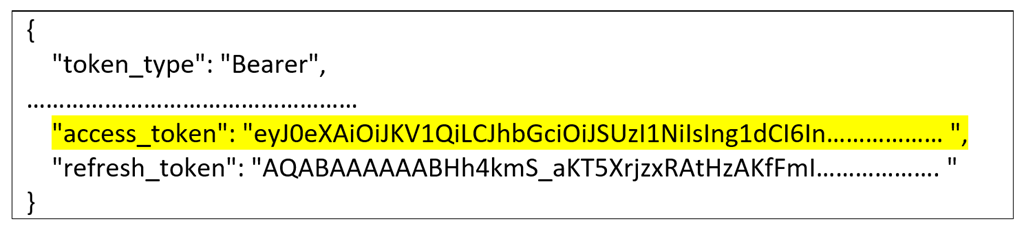
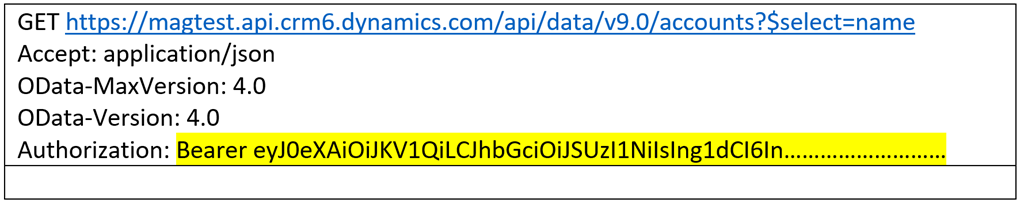
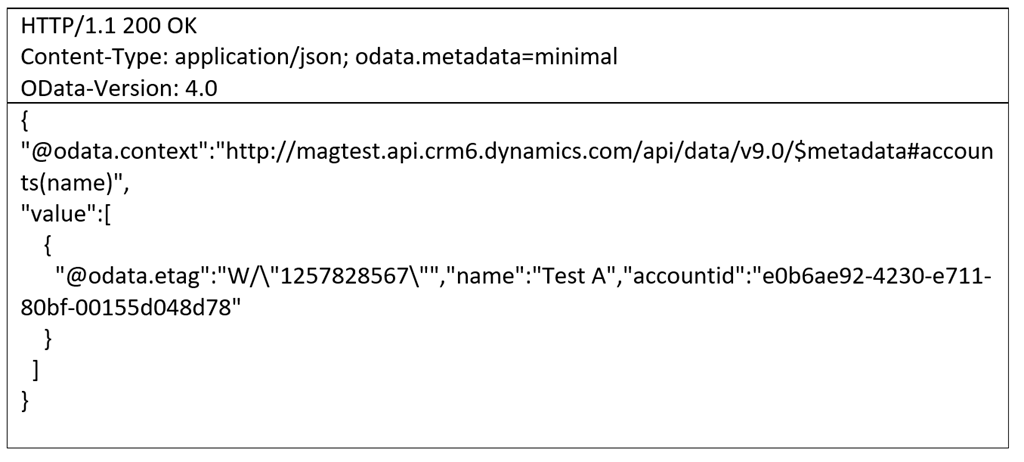
Set the Authorization header value of the HTTP OData request to be Bearer <access token>. We can now execute queries against the Web API as shown below.
HTTP GET Request:
HTTP Response:
*This post is locked for comments