







How to setup auto charges for sales order in dynamics 365?
Views (4518)
 Mahmoud Hakim
 17,887
 Like
Like Share
Share
 Report
Auto charges functionality is very powerful in Dynamics 365

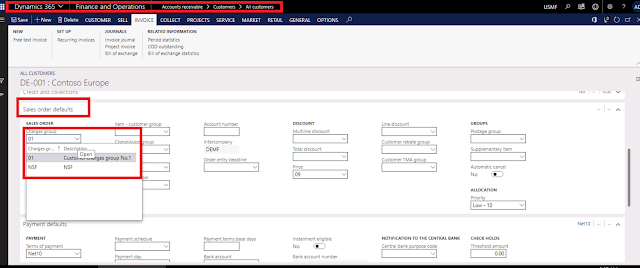
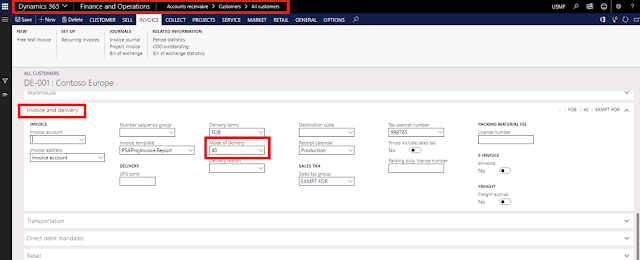
Go to account receivable/ charges setup/auto charges
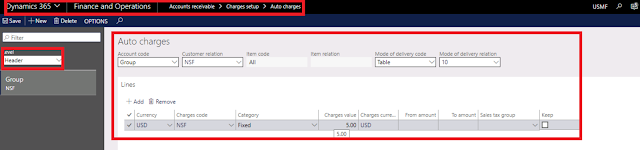
you can assign auto charges for main level or lines level based on your needs
1- activate auto charges for sales order :
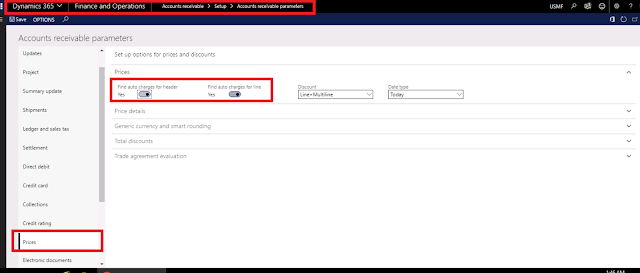
Go to account receivable/setup/account receivable parameters /prices tab as the below
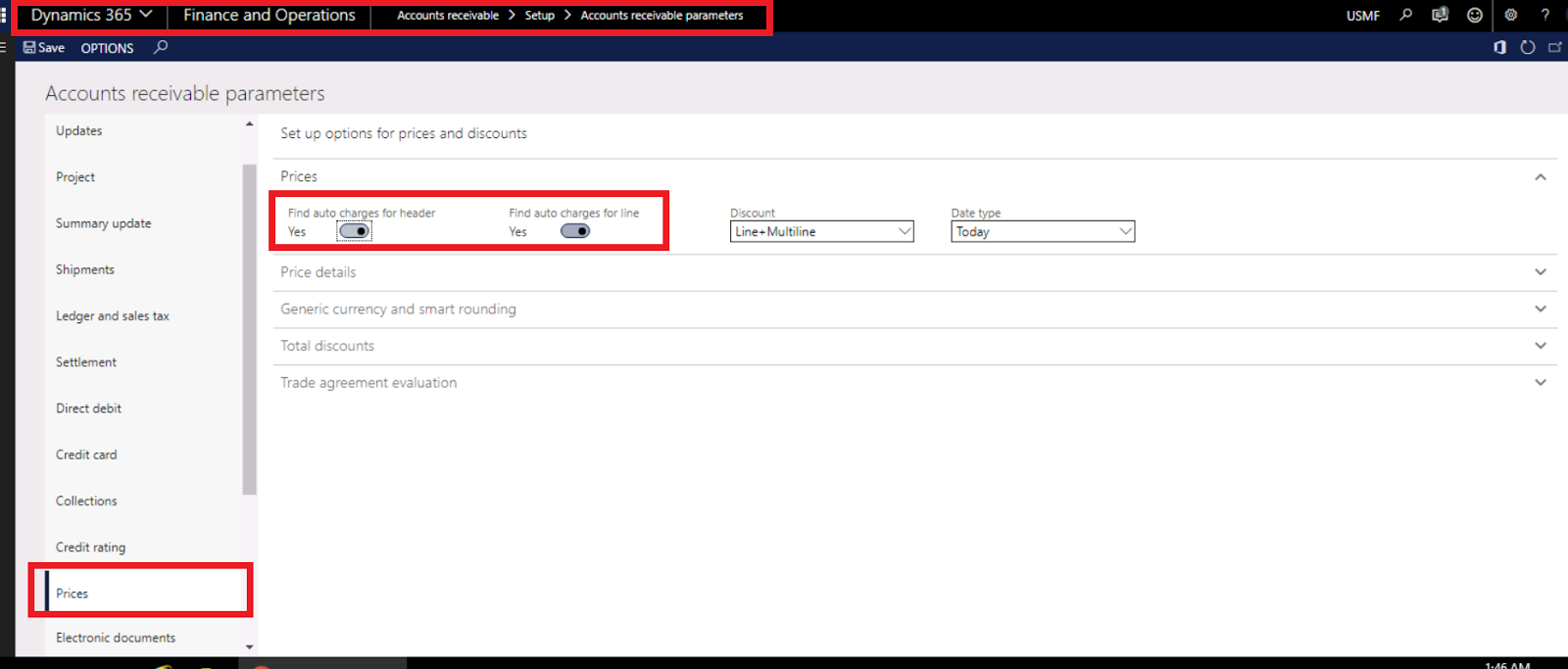
you must activate find auto charge for header and find auto charge for lines
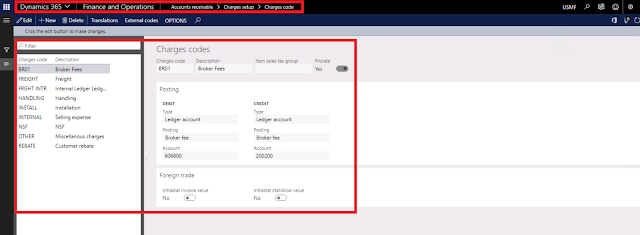
2-create your charges codes
Go to account receivable/ charges setup/charges codes
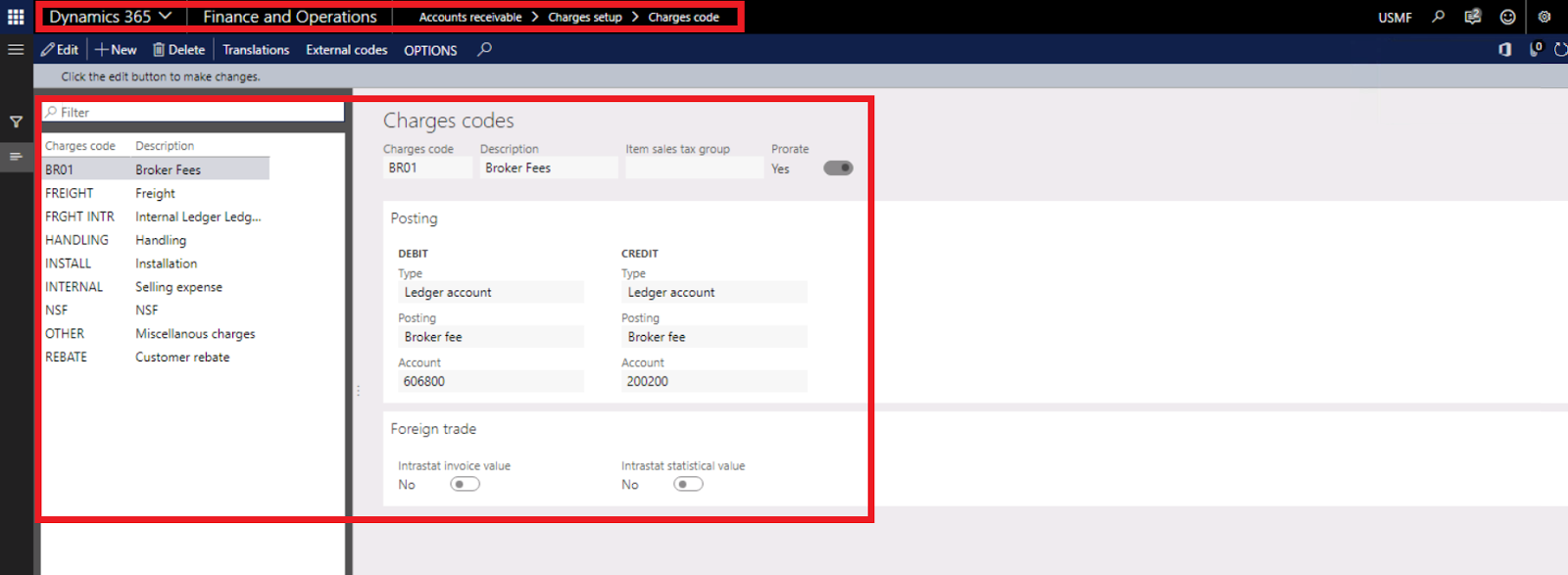
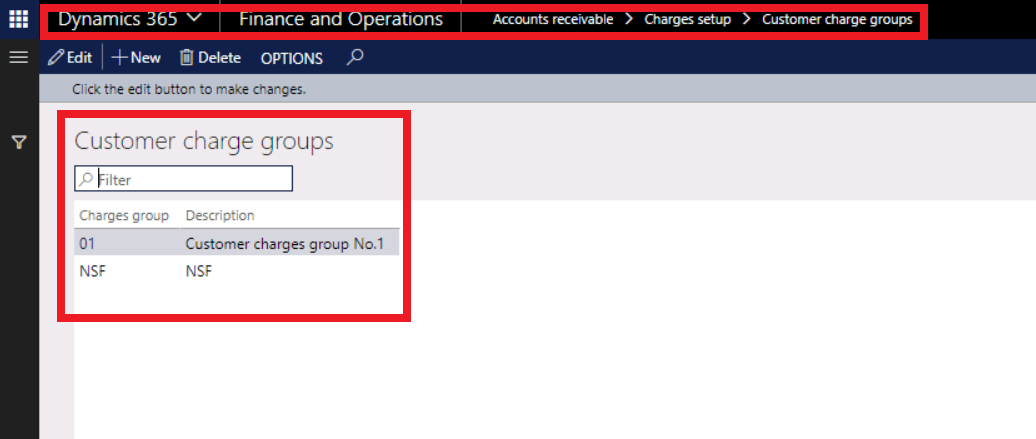
3- create customer charges group
Go to account receivable/ charges setup/customer charges group
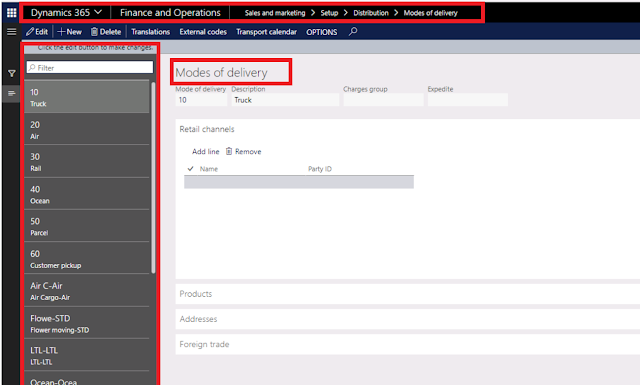
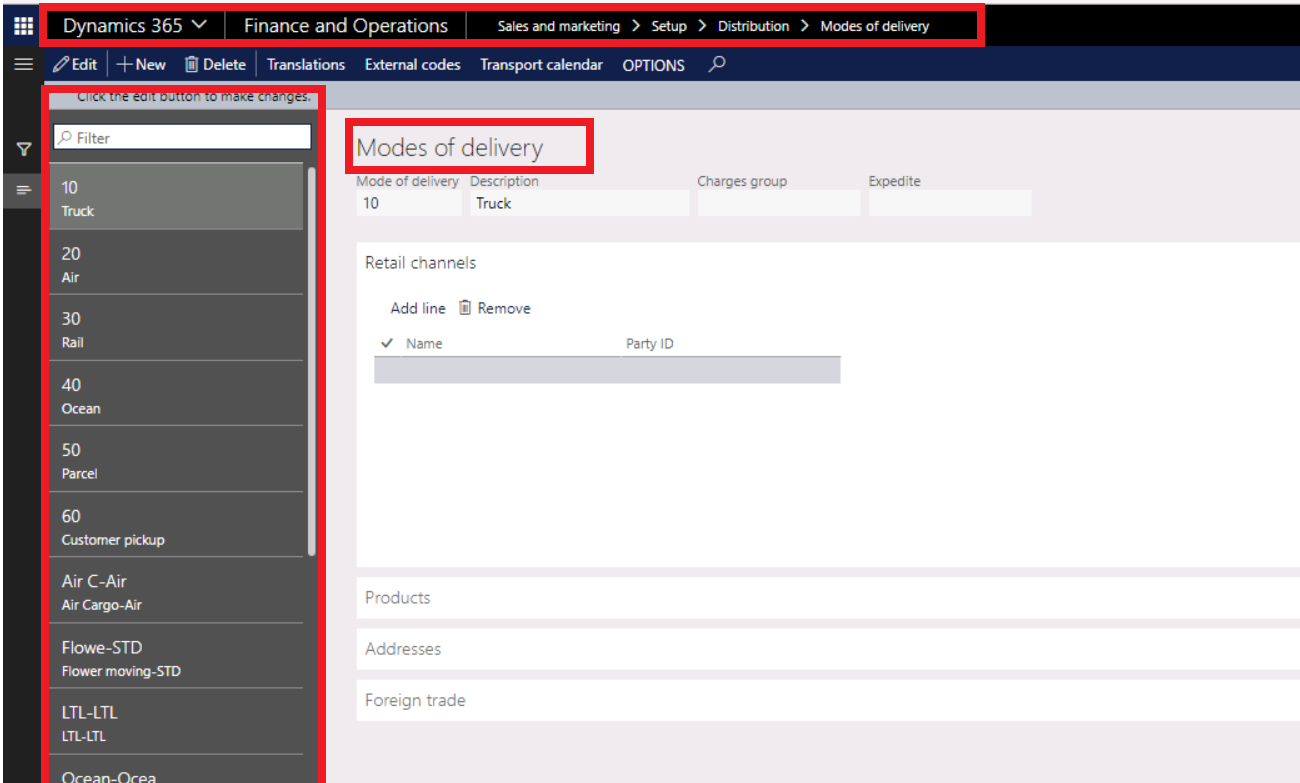
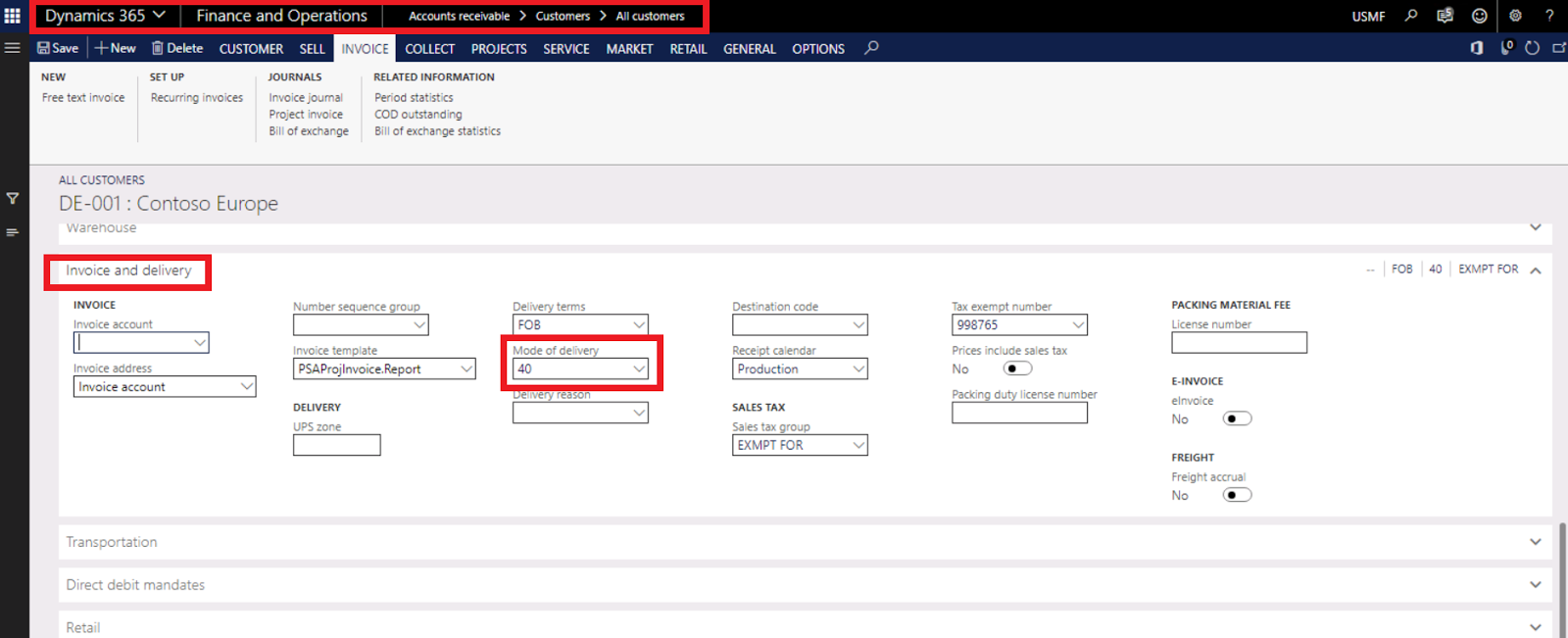
4-create mode of delivery
Go to sales and marketing/setup/distribution/mode of delivery
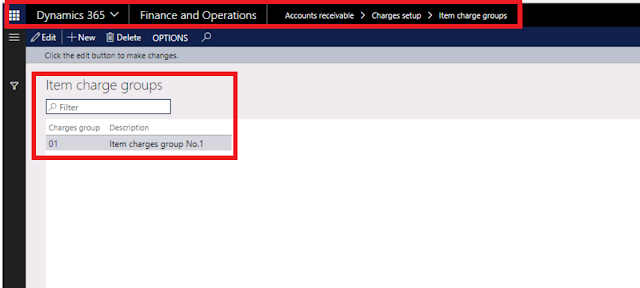
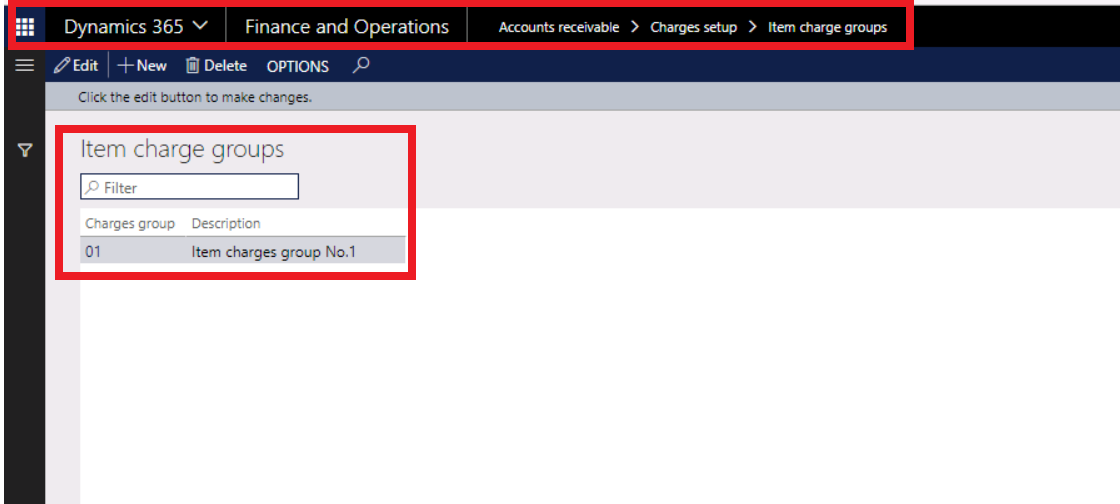
5-create item charges group
Go to account receivable/ charges setup/item charges group
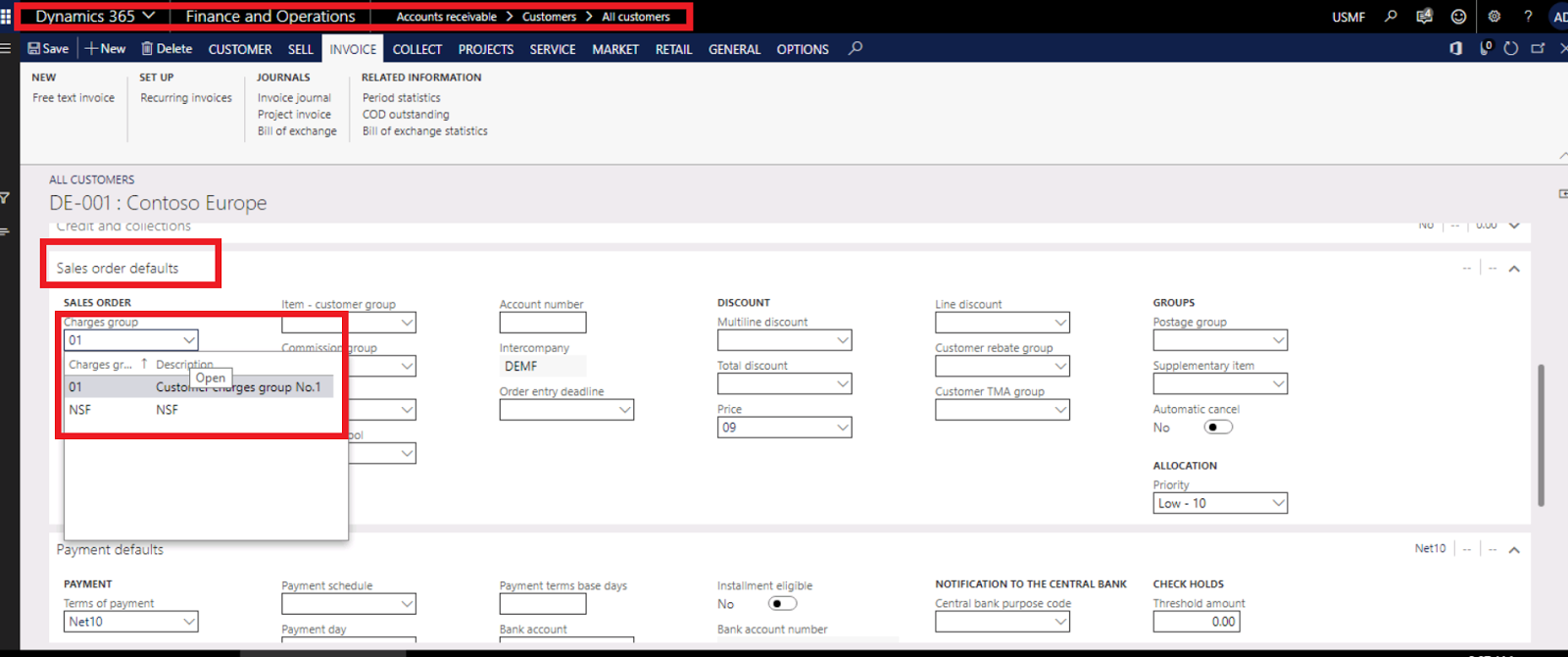
6-assign customer charges group /item -customer group and mode of delivery for customers
Go to account receivable/all customers
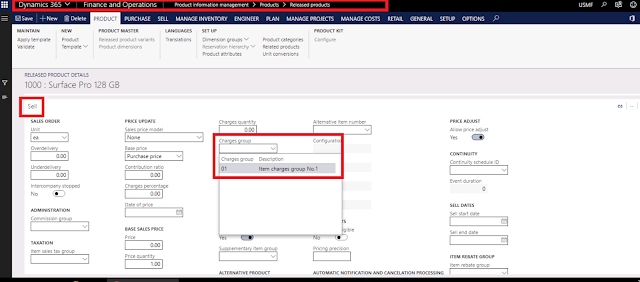
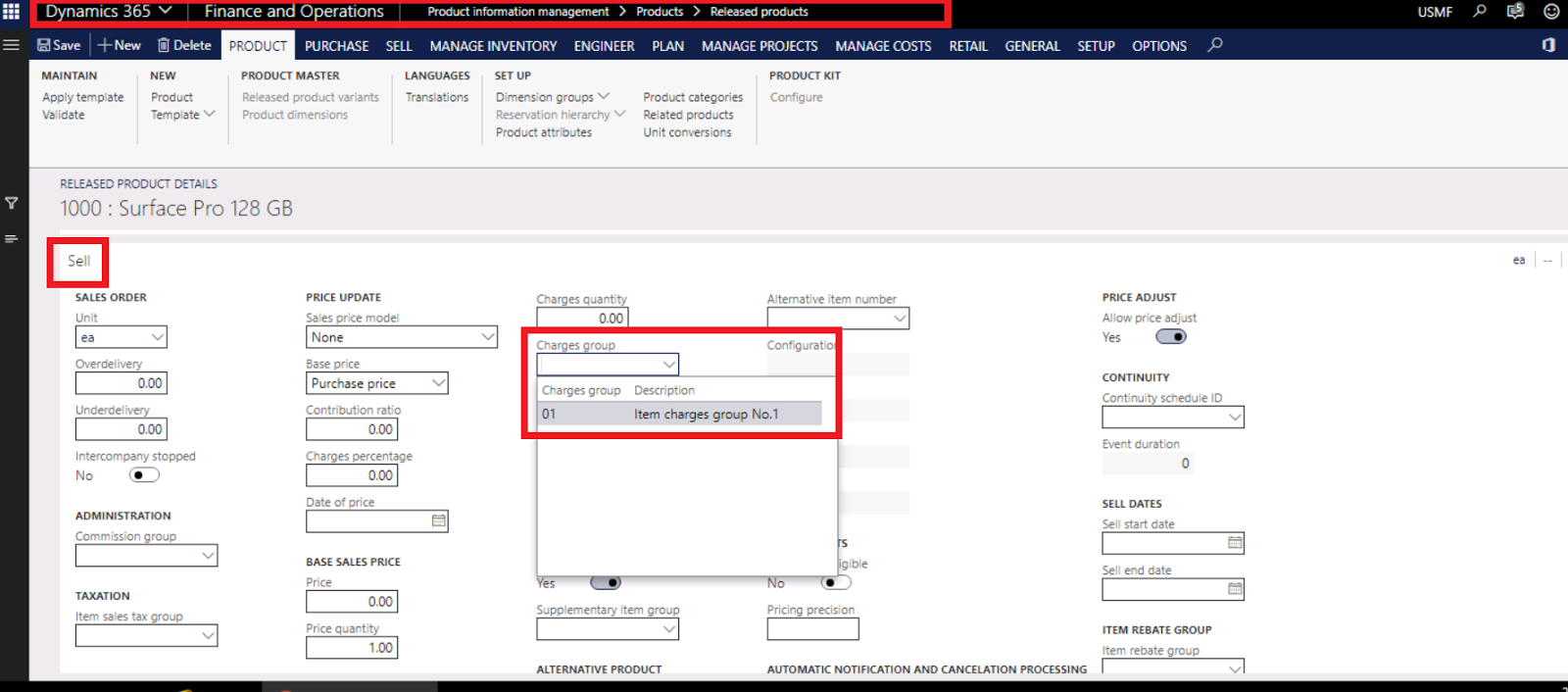
7-assign item charges group for items
go to product information management/ released product
8-setup auto charges

level:
A-header: to create auto charges for sales order header
B-line: to create charges per item line
Account code :
A-table to set up specific customer for this charges
B-group to set up charges customer group as attached to point 6
C-All to set up this charges for all customers
Item code :
A-table to set up specific item for this charges
B-group to set up charges item group as attached to point 6
C-All to set up this charges for all items
Mode of delivery code :
A-table to set up specific mode of delivery for this charges
B-group to set up charges mode of delivery group as attached to point 6
C-All to set up this charges for all modes of delivery
*you can set up charges with different currency and you can assign multiple charges codes
*every charge code may be fixed or percentage based on your demand
*for header charges only you can assign from amount and to amount
Finally
In the case where the created sales order contains data that matches the criteria of the auto charge setup, the charge code will be applied automatically.
This was originally posted here.
*This post is locked for comments