




 6,648
6,648 Like
Like Share
Share
 Report
individual basis. This is useful when each user has different access to the system
and multiple users do not share the same access.
Manually Create a User
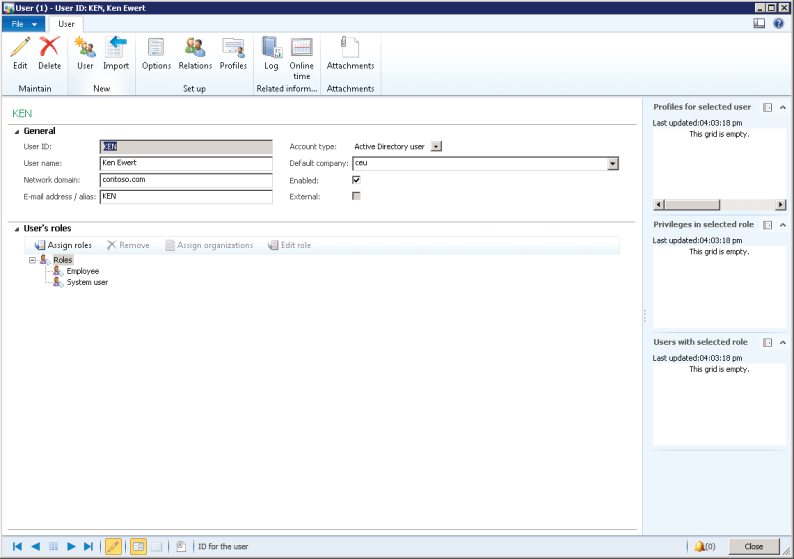
To add Kevin as a user, follow these steps:
1. Open System administration > Common > Users > Users.
2. Click User in the New group of the Action Pane.
3. In the User Id field, type "Kevin."
4. In the User name field, type "Kevin Cook."
5. In the Network domain field, type "CONTOSO."
6. In the E-mail address / alias field, type "Kevin."
7. Confirm the Account type field is set to "Active Directory user".
9. Select the Enabled check box.
10. Click Close.
NOTE: At this point a user is created but no permissions are given to this user.
Regards,
Hossein Karimi
Regards,
Hossein Karimi
*This post is locked for comments