




 21
21 Like
Like Share
Share
 Report
Introduction
Prompt assistants in Copilot Studio are cool capabilities that helps users design, refine, and optimize prompts for AI-driven copilots without requiring deep prompt-engineering expertise. It acts as an intelligent guide that suggests improvements, clarifies intent, and enhances natural language instructions so that the copilot can deliver more accurate, consistent, and context-aware responses. By leveraging built‑in AI models, the prompt assistant can recommend phrasing, structure, and variables for prompts while aligning them with best practices such as clarity, specificity, and relevance to business scenarios. This makes it easier for developers and business users alike to build effective conversational experiences, automate workflows, and ensure that copilots behave reliably across different use cases.
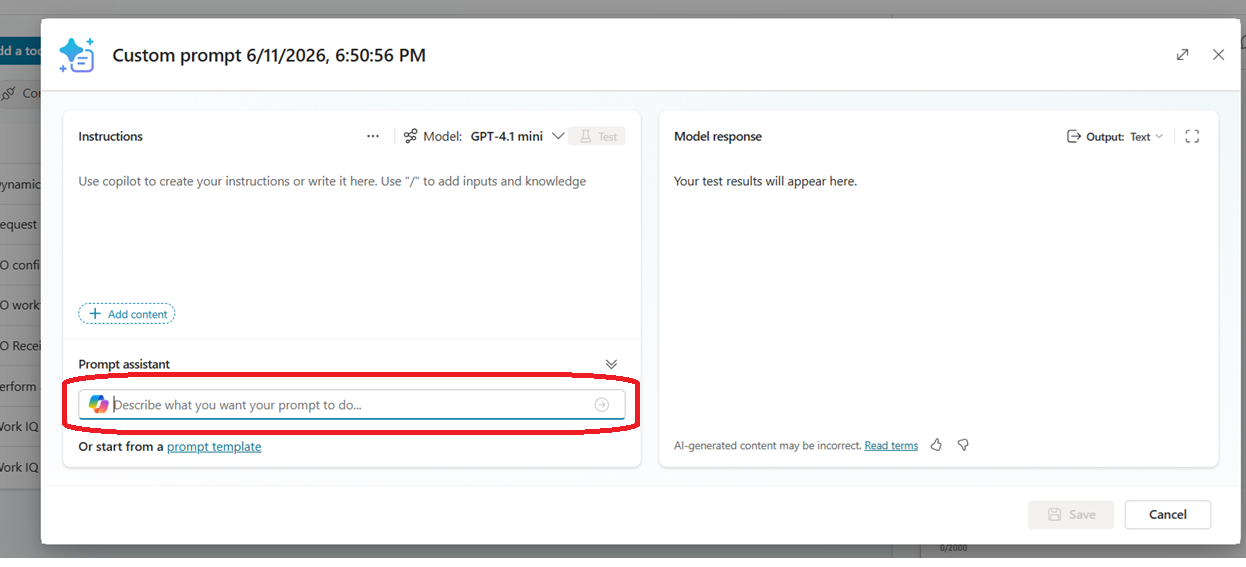
And as the prompt window lands up like this, you can see the prompt assistant as highlighted:
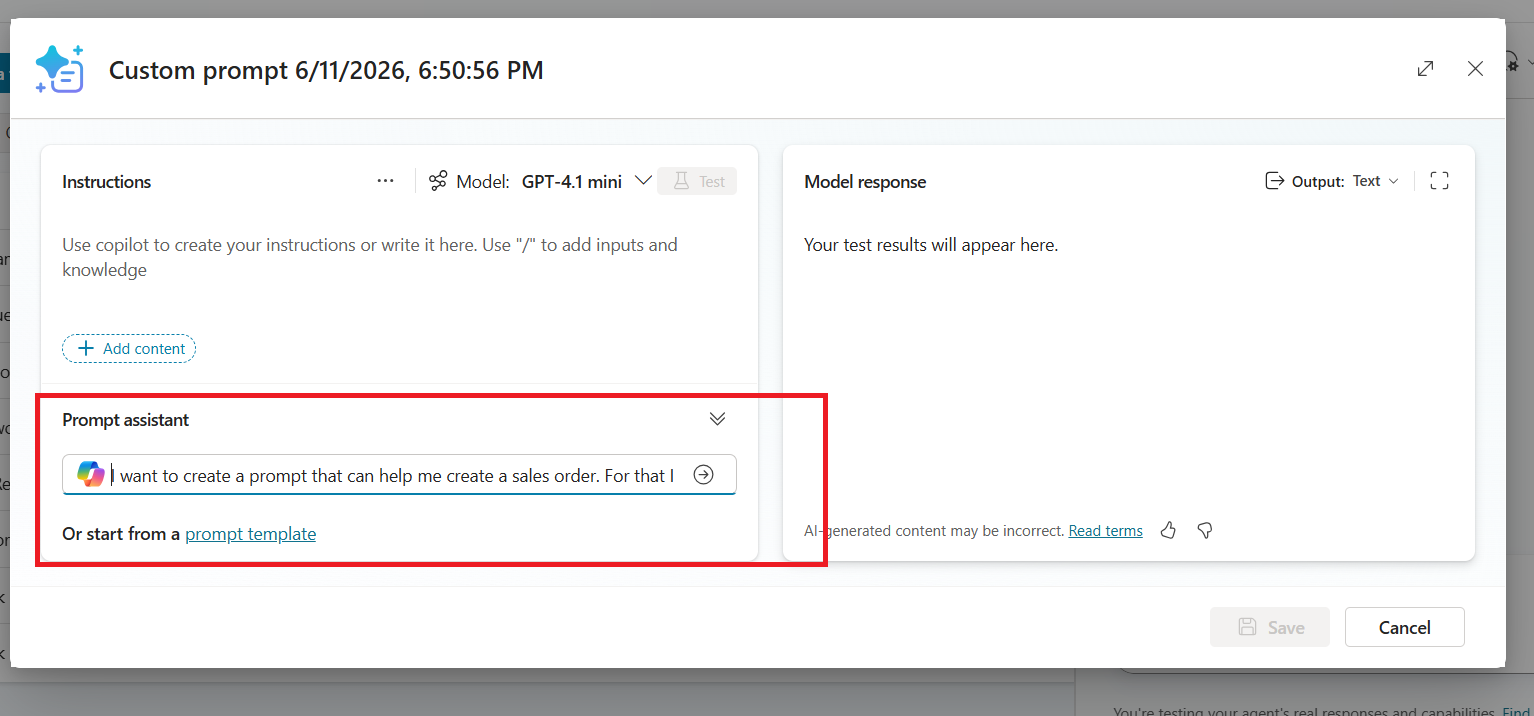
I want to create a prompt that can help me create a sales order. For that I need to accept a PDF file as an input that has header and lines in it. Once it is decoded, I want to create a prompt for Dynamics ERP MCP server to enable it to create the sales order with the header and lines details decoded.
Let us put this in the prompt assistant:
And let us hit enter.
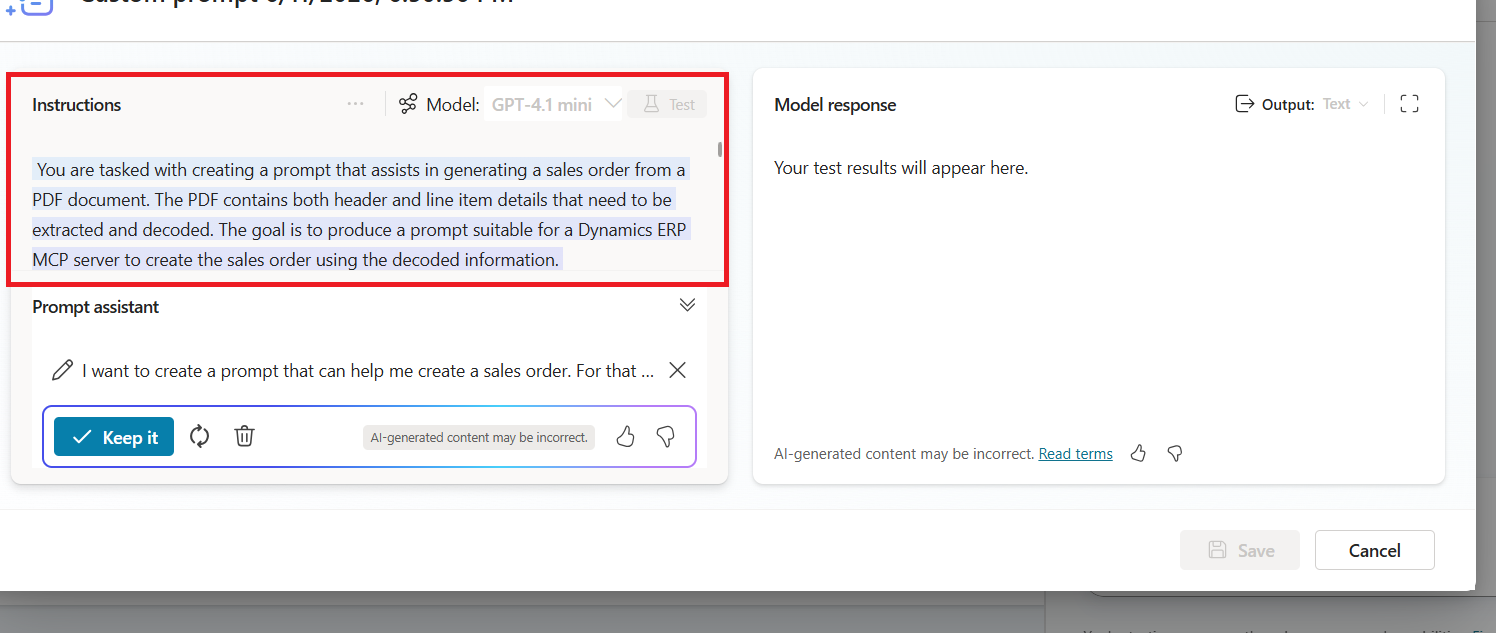
And the prompt appears right away. You can of course fine tune it – clicking on the recycle button and trying it out again. Or if you feel it looks good, you can click on the ‘Keep it’.
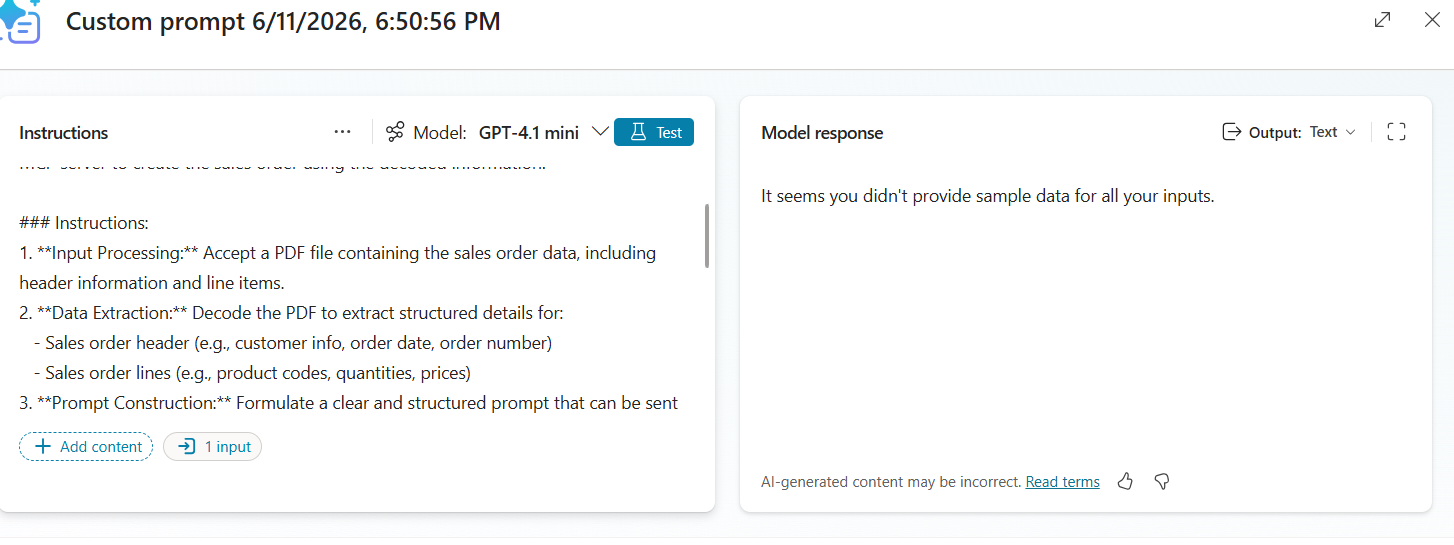
At the bottom, the variable file input also appears:
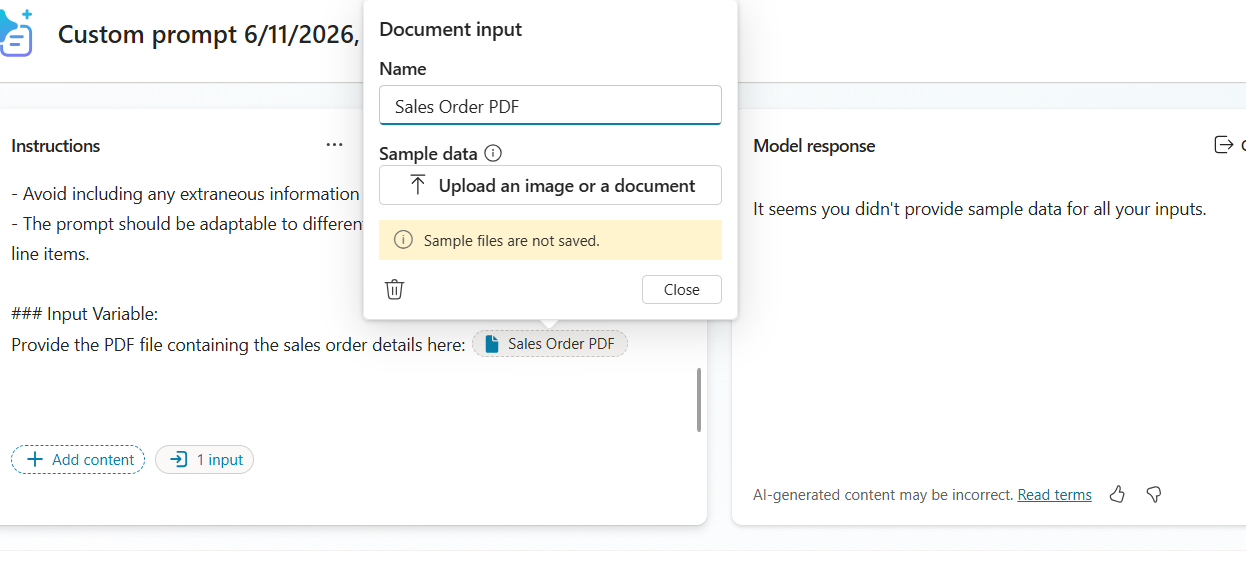
You can upload a sample document of your choice to proceed. Test, give a proper name and save the prompt.
Model Constraints:
The assistant is bound by the capabilities and limitations of underlying AI models, such as handling ambiguity, long contexts, or nuanced logic.
Dependency on Input Quality:
If the initial prompt or description is vague, the assistant’s suggestions may also lack precision or relevance.
Iteration Still Required:
Even with assistance, multiple rounds of testing and refinement are often needed to achieve optimal results.
Model Constraints:
The assistant is bound by the capabilities and limitations of underlying AI models, such as handling ambiguity, long contexts, or nuanced logic.
- Unsure of how to dictate your Prompt to achieve your desired outcome?
- Unsure of what to tell it to the AI prompt to get started?
- New to AI prompts? Not sure how to pass on variables into it?
Benefits
So here is a quick round up on the benefits that you can achieve from them:- Improved Prompt Quality:
It helps users craft clearer, more precise prompts, leading to more accurate and relevant AI responses. - Time Savings:
Instead of trial-and-error prompt writing, the assistant quickly suggests optimized wording and structure, speeding up development. - Ease of Use for Non-Experts:
Business users without technical or prompt-engineering knowledge can still create effective prompts with guided assistance. - Consistency Across Solutions:
Ensures prompts follow best practices, resulting in uniform behavior across different copilots and use cases. - Enhanced Productivity:
By automating prompt refinement, teams can focus more on business logic and user experience rather than prompt tuning. - Context-Aware Suggestions:
The assistant can adapt prompts based on the scenario, helping copilots deliver more relevant, personalized outputs. - Reduced Errors and Ambiguity:
It helps eliminate vague or unclear instructions, which improves reliability and reduces unexpected responses. - Faster Iteration and Debugging:
Users can quickly refine prompts and test variations, making it easier to improve copilot performance over time.
Seeing it in Action:
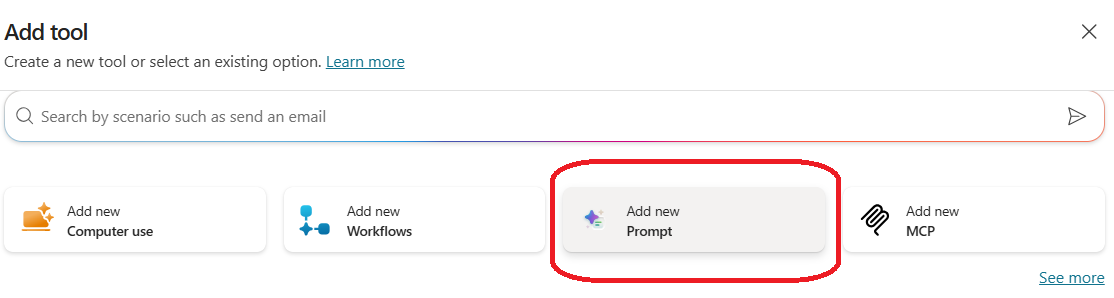
Reach out to Copilot Studio >> In your Agent >> Tools >> New Tool >> Prompt:And as the prompt window lands up like this, you can see the prompt assistant as highlighted:
Situation:
I am confused in writing a prompt for my sales order creation prompt, from an input PDF file. So I am telling the same to my prompt assistant:I want to create a prompt that can help me create a sales order. For that I need to accept a PDF file as an input that has header and lines in it. Once it is decoded, I want to create a prompt for Dynamics ERP MCP server to enable it to create the sales order with the header and lines details decoded.
Let us put this in the prompt assistant:
And let us hit enter.
And the prompt appears right away. You can of course fine tune it – clicking on the recycle button and trying it out again. Or if you feel it looks good, you can click on the ‘Keep it’.
At the bottom, the variable file input also appears:
You can upload a sample document of your choice to proceed. Test, give a proper name and save the prompt.
Some limitations
Overall, while the prompt assistant is highly useful, it works best as a supporting tool rather than a complete replacement for human judgment and iterative design:Model Constraints:
The assistant is bound by the capabilities and limitations of underlying AI models, such as handling ambiguity, long contexts, or nuanced logic.
Dependency on Input Quality:
If the initial prompt or description is vague, the assistant’s suggestions may also lack precision or relevance.
Iteration Still Required:
Even with assistance, multiple rounds of testing and refinement are often needed to achieve optimal results.
Model Constraints:
The assistant is bound by the capabilities and limitations of underlying AI models, such as handling ambiguity, long contexts, or nuanced logic.
*This post is locked for comments