




 Like
Like Share
Share
 Report
From the “Great features that have been in the application for a long time but many users don’t know about” file
In CRM for Outlook user settings, you will see checkboxes for various activity types and contacts.
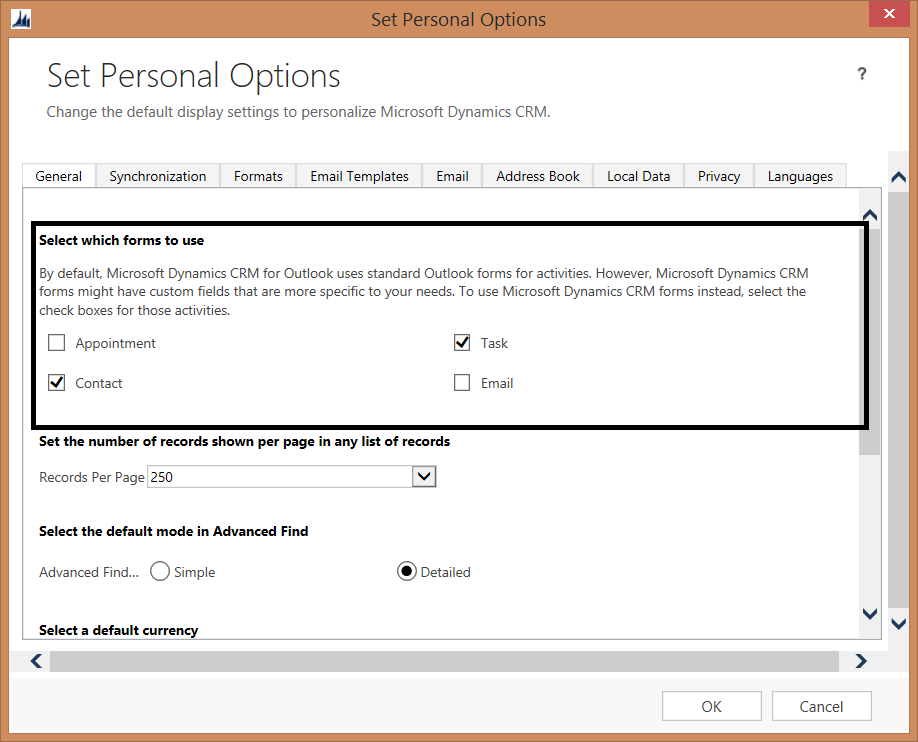
If these checkboxes are checked, when a user hits the new [appointment/task/Email/Contact] button in Outlook, that user will get the CRM form rather than the standard Outlook form.
This has several nice benefits
- It ensures that each contact or activity added will be tracked
- It gives access to custom fields or required fields not included in the standard Outlook form.
- It is less clicky than creating a contact, saving it, and then tracking it.
Note that there are some limitations to this tip. Checking these boxes does not force the CRM form from all locations in Outlook. If I check the box and go to the CRM tab and click “new contact,” the CRM form will appear. However, if I go to the People list in Outlook 2013 and click the new button, it will still use the standard Outlook form.
So it is not perfect, but with proper user training, it can be helpful.
Alternatively, you can also access CRM fields from the standard Outlook form by clicking the “CRM fields” button on the activity or contact ribbon after the record is tracked.
*This post is locked for comments