




 4,009
4,009 Like
Like Share
Share
 Report
Introduction:
In this series of Fixed Assets aka FA, I will be teaching you through a lifecycle of the Fixed Assets. How to create and acquire these fixed assets, how to appreciate or depreciate the FA, and how to post transactions on Fixed Assets in Microsoft Dynamics Business Central.
Pre-requisites:
- Microsoft Dynamics Business Central(ERP)
- Understanding of Fixed Assets
Demonstration:
1. Creation of Fixed Assets:To create Fixed Assets search Fixed Assets and open the Fixed Asset List.
Click on New (+), automatically FA No. is set up from No Series.
Enter the FA Name, FA Class Type, FA Subclass Type, FA Location if you have multiple FA Locations.
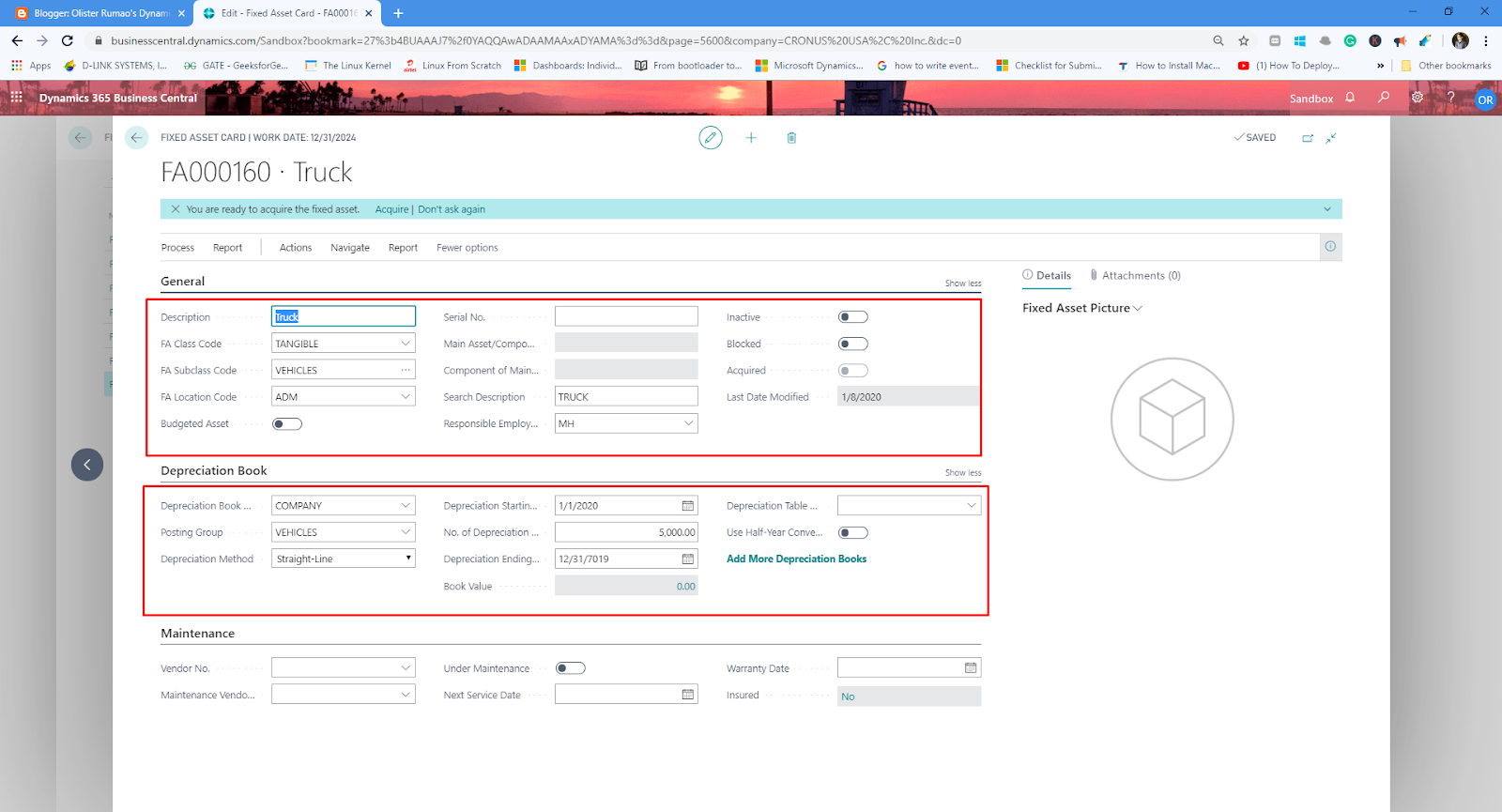 |
| Creation of Fixed Asset |
Also set up the Depreciation Start Date and End Date or Start Date and No. of Years.
Book value is the current value of the Fixed Assets. This value increases or decreases depending on your Appreciation or Depreciation of FA.
2. Acquire Fixed Assets:
There are two ways you can acquire Fixed Assets
i. Using Acquire Button on the Fixed Asset Card
In Order to acquire the fixed asset, click on the 'Acquire' action on the
 |
| Fixed Asset Acquire Action |
This will open a Wizard to get the Data from the User and convert into Fixed Asset G/L Journal Acquisition Entry
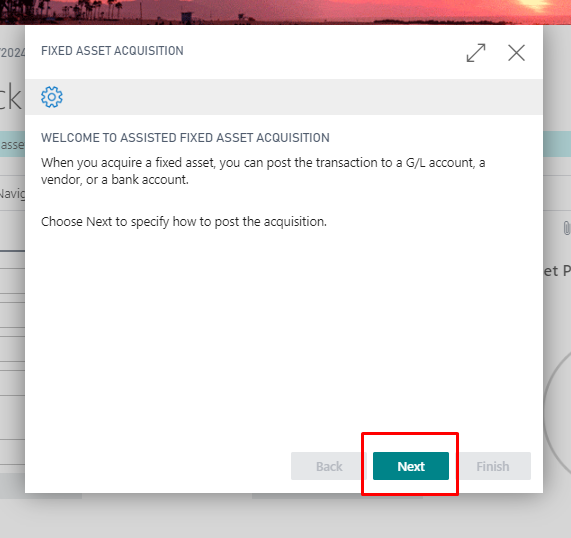 |
| Wizard to take the Data from the User. |
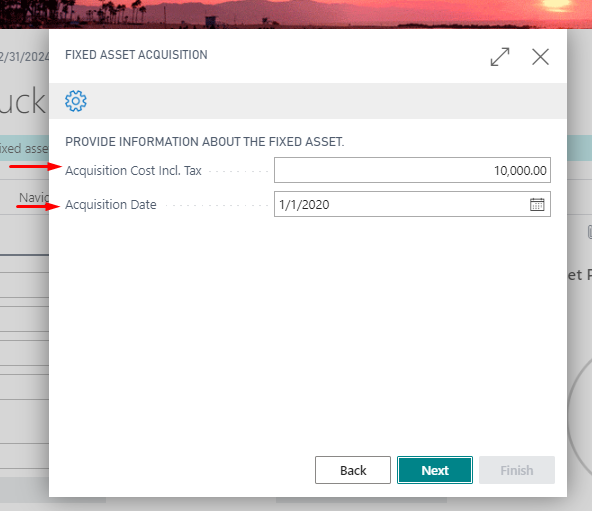 |
| Entering the Acquisition Cost and Posting Date |
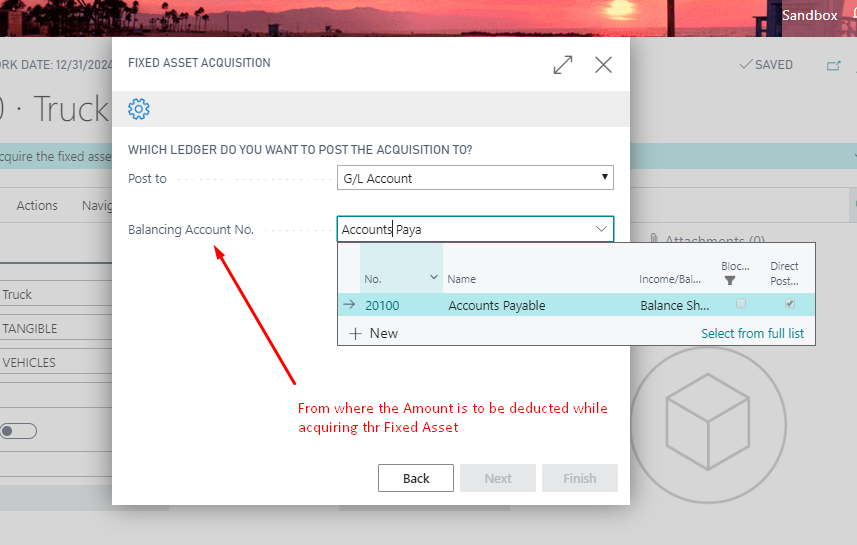 |
| Entering the Balancing Account for Acquisition Amount |
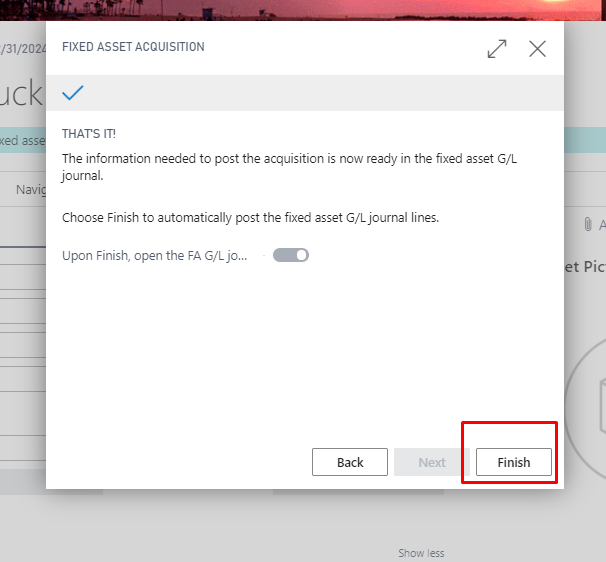 |
| Finish the wizard. |
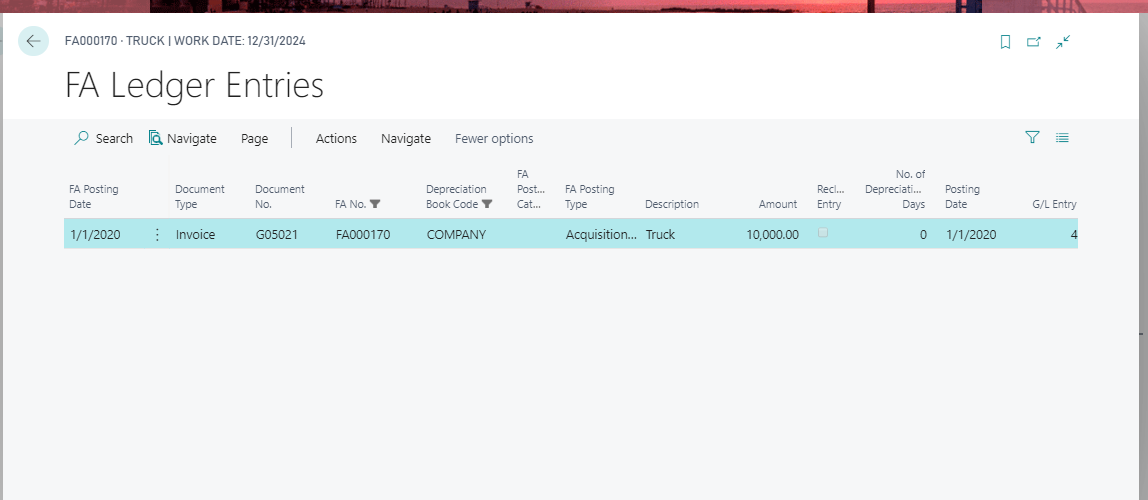 |
| Acquisition Entries in FA Ledger Entries |
ii. Posting a Purchase Order for Fixed Asset:
To acquire FA using Purchase Order, insert the FA Purchase Lines. Once you post the Purchase Order, an acquisition entry will be created in FA Ledger Entries.
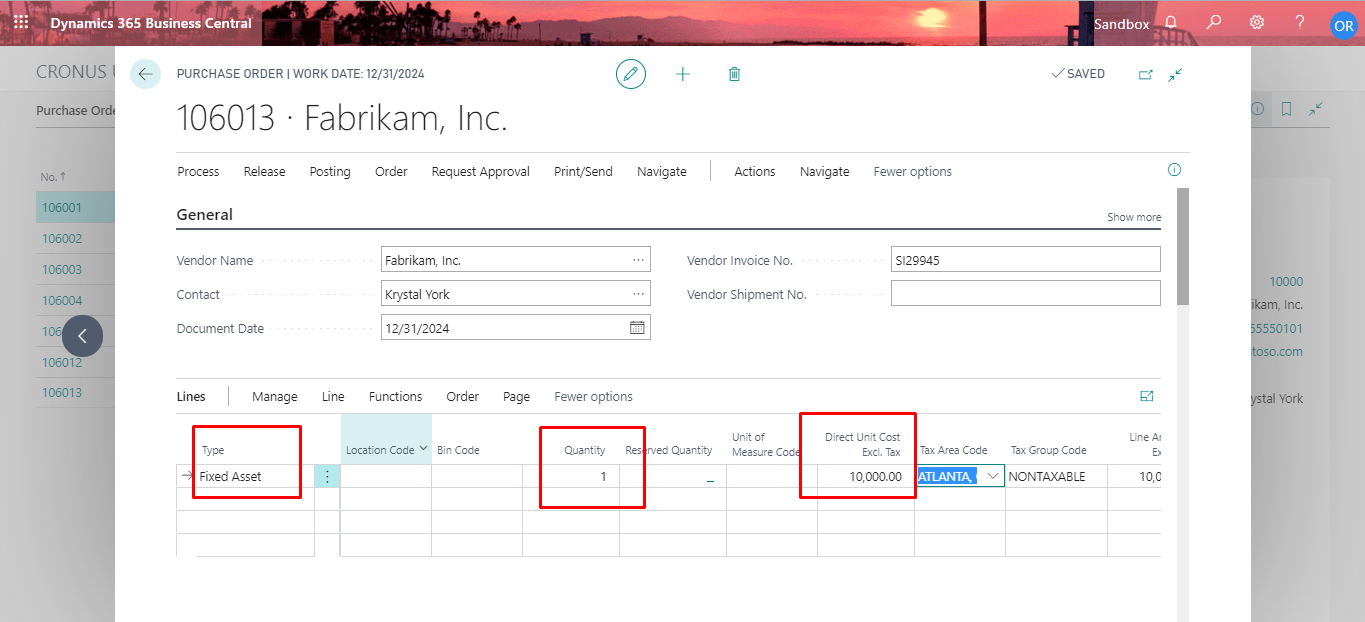 |
| Fixed Asset Acquisition through Purchase Order |
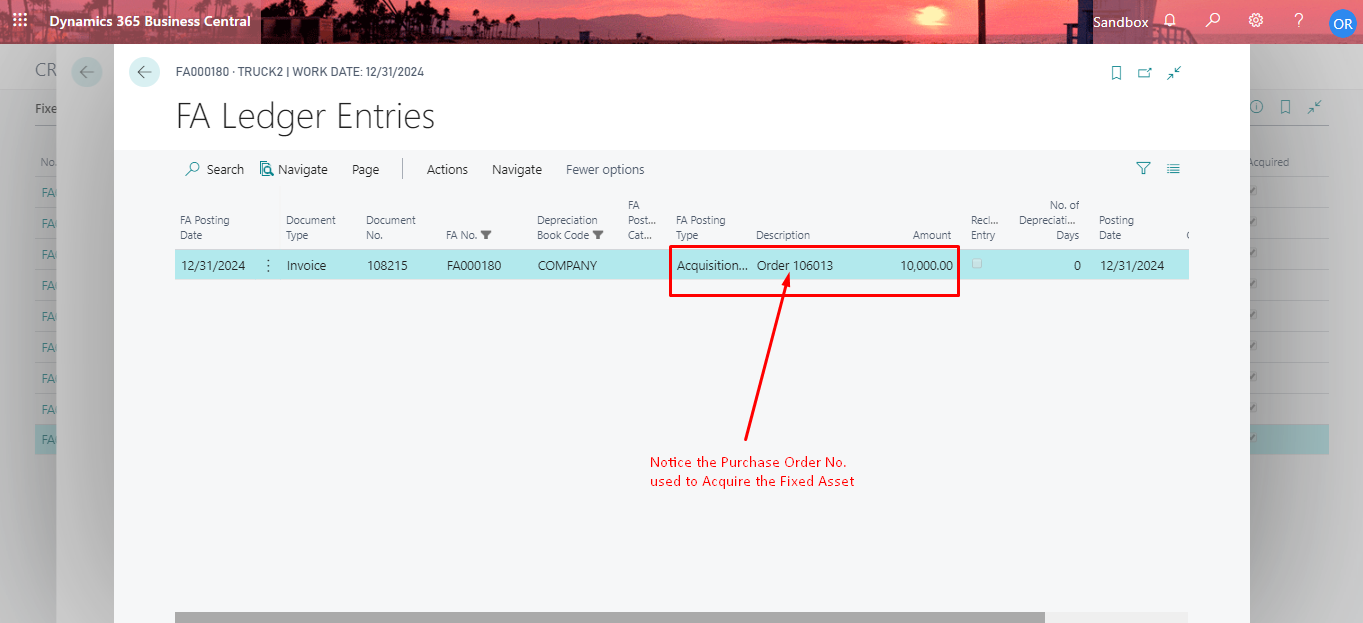 |
| Fixed Asset Acquired through Purchase Order |
3. Post Salvage Value:
To post a Salvage Value, goto Fixed Asset Journal. Insert the Entry to based on the FA No., FA posting type as Salvage Value and Amount that will be received back when Fixed Asset is disposed off.
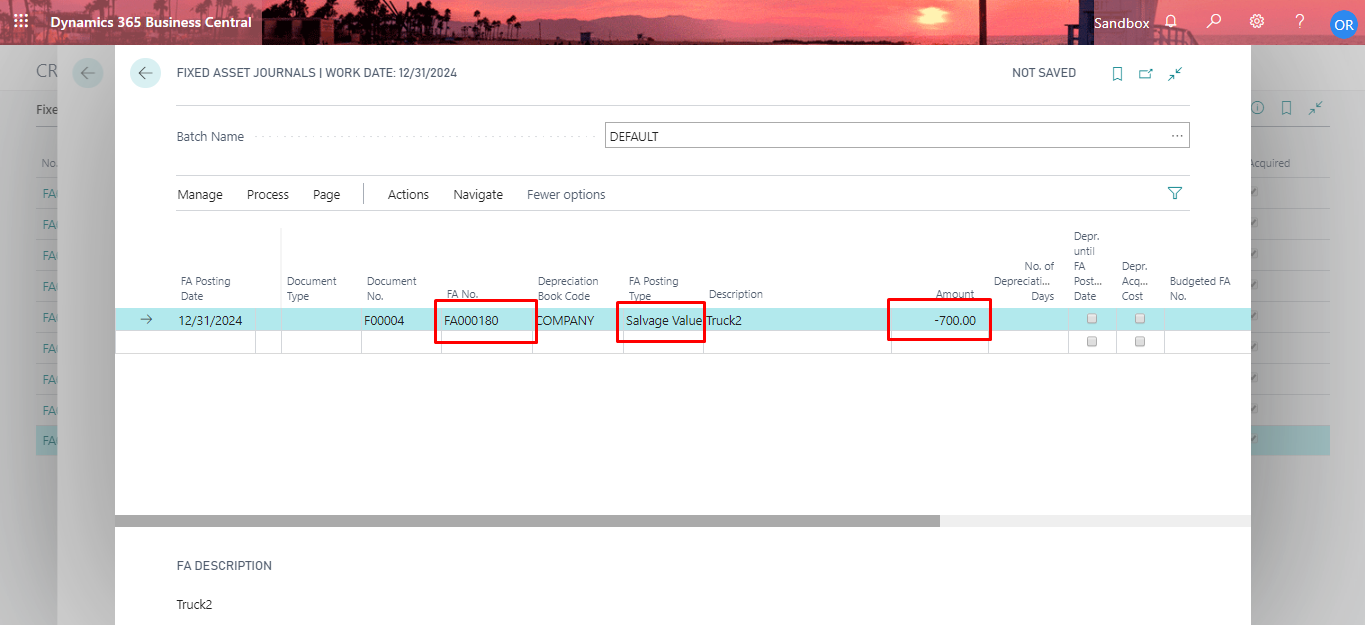 |
| Post Salvage Value - Fixed Asset Journal |
According to rule Depreciable Basis = Acquisition Value - Salvage Value
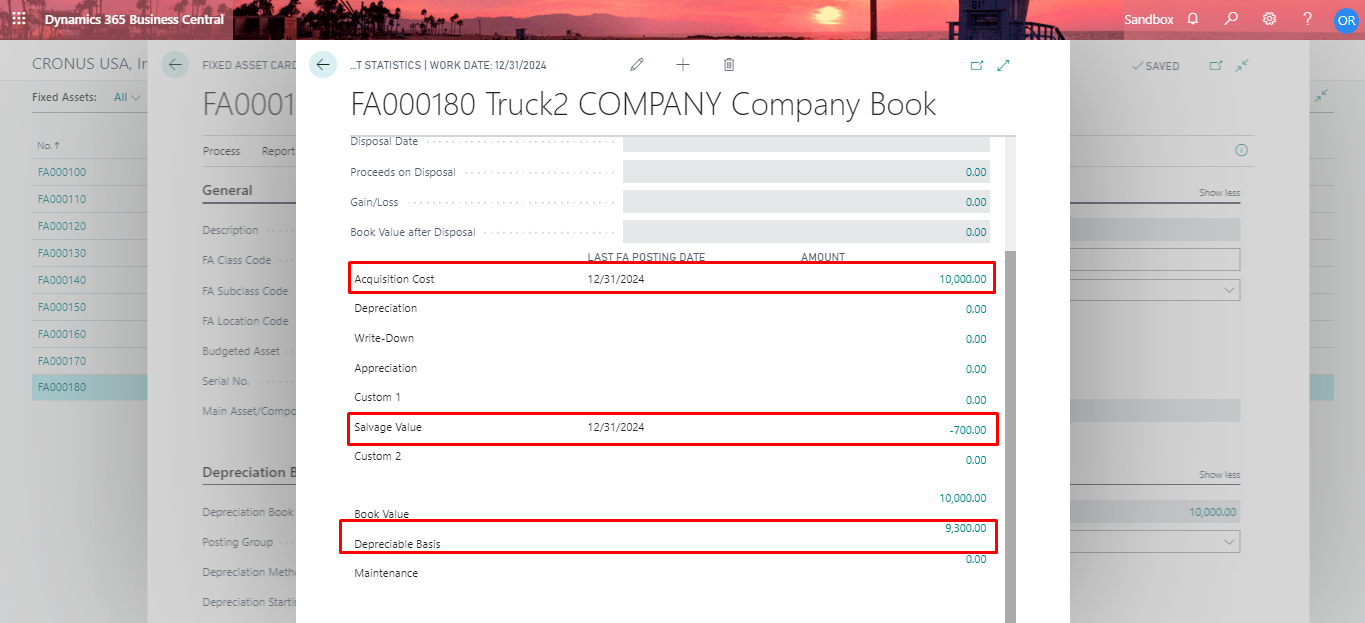 |
| FA Statistics after Salvage Value is posted |
4. Setup Depreciation:
To setup depreciation, you will need to insert the Depreciation Method, Depreciation Start Date, Depreciation End Date and No. of years.
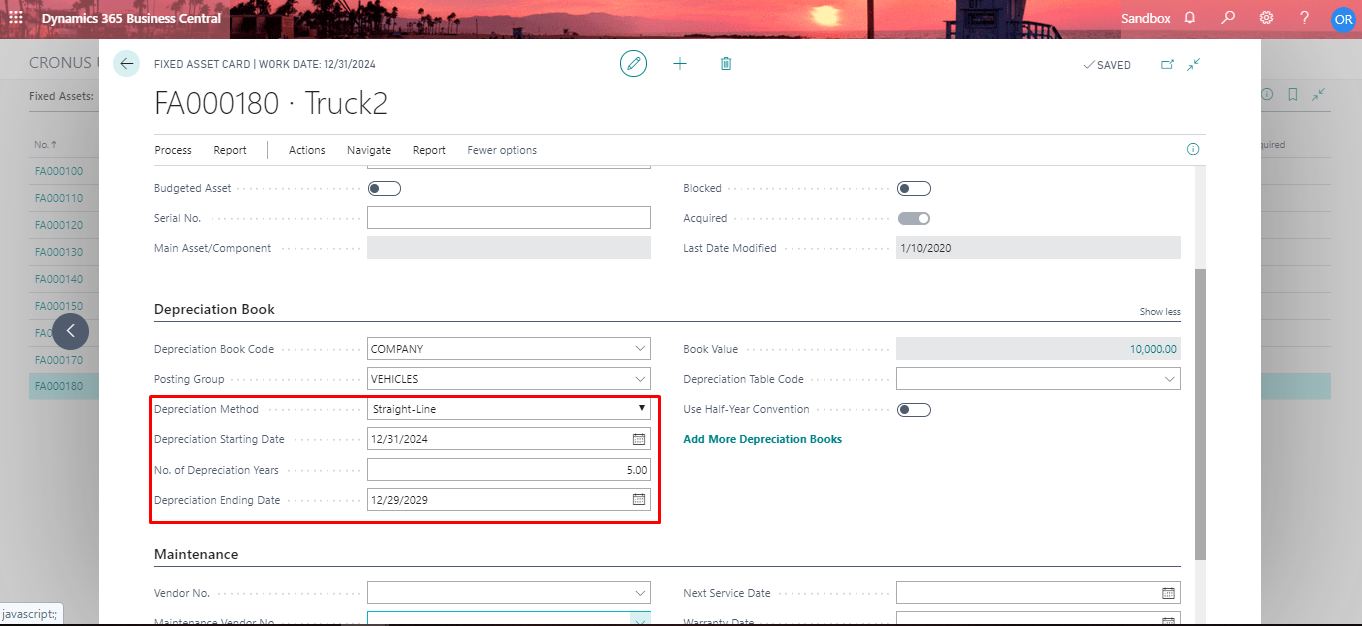 |
| Setting up Depreciation |
To create a depreciation, make use of Calculate Depreciation Report where you can set the Document No., Posting Date, you can even put the No. of depreciation days etc.
 |
| Calculate Depreciation |
This report will create depreciation entries in FA G/L Journal.
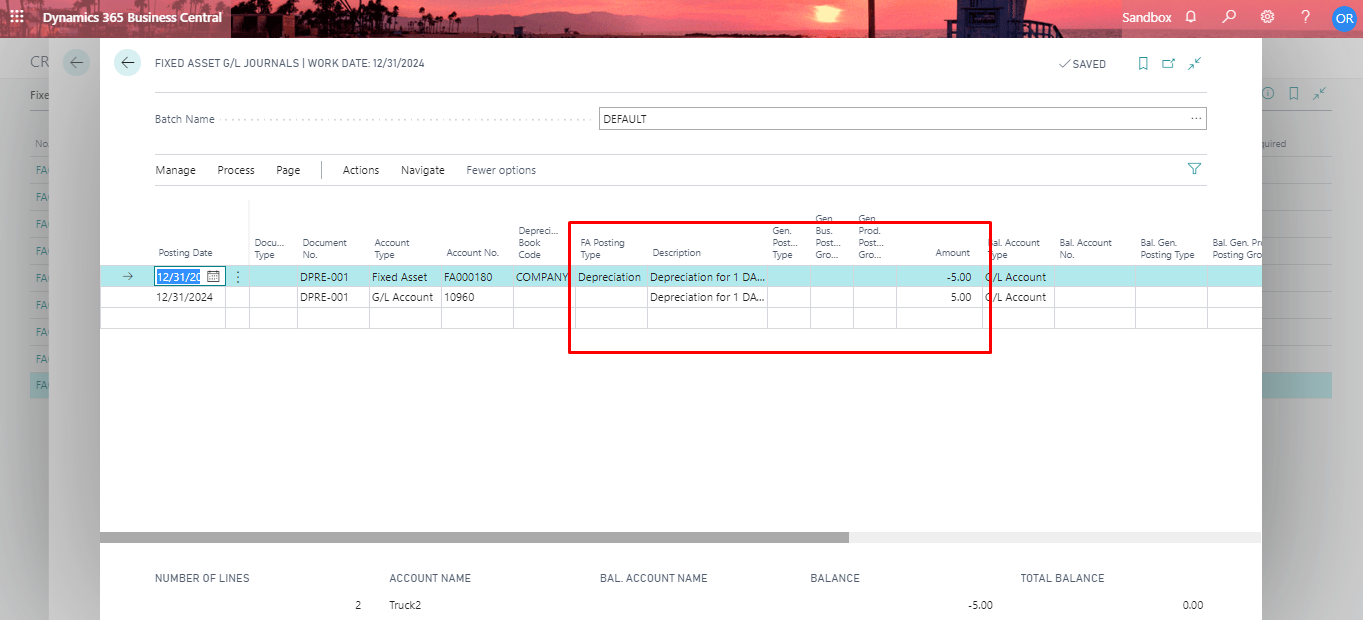 |
| Calculate Depreciation - FA G/L Journal |
 |
| Depreciation Entry |
6. Disposing of a Fixed Asset:
To dispose of a Fixed Asset, you need to create a Disposal Entry in FA G/L Journal
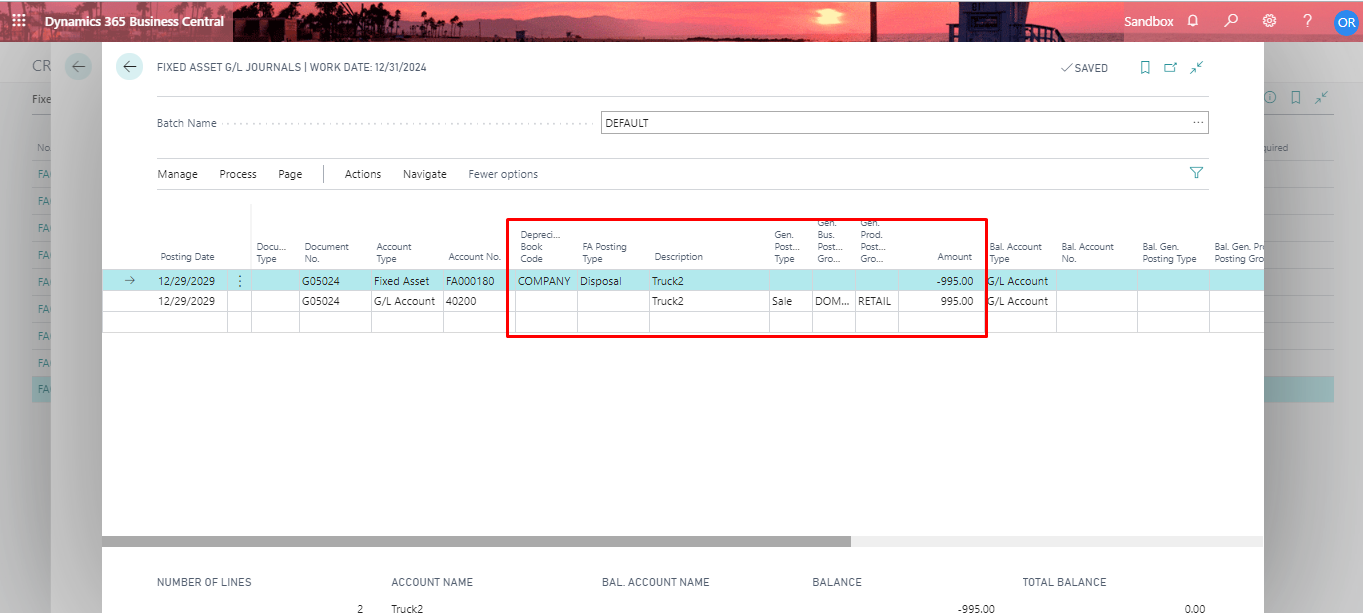 |
| FA G/L Journal Disposal |
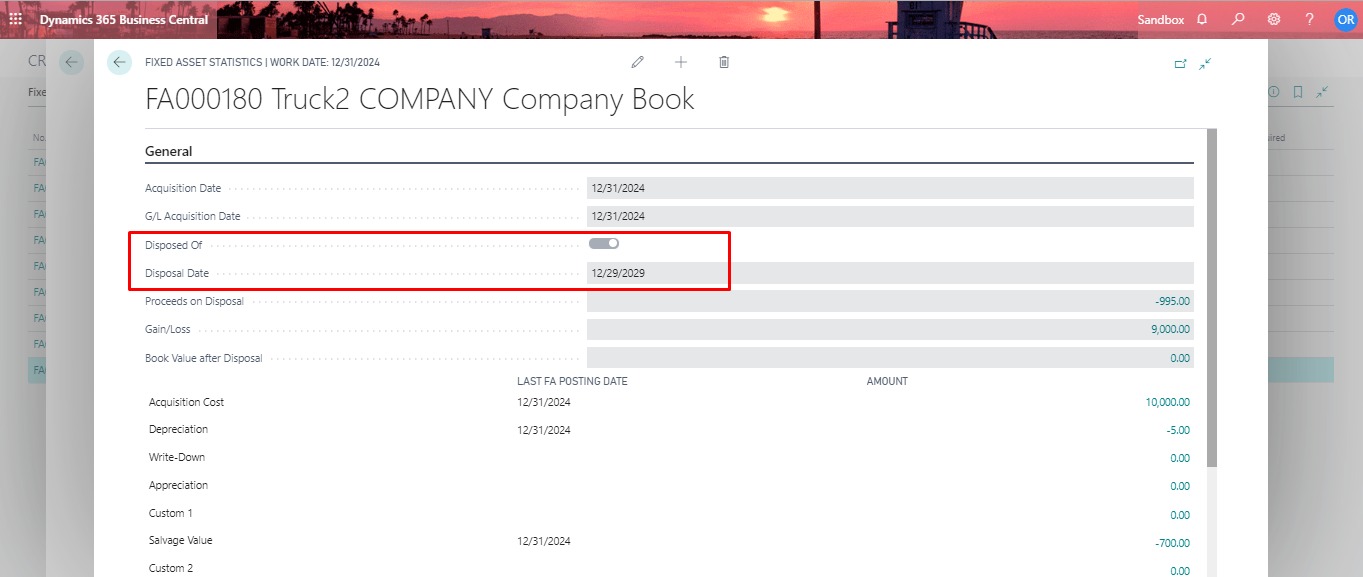 |
| After Disposing the Fixed Asset |
Conclusion:
In this way, I have shown you the Lifecycle of a Fixed Asset. It is relatively easier to deal with Fixed Asset as it doesn't contains any inventory and accounting is much more simpler.
In my next blog I will be inclining towards advance version of Fixed Asset Understanding
In my next blog I will be inclining towards advance version of Fixed Asset Understanding
*This post is locked for comments