




 487
487 Like
Like Share
Share
 Report
The utility program only involves compilation of p-code and it won't go further for compilation of .NET framework CIL.
Note : You should stop your AOS service before you start compilation.
Step 1) Open command prompt as a administrator. Navigate it to this path by using command.
cd C:\Program Files\Microsoft Dynamics AX\60\Server\"Your AOS name"\bin
It will navigate to given path.

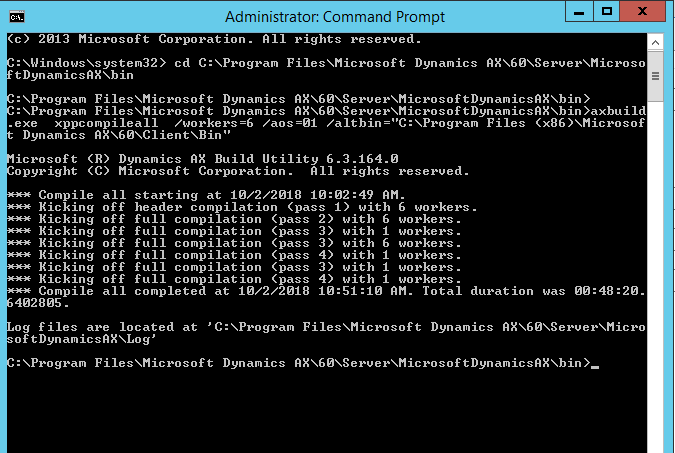
Step 2) Input AXbuild command, execute it and wait till it completes.
Command : axbuild.exe xppcompileall /workers=6 /aos=01 /altbin="C:\Program Files (x86)\Microsoft Dynamics AX\60\Client\Bin"
- Workers = 6 : It tells about number of parallel or concurrent AOS workers for the compilation adn build processes. In my case they are 6.
- AOS = 1 : Instance server number
- Altbin = It tells about the path to the folder on the local AOS host computer that has the DLL files which are installed with an AX32.exe client .
After complete execute log file will be generated in html and its path will be given on cmd.
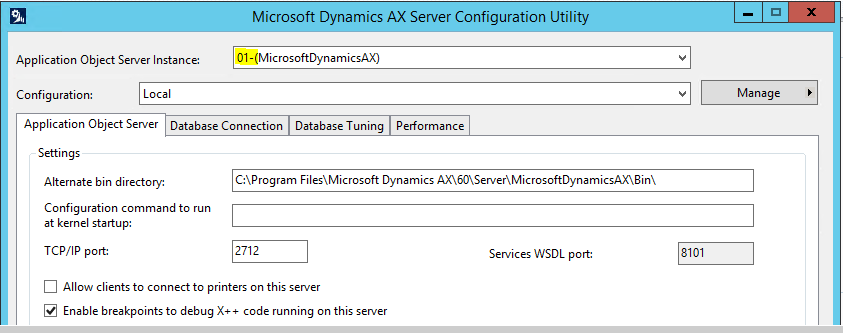
Tip : For finding your AOS instance number search in windows : Microsoft Dynamics AX Server Configuration and go to Application Object Server tab and check AOS instance field. Highlighted part is the value of AOS instance number.
*This post is locked for comments