




 1,171
1,171 Like
Like Share
Share
 Report
Once you’ve got your templates set up, the last thing to do is to start creating the reviews. That is, take an instance of a review template, and assign it to a worker to start the process. Workers can see their reviews from self service. That calendar icon will show you the start date of the earliest starting currently active review. If you’ve got several on the go at once it can be a bit confusing
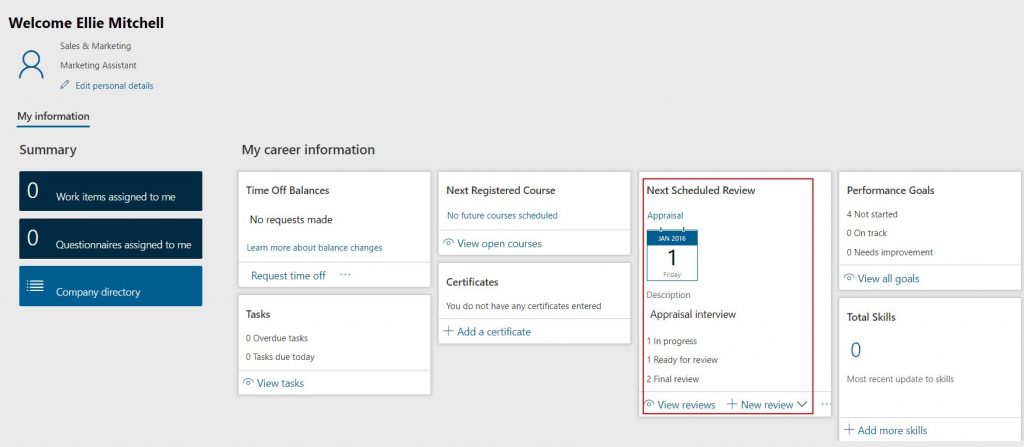
Now, unless you change the standard security setup, employees can initiate their own reviews any time they like. They can also (and this is something to be very much aware of) delete reviews through self service – unless workflow has been enabled on that review type. Another reason beyond the better UI to switch this option on. You could always tweak the security roles to take these abilities out, though, if it made you uncomfortable.
So again, you need to go back to your evaluation of how you want your review process to work, and establish who’s going to be initiating them. My guess, in most cases, is that it’s going to be HR. You need to prompt your employees and line managers that it’s review time, or you need to set up the annual reviews so the form exists for them to track progress throughout the year. Either way, you need an HR user to be able to create reviews for a group of workers. Here’s how:
Go into the Employee development workspace
Jump into the links tab
Under ‘Performance’ hit ‘Reviews’
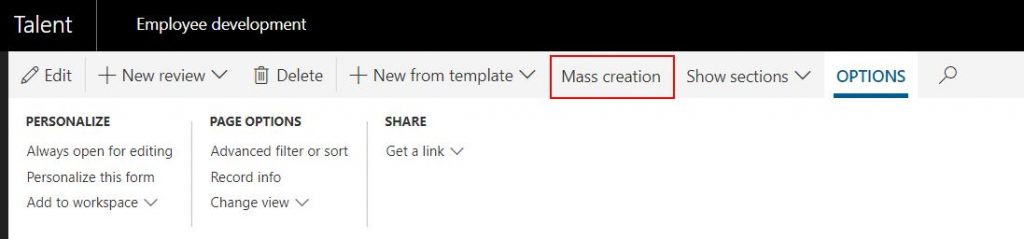
You’ll then see a list page of all the reviews that have been created, their start date, and their status. You can sort and filter on this list page like you can everywhere else. On the ribbon you’ll see a button marked ‘Mass creation’.
The mass creation form then pops out. Here you can choose which type of review you’re creating, what performance period it’s for (remember you can override the start and end dates, and its description. You can also filter to pick the list of workers you want to apply this review to. Options here are quite helpful – you can assign to everyone in a department, everyone in a specific job, and individual workers or positions. If you’ve got a list of worker IDs that you want to create reviews for, paste them into the filter box separated by commas (you can find out how to convert an Excel list into a comma separated string using MS Word here).
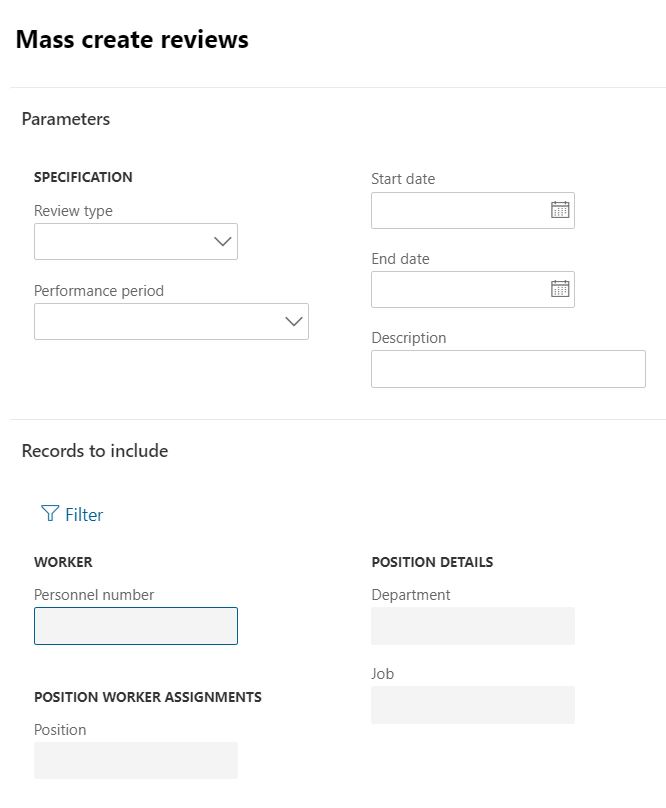
Make your choice, and then create. The reviews get created, and are visible to the worker and the employee in self service. Job. Done.
*This post is locked for comments