






Transferring files over FTP & SFTP protocol
 Divesh
 327
327
 Like
Like Share
Share
 Report
This post is about transferring the file over FTP (File Transfer Protocol) & SFTP (Secured File Transfer Protocol) from Navision using WinSCP dot net library. Files can be uploaded to & downloaded from remote system.
Below is the design that i have implemented in one of our projects.
- FTP Setup – to configure the connection details.
- FTP Setup Line – to configure the methods like upload, download and file paths.
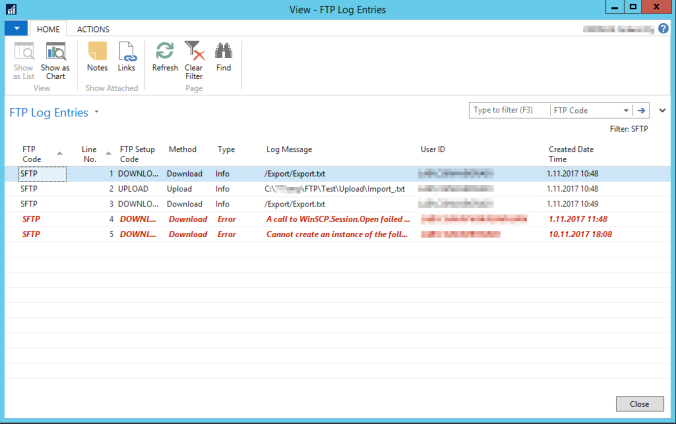
- FTP Log
FTP Setups:
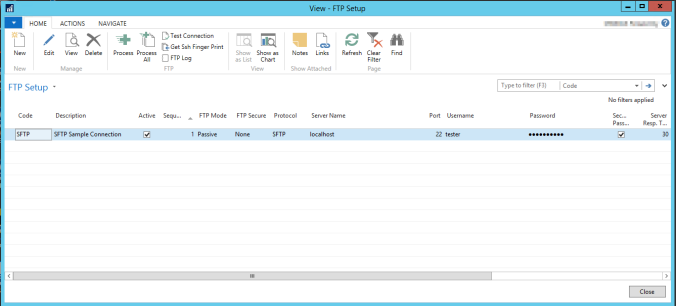
FTP Setup:
You can create multiple FTP Setup for different connections.
- Active field can be used to Activate / Deactivate the FTP Setup.
- Sequence field can be used to setup the sequence in which the FTP batch job can process the FTP Setup.
- Connection can be tested using Test Connection.
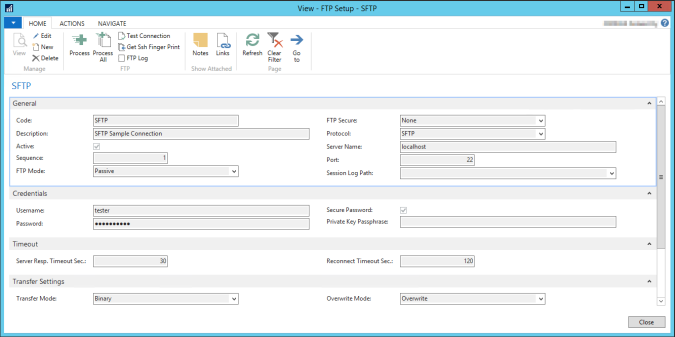
FTP Setup Line:
- Active field can be used to Activate / Deactivate individual FTP Setup Line.
- Line level Sequence field can be used to setup the sequence in which Setup Line can be processed.
- Uploaded files can be archived & deleted using the “Archive & Delete” option.
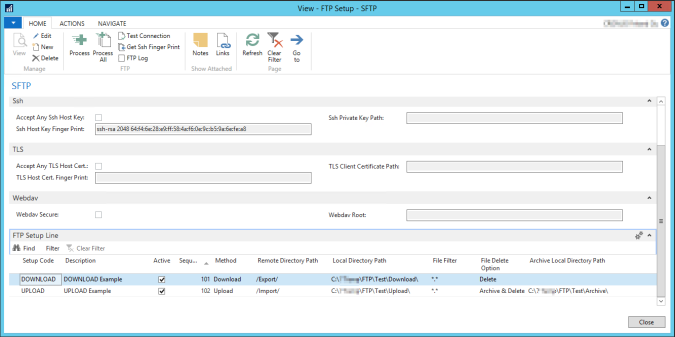
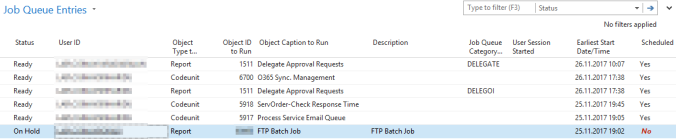
Batch Job for Processing the FTP Setup.
Connection is only opened once for each & every Active FTP Setup and only Active Lines are processed based on the sequence defined in the setup.
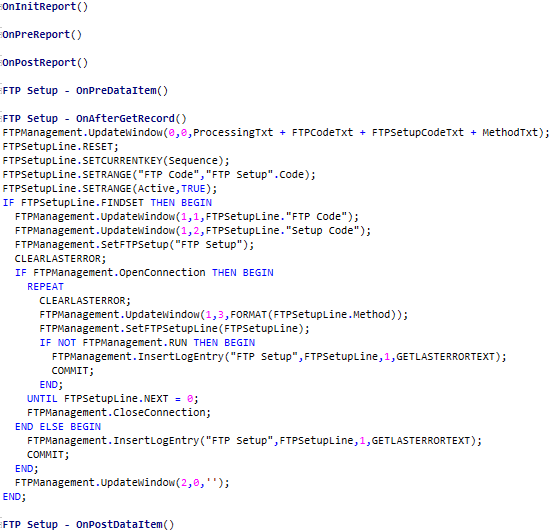
FTP Logs are created when processing the the FTP Setup . Log contains the details about the files that are Uploaded & Downloaded, connection & transfer related error’s .
Batch job can be scheduled in Job Queue:
Sample code can be found from WinSCP
WinSCP Library can be downloaded from here and the files should be copied to the Add-ins folder.
SFTP can be tested with Rebex Tiny SFT Server .
Please do let me know your suggestion on the design and share this post. Thanks
This was originally posted here.
*This post is locked for comments