




 1,856
1,856 Like
Like Share
Share
 Report
In a previous post, I’ve reviewed and explained how to set up and use Satisfaction Metrics in Dynamics 365 Customer Voice. This is a great way to really understand just how happy, or unhappy your customers are. We can also create alerts in Customer Voice, giving us the ability to stay up to date when negative (or positive) feedback is received and assign an organisation representative to try and resolve issues with customers quickly. Let’s look at how to create alert rules, what alerts look like when received, how to assign them, and how to resolve them.
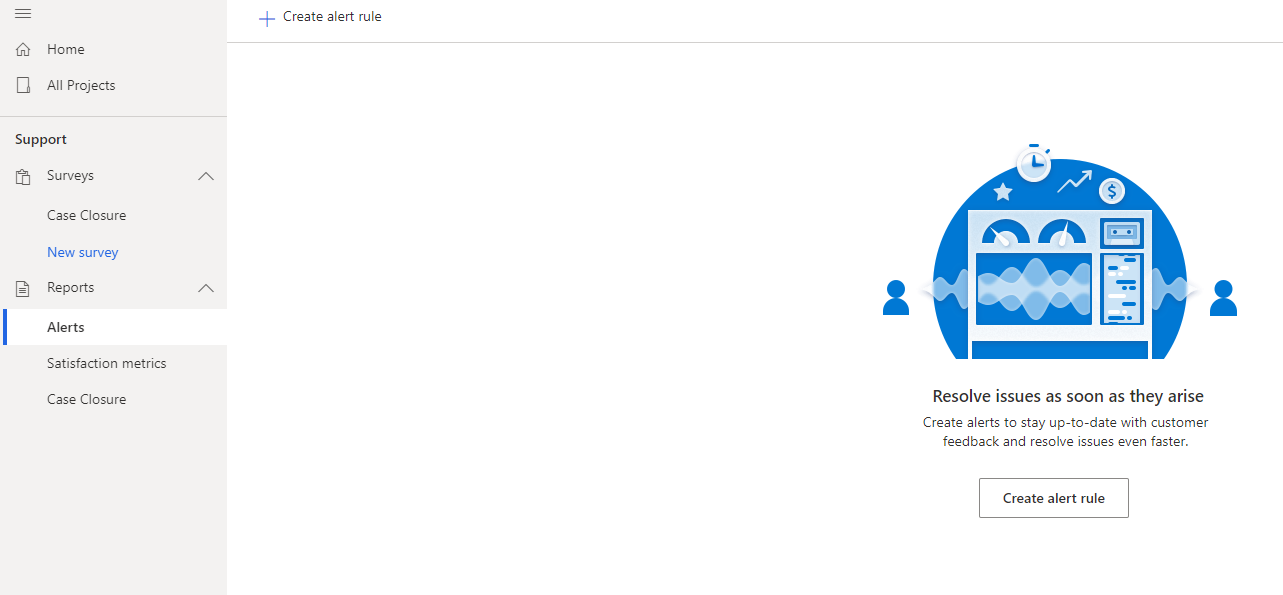
First, navigate to a project, then click on Alerts. If you don’t have any created, you’ll see this, and your only option will be to create a new rule. Click on Create alert rule.
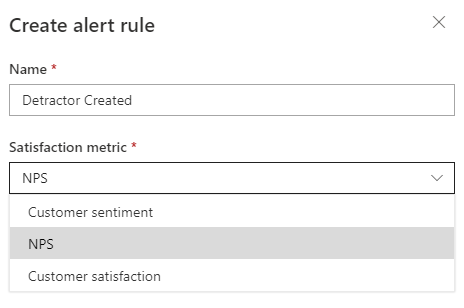
First, give your alert rule a name. This can be whatever you want to call it, but will be assigned to alerts as they are generated. Although you don’t have to have any satisfaction metrics set up within your project, if you do, the name of the metric will appear in the drop down when selecting one. If not, you will just see the names of questions that you have in your surveys within the project. Select one from the list. Here we have a new rule that I want to trigger for detractors, so have selected the NPS satisfaction metric.
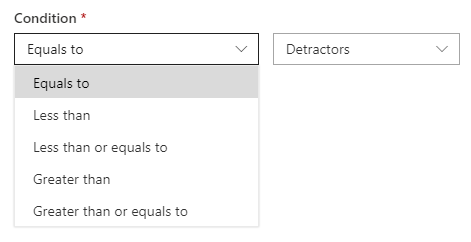
The condition options available will be based on the Satisfaction metric selected above. Here the condition for my alert is that the response provided for the NPS metric is equal to Detractors.
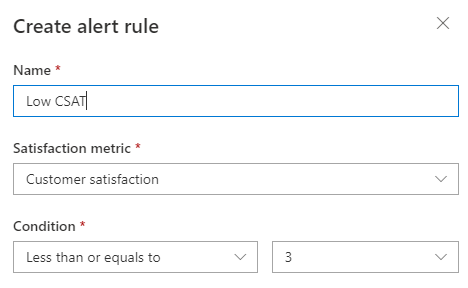
Here I have a rule for a Low CSAT score where the response provided is less than or equal to 3 for a ratings question on a survey.
It doesn’t all have to be negative for the alert triggers. We might also want to review and resolve alerts for positive feedback and use it as an opportunity to follow up with our customers when they say nice things about us too. Consider asking if you can use their feedback as a review or recommendation!
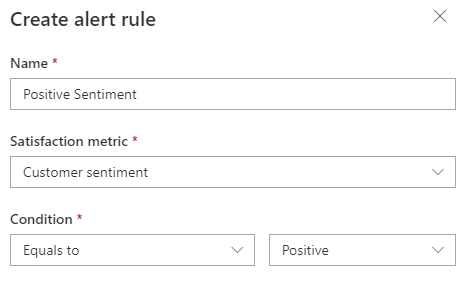
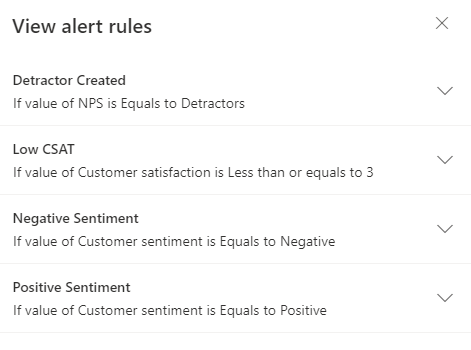
Once all of your alerts are set up, you can review them from the Alerts section within the Project.
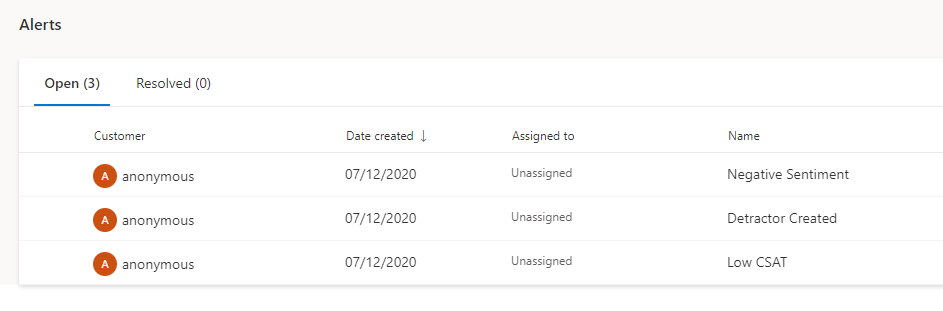
From this point onwards, when we get a survey response, they will checked against the alert rules set up. Here we can see that three alerts have been generated based on feedback provided. If the response was linked to a Customer, we would see their name in the Customer column below. Here we can see that there are three alerts but the Customer is anonymous because we shared a direct link for the survey.
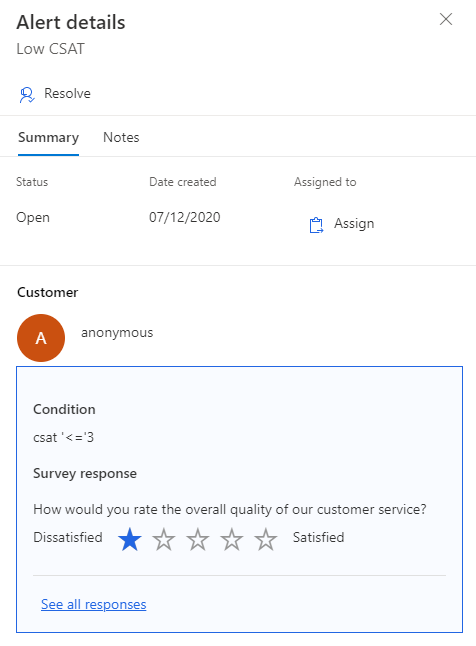
Clicking on the name of the customer will open the alert to the right side of Customer Voice. We can see the name of the alert, the status, date created and who it has been assigned to. In this case, it’s not yet been assigned. Then we can see the condition that was met, and what the survey response was that was provided. If we need more detail, the See all responses link can be clicked to review the full survey response with all of the questions and the corresponding answers. This could be helpful when looking for more context in relation to the survey response that triggered the alert.
Clicking the Assign option art the top of the alert will open up this window. We can then search for and select the person who should investigate, and perhaps contact the customer to get more information from them.
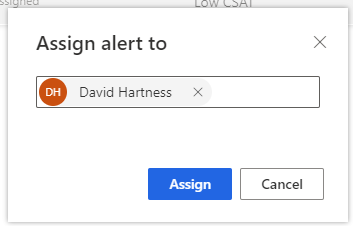
Alerts can also be assigned directly from an alert in the list, or by selecting multiple and clicking reassign from the top right menu.

Notes can be added to an alert, which may help the person working on the issue. These notes can be added and saved, and reopened and edited again as needed.
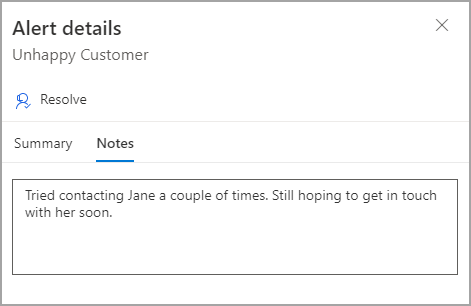
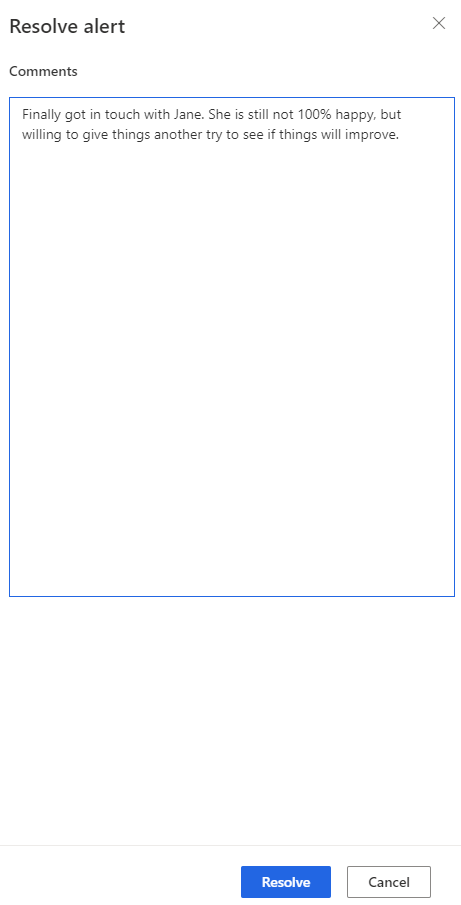
Once the issue is resolved, and ideally the customer is happy again, the issue can be resolved by clicking the Resolve button from the top of the alert, or from the menu from the list of alerts. The user can add in their final comments, then click the Resolve button.
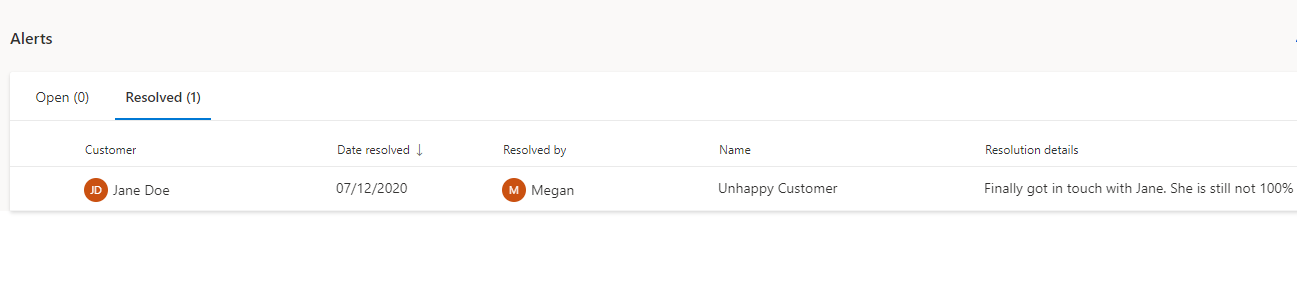
As soon as the alert is resolved, it will be moved to the Resolved tab when reviewing the list of Alerts.
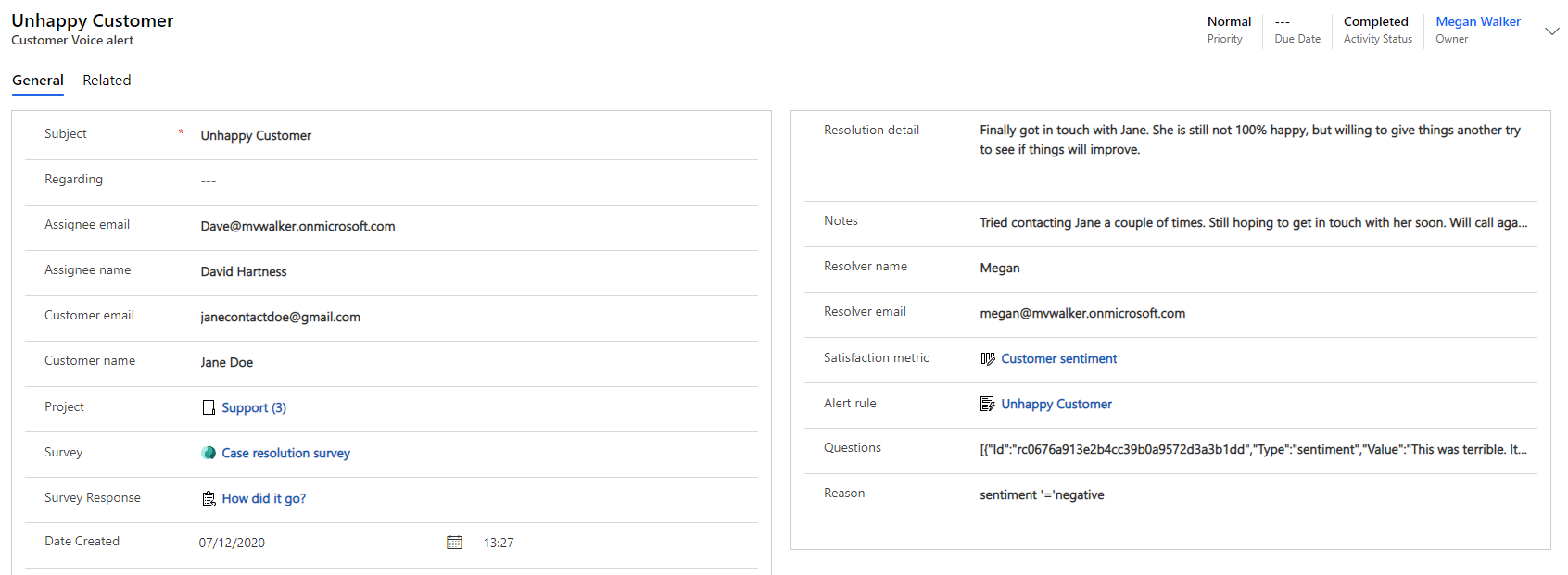
The alert will also be accessible from a Model-driven Power App (D365). So if you have access, and have other users who need to be able to review this information, they can see it here, as the D365 Customer Voice data is stored in Dataverse.
You can watch a video on this here.
*This post is locked for comments