







How to Change the Panel Header Colour of a Sub-Grid in Dynamics 365
 MagnetismXRM
 6,230
6,230
 Like
Like Share
Share
 Report
Microsoft released Dynamics 365 July update with many new features and enhancement. One of enhancements that it came with is allowing users to change colour of a sub-grid’s panel header. To change the colour of the panel header is a very easy process and it helps users to have a greater experience by improving the aesthetics of the form.
I am using a custom Entity called “Exam Results”, and each record has a look up to a Contact record. Each exam result has a custom attribute I created called “Result”. This field’s data type is “Option Set” and has only three options – Passed, Failed, TBA.
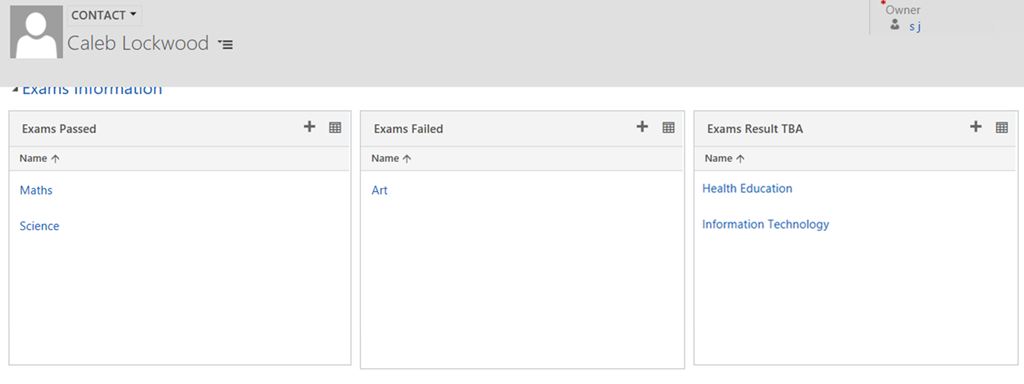
I added three different sub-grids on the contact form, and those sub-grids are used to display exams a student has passed, failed and the exams with result TBA. The following screenshot shows what those three sub-grids look like for one of the contact records.
To add a colour of your choice on sub-grid panel header, follow these steps:
- Open the form editor.
- Double click on the sub-grid whose panel header you want to add the colour to, in this case I wanted to set sub-grid “PassedExams” to Green.
- This will open the form that allows us to update the properties of the sub-grid.
- Populate the “Panel header colour” field, in this case I entered a hex value #91F78F. Then select ok.
- Then save and publish all the changes made on the form, before I did that I changed the colour of panel header of all three sub-grids.
Following is what the subgrids looked like when I opened a contact record. Each sub-grid header had the colour I selected.

*This post is locked for comments