






Embed Google Analytics In Dynamics CRM Dashboard
 Megan V. Walker
 1,856
Most Valuable Professional
1,856
Most Valuable Professional
 Like
Like Share
Share
 Report
Tracking website visits, conversions and bounce rates is key for any marketer or web master. Using Google Analytics (GA) is a must for viewing how your content is doing and removing the guess work. While you won’t want to give GA access to everyone in the company, you might want them to see how traffic is flowing to the website, which blog posts are getting the most traffic and how specific content might be doing. Luckily, you can embed this info in CRM using Power BI.
Power BI Tiles
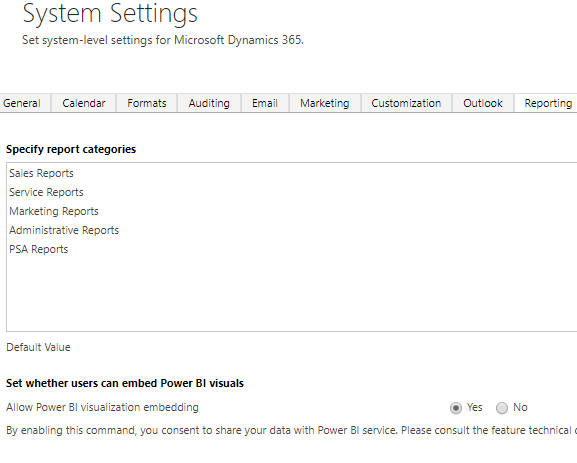
So what is Power BI? From their website, Power BI is a suite of business analytics tools that deliver insights throughout your organization. Connect to hundreds of data sources, simplify data prep, and drive ad hoc analysis. Check with your system administrator if you have Power BI as part of your Office 365 licensing. You can get a 60 day free trial to see if it makes sense for your organisation before you buy. One of the really cool things is that Power BI tiles can be added to a Dashboard in CRM. First, go to Settings>Administration>System Settings and go to the Reporting tab. At the bottom of the tab, make sure Yes is set for the ‘Allow Power BI visualisation embedding’ setting.
Back in Power BI, search for the Google Analytics as an App Source. Once activated you will connect to your Google Analytics account. Pick the correct account and any specific property or view. Then click Import

Once imported, go back to CRM and create a new Dashboard. Click the bottom right icon to add a Power BI tile to the dashboard.

Google Analytics Power BI Tiles
From here, you will see a list of all the dashboards you have set up in Power BI. Select Google Analytics from the list. You will then see all available tiles. Once selected you will be see a preview of the chart.

Add all of the tiles you need then save the Dashboard.If you haven’t already, make sure the CRM users have access to the data in Power BI. If you forget and they don’t have access, they will get the following cheery image in the CRM dashboards.

Finally, make sure you share the CRM dashboard with other users who will need access.

This was originally posted here.
*This post is locked for comments