




 26,225
 Like
Like Share
Share
 Report
 |
| SnapIn config data store error |
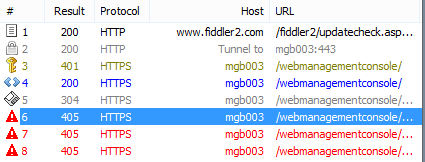 |
| Fiddler Trace |
As it turned out, there's one "other pre-requisite" if installing the Web Management Console on a Windows 8 environment: Windows Communication Foundation (WCF) HTTP Activation. Simply put, HTTP activation allows a WCF service to relay its messaging asynchronously over HTTP - in this case HTTPS. In Windows 8, HTTP Activation is turned off by default, unlike Windows Server.
The SnapIn config data store is a table in the GPWEBMANAGEMENT database (dbo.SnapInStorage) and stores the URL to the Session Central Service WCF service. I ran a SQL Profile trace and noticed that the Web Management Console was not able to reach the GPWEBMANAGEMENT database on the SQL Server to read the Session Central Service URL. Therefore, the Console was not able to communicate to the Session Central Service to obtain user session or tenant information.
To turn on HTTP Activation on Windows 8:
1. Open Control Panel
2. Select Programs
3. Click on Turn Windows features on or off
4. Expand .NET Framework 4.5 Advanced Services
5. Expand WCF Services
6. Click on the HTTP Activation checkmark
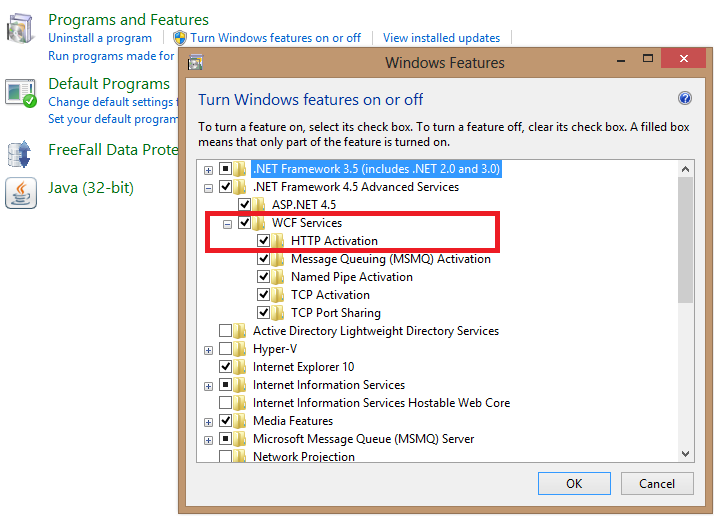 |
| WCF HTTP Activation |
Once the services were up and running, the Web Management Console worked like a charm.
Many thanks to Daryl Anderson and Grant Swenson at Microsoft for assisting with this one.
Until next post!
MG.-
Mariano Gomez, MVP
IntellPartners, LLC
http://www.IntellPartners.com/


*This post is locked for comments