







Linking of Sales Order and Sales Order Lines in Microsoft PowerApps.
Views (16)

 Like
Like Share
Share
 Report
Introduction:
In this blog I will demonstrate that how the Sales Order and its corresponding Sales Order Lines can be linked together in the Microsoft PowerApps.
Pre-requisites:
- Microsoft PowerApps
Method:
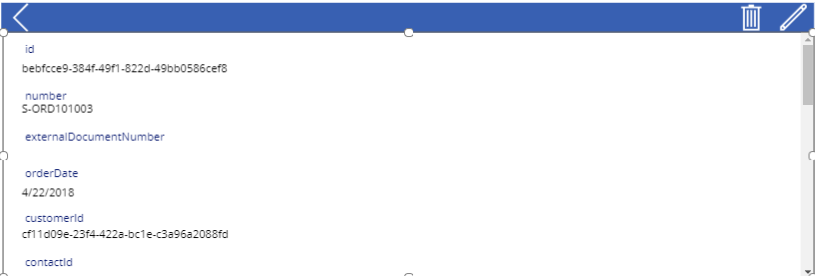
- Create two galleries within the PowerApps and for the first gallery create a display form with Sales Order as the Data source.
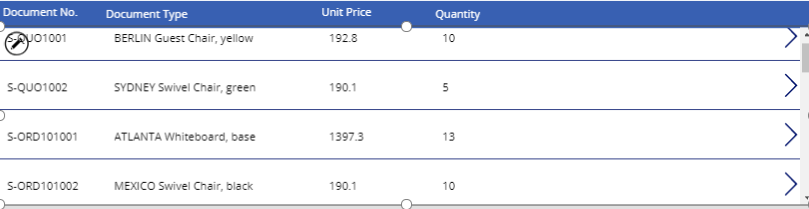
- In the second gallery, the Sales Order Lines is the Data source.
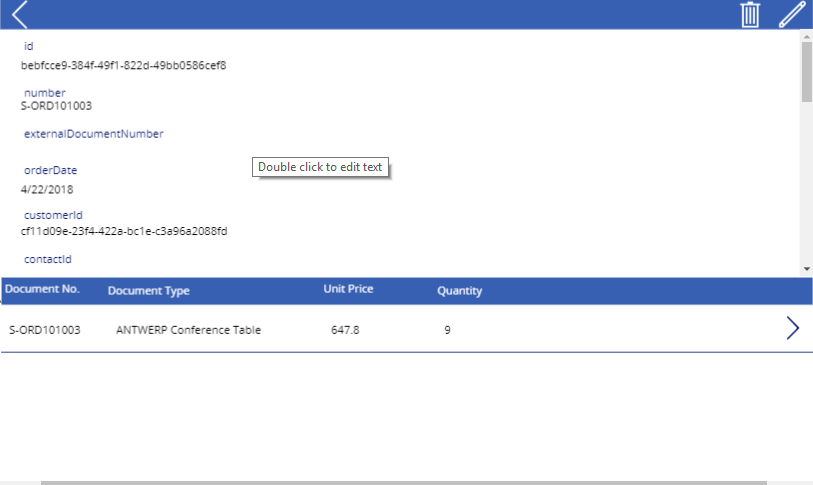
- Now select the second gallery, and write the following formula to display the corresponding Sales Order lines: Filter(SalesOrderLines,’Document No.’ exactin DataCardValue2.Text) where DataCardValue2.text contains the value of ‘No.’ field of the Sales Order on the basis of which the Sales Order and its lines are related. The exact in keyword is used to check whether both the fields are matching exactly.
The post Linking of Sales Order and Sales Order Lines in Microsoft PowerApps. appeared first on .
This was originally posted here.
*This post is locked for comments