







How to setup Hyper-V
Views (1)
 Olister Rumao
 3,967
3,967
 Like
Like Share
Share
 Report
Introduction:
In this blog, I will showcase how to setup Hyper-V in Windows and Install OS on Hyper-V
Pre-requisites:
- Basic Understanding of Hyper-V
- Understanding of OS Installation
Books & References:
Demonstration:
1. Enable Hyper-V through Windows:Search for Turn Windows features ON or OFF in Windows Search and Enable Hyper-V
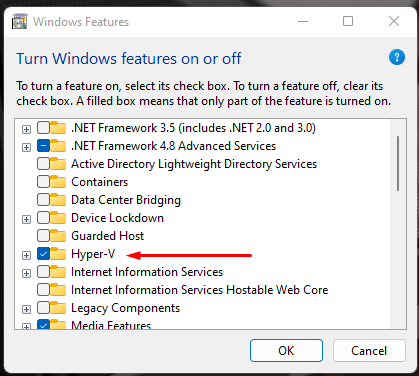
Once you hit OK, Hyper-V will be installed and the setup will complete. You will need to Restart your machine. 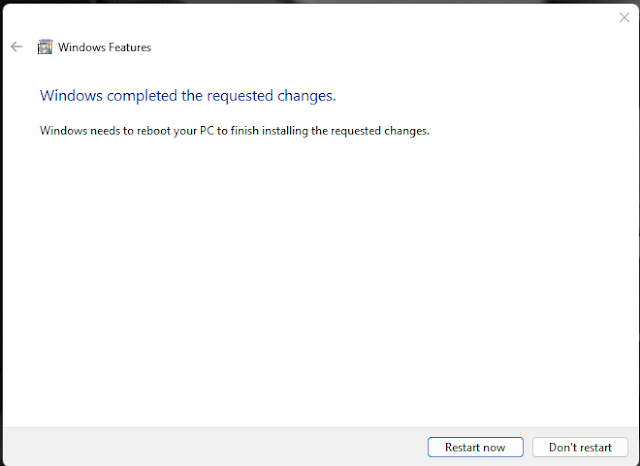

2. Creation of Virtual Machine in Hyper-V:
Once Hyper-V is installed, you can simply search for Hyper-V in Windows Search.

In Hyper-V, you will need to create Virtual Machine. Select New > Virtual Machine.

Add the Virtual Machine Name

Select VM Generation. This is similar to Legacy or UEFI Boot.

Select the Allowed Memory(RAM) for the VM.

Select Network Adapter

Create Virtual Hard Disk Drive and select the size for the same.
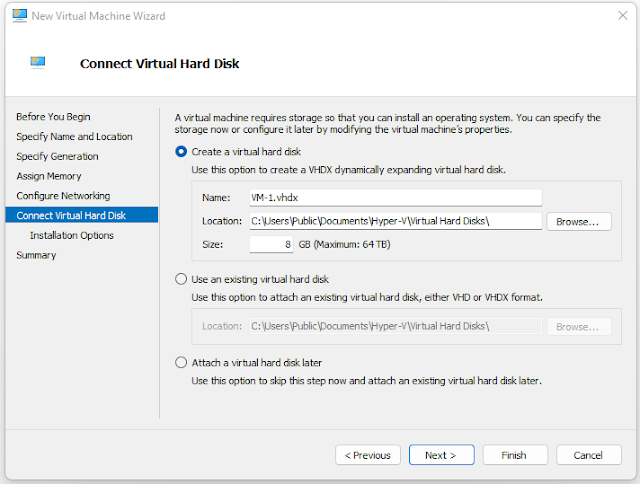
You can now go ahead and Finish the setup. At this point, your Virtual Machine will be created.
3. Start Virtual Machine and Connect to the VM:
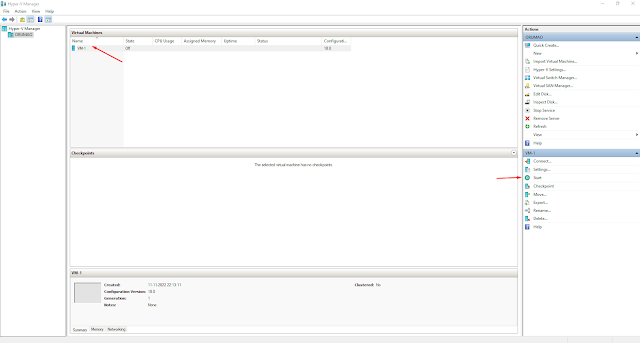

NOTE: In Order to set up Hyper-V, you will need Virtualization enabled.
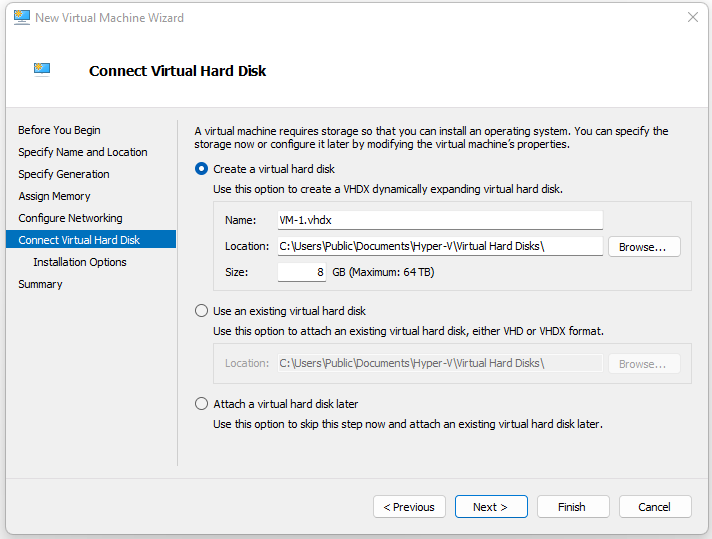
In order to Boot the OS, you will need the bootable drive or ISO image of the OS
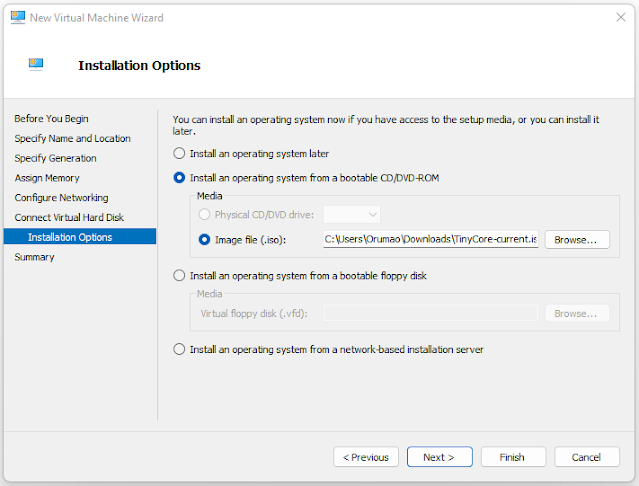

You can now go ahead and Finish the setup. At this point, your Virtual Machine will be created.
3. Start Virtual Machine and Connect to the VM:


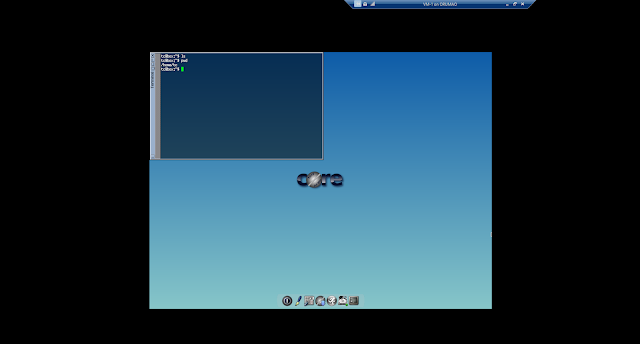
Once, you have connected to the VM, you will see the Boot Screen right from BIOS to Booted VM

NOTE: In Order to set up Hyper-V, you will need Virtualization enabled.
Conclusion:
I hope this process helps you set up your own Virtual Machine. There are many apps that can have similar functionality like Oracle VirtualBox, and VM Ware.
Cheers!!
This was originally posted here.
*This post is locked for comments