




 26,225
 Like
Like Share
Share
 Report
A few days aback, the Microsoft Dynamics GP product management team announced the availability of Microsoft Dynamics GP 2013 from the Windows Azure gallery. You can read more about it on the Inside Microsoft Dynamics GP blog:
Microsoft Dynamics GP 2013 image available in the Azure Gallery
The image is available exclusively to MSDN subscribers, which means it's only slated for development and maybe even demo purposes. You can find more information and download some Word documents to assist with the configuration process directly from PartnerSource with the link provided below.
 PartnerSource: Microsoft Dynamics GP 2013 image available in the Azure Gallery
Since I am an MSDN subscriber courtesy of the Microsoft MVP Award Program, I thought I would dive into the process of provisioning a Microsoft Dynamics GP 2013 virtual machine (VM) and walk through some of the things I found in the process - back in January of 2013, I explained the Windows Azure subscription process. The process may or may have not changed much since then, but if you are an MSDN subscriber, all you need to do is activate your benefits by going to the Windows Azure website.
1. Once your benefits are active, you will need to go to the Windows Azure management portal - for obvious reasons, I have obfuscated my VM and cloud services names.
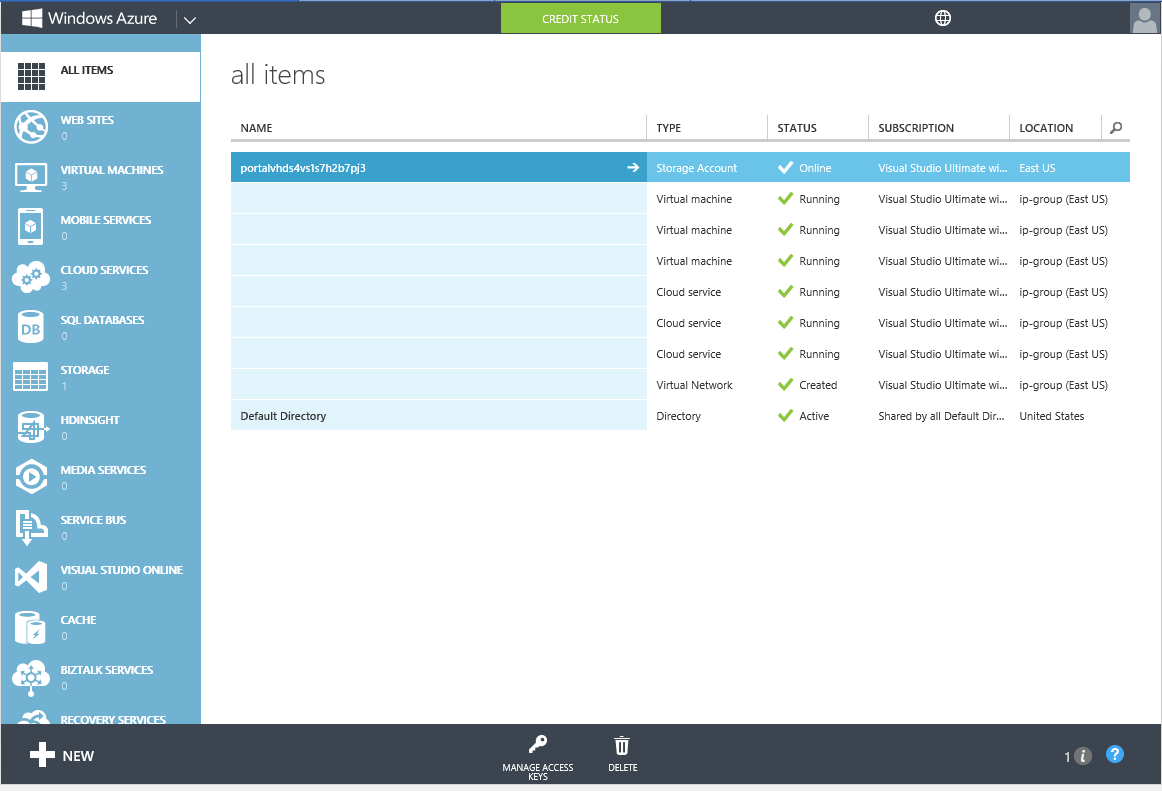 |
| Windows Azure management portal |
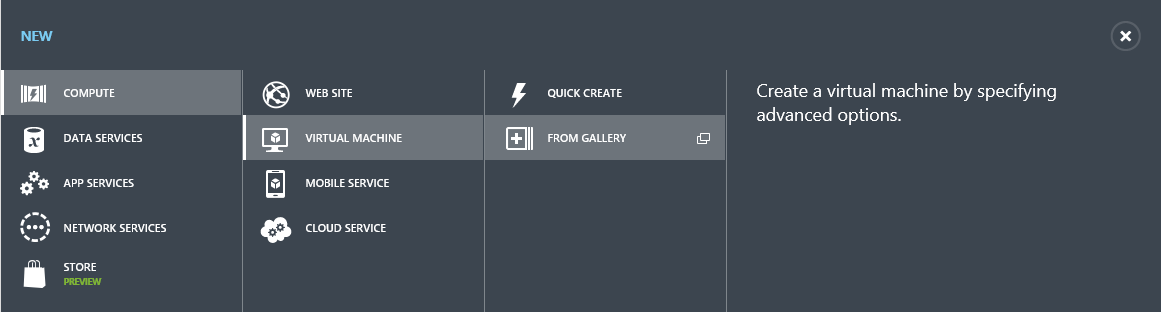 |
| Virtual Machine Gallery option |
3. Locate the Microsoft Dynamics GP 2013 Developer image from the Dynamics gallery under the Microsoft section. To note, you can also provision a Microsoft Dynamics NAV 2013 R2 image as well.
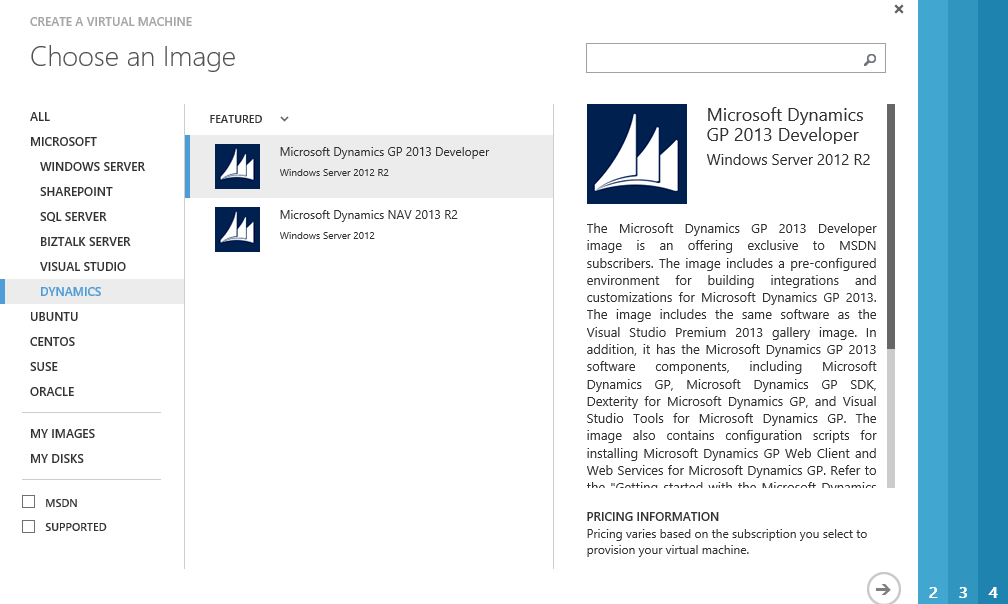 |
| Microsoft Dynamics GP 2013 Developer |
The Microsoft Dynamics GP 2013 Developer image is an offering exclusive to MSDN subscribers. The image includes a pre-configured environment for building integrations and customizations for Microsoft Dynamics GP 2013. The image includes the same software as the Visual Studio Premium 2013 gallery image. In addition, it has the Microsoft Dynamics GP 2013 software components, including Microsoft Dynamics GP, Microsoft Dynamics GP SDK, Dexterity for Microsoft Dynamics GP, and Visual Studio Tools for Microsoft Dynamics GP. The image also contains configuration scripts for installing Microsoft Dynamics GP Web Client and Web Services for Microsoft Dynamics GP. Refer to the "Getting started with the Microsoft Dynamics GP Developer Image" link on the desktop for additional information.
As a developer, you get all the goodies you can possibly dream of to dive into a development project, including Visual Studio Premium 2013. Also, once the provisioning process is complete, you can access the VM and read further instructions with a link provided on the desktop.
4. When you click the next button you will then be taken to the Virtual Machine Configuration screen, where you can enter the name and a local admin user and password for the Microsoft Dynamics GP 2013 VM. You are also asked to size the VM, for which there are no clear instructions. Given the amount of software that will be running on this VM (GP, SQL Server, Visual Studio, etc.), I figure a large size (4 cores, 7 GB memory) should be good enough to start out.
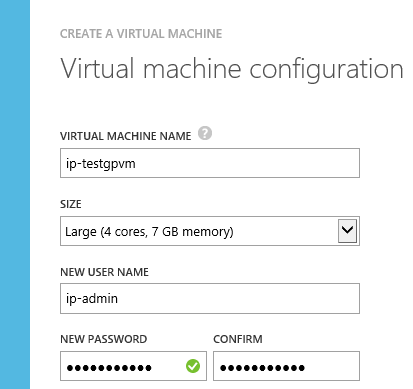 |
| Virtual Machine Configuration |
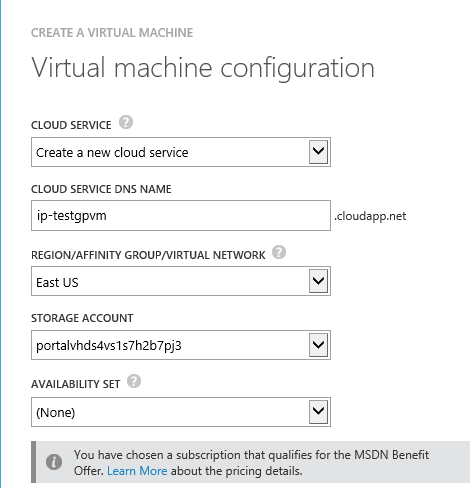 |
| Cloud Service |
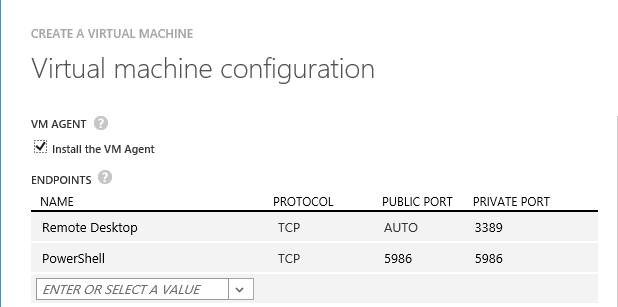 |
| VM Agent and Endpoints |
7. After submitting the configuration, the provisioning process begins.
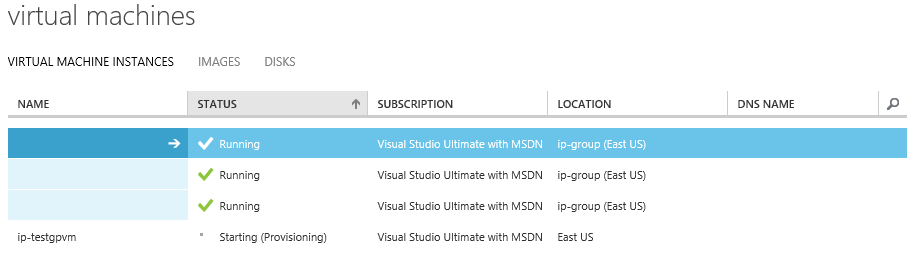 |
| Provisioning process |
Tomorrow, we will explore the VM image a bit more and walk through some of the documentation available to developers.
Until next post!
MG.-
Mariano Gomez, MVP
IntellPartners, LLC
http://www.IntellPartners.com/


*This post is locked for comments