







Email Parameters | SMTP Configurations for sending Test Mail from D365FO
Views (262)

 Like
Like Share
Share
 Report
Introduction:
In this blog, we will see how to set up email parameters and SMTP configuration for sending test mail from Microsoft Dynamics 365 Finance and Operations.
Details:
Go to the Email Parameters by follow this path: System administration -> Setup -> Email -> Email Parameter.
Another easiest way to find the email parameter in a quick manner, go to the search box and simply write email parameter as below shown screenshot

Steps:
1. In the configuration tab, set up the SMTP as in shown below image
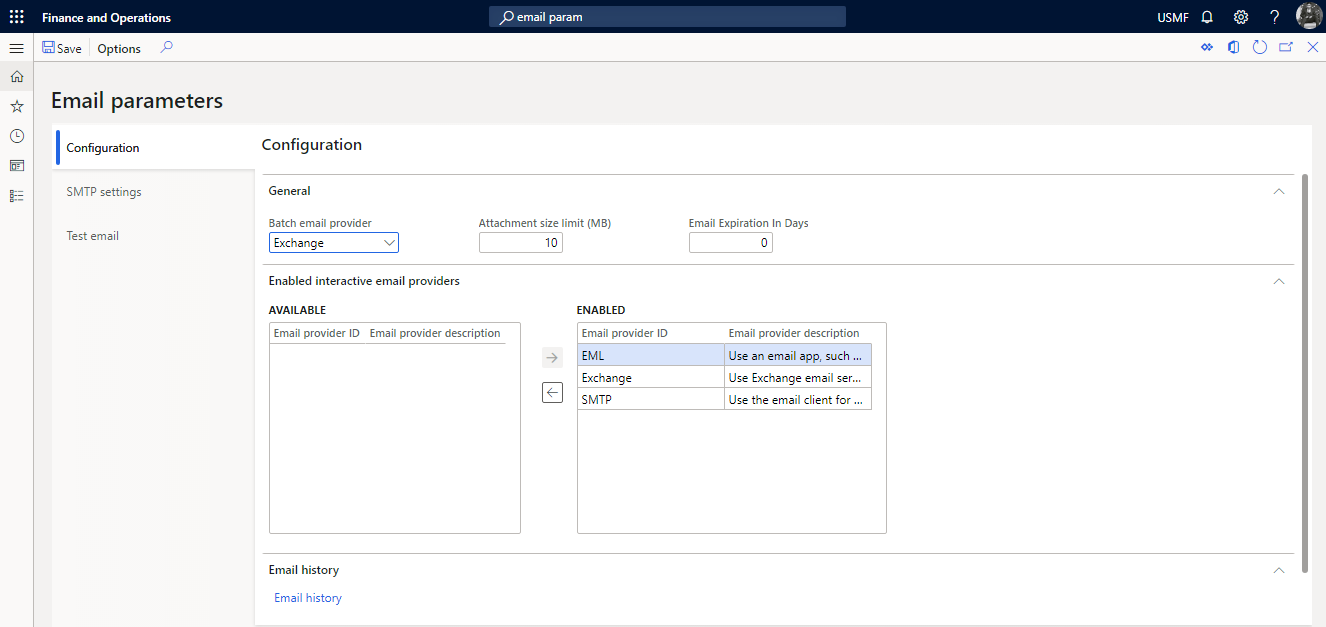
Move SMTP in the right box named with ENABLED to enable
2. In SMTP settings tab, configure the below stuff:
Outgoing mail server: smtp.office365.com
SMTP port number: 587
Username: put the email id from which email should be sent
Password: appropriate password of the email
Specify if SSL is required: true

3. In Test mail tab:
Email provider: SMTP
Send to: Put the email to whom test mail should be sent

In the final, click on the “Send test mail” and then sample mail will be sent to the respective email address.
Conclusion:
In the above blog, we have seen how to set up SMTP configuration to test “send email” functionality from the email parameter form.
Thanks for reading !!!
The post Email Parameters | SMTP Configurations for sending Test Mail from D365FO appeared first on Cloudfronts - Microsoft Dynamics 365 | Power BI | Azure.
This was originally posted here.
*This post is locked for comments