







How to View Appointments for Required/Optional Attendies in Calendar 365
Views (17)
 AppJetty
 1,019
1,019
 Like
Like Share
Share
 Report
Admins can now add required attendees to the appointment as per requirement. Any person required in the appointment, can be added through Required field in the Dynamics 365 Calendar. Here is how you can add the required attendees in the appintment.
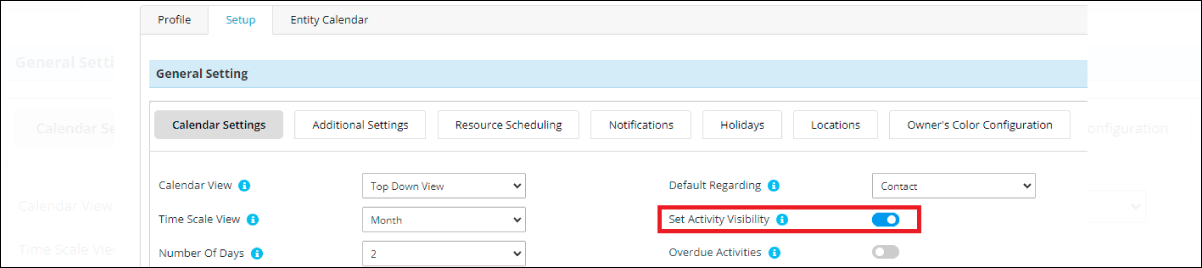
Step 1: Navigate to Setup tab ➤ Calendar Setting and enable “Set Activity Visibility” field.
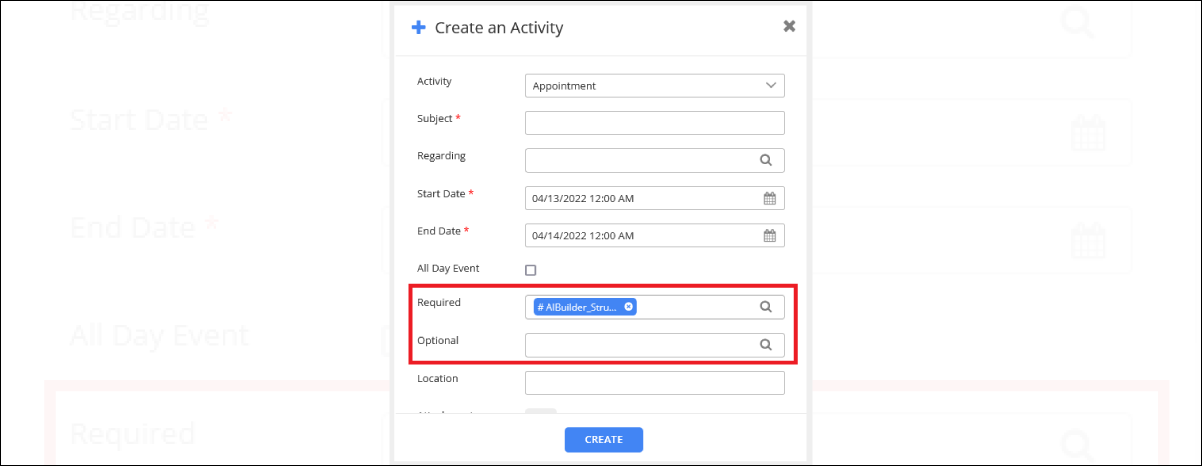
Step 2: Set the user in required/optional fields then save it.
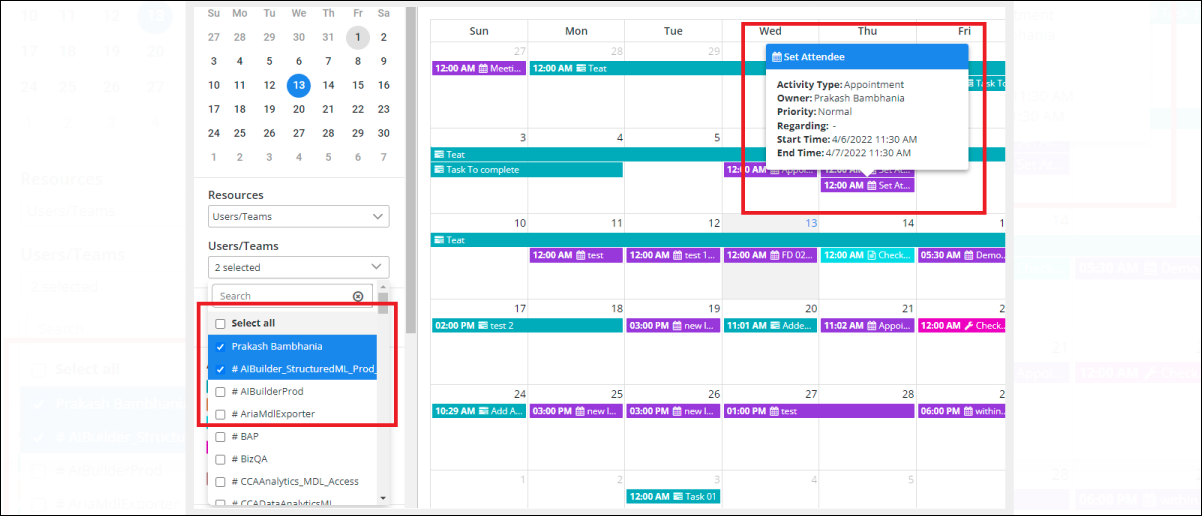
- Go to the calendar and select your user.
- You can see the appointment in which you set that user as a required/optional.
All product and company names are trademarks
 , registered or copyright trademarks of their respective holders. Use of them does not imply any affiliation with or endorsement by them.
The post How to View Appointments for Required/Optional Attendies in Calendar 365 first appeared on AppJetty Blog.
This was originally posted here.
*This post is locked for comments