







D365FO - Maintenance mode / Importing License File (ISV/VAR Add-on License import)
Views (3830)
 adam260
 1,871
1,871
 Like
Like Share
Share
 Report
In AX 2012 in order to import a license file for an ISV or VAR add-on all you simply did was go to your license management form and click on import, select the file and run a full sync. In D365FO this has changed dramatically.
In D365FO there is now only a license configuration which is available via System administration > Setup > License configuration however you will notice that the data is read-only.
 (This form is read-only unless the system is in the maintenance mode. Maintenance mode can be enabled in this environment by running maintenance job from LCS, or using Deployment.Setup tool locally)
In order to change this from read-only to modifiable we need to put the system in maintenance mode. We do this by opening the command prompt (cmd.exe)
change the dir to your local \AosService\PackagesLocalDirectory\Bin\ folder:
>cd C:\AosService\PackagesLocalDirectory\Bin\
Put the service into maintenance mode:
>Microsoft.Dynamics.AX.Deployment.Setup.exe --metadatadir C:\AosService\PackagesLocalDirectory --bindir C:\AosService\PackagesLocalDirectory\Bin --sqlserver . --sqldatabase axdb --sqluser [sql login] --sqlpwd [sqlpassword] --setupmode maintenancemode --isinmaintenancemode true
Reset IIS/Cycle the AOS> IISRESET
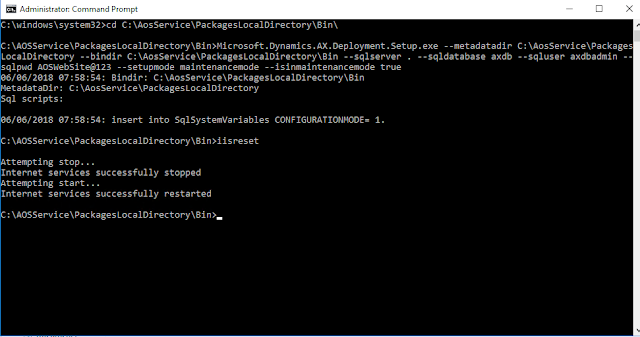
The system should now be in maintenance mode so we can import the file
via the cmd.exe prompt run the following
Import license file:
> Microsoft.Dynamics.AX.Deployment.Setup.exe --setupmode importlicensefile --metadatadir C:\AOSService\PackagesLocalDirectory --bindir C:\AOSService\PackagesLocalDirectory --sqlserver . --sqldatabase AxDB --sqluser [sql login] --sqlpwd [sql password] --licensefilename C:\licensefolder\license2018.txt
In D365FO you should now be able to open System administration > Setup > License configuration and not see the read-only warning. You should see the name of the license that was import and you should be able to enable the configuration for the new license file.
Turn off maintenance mode
> Microsoft.Dynamics.AX.Deployment.Setup.exe --metadatadir C:\AosService\PackagesLocalDirectory --bindir C:\AosService\PackagesLocalDirectory\Bin --sqlserver . --sqldatabase axdb --sqluser [sql login] --sqlpwd [sqlpassword] --setupmode maintenancemode --isinmaintenancemode false
Reset IIS/Cycle the AOS: > iisreset
In D365FO there is now only a license configuration which is available via System administration > Setup > License configuration however you will notice that the data is read-only.

In order to change this from read-only to modifiable we need to put the system in maintenance mode. We do this by opening the command prompt (cmd.exe)
change the dir to your local \AosService\PackagesLocalDirectory\Bin\ folder:
>cd C:\AosService\PackagesLocalDirectory\Bin\
Put the service into maintenance mode:
>Microsoft.Dynamics.AX.Deployment.Setup.exe --metadatadir C:\AosService\PackagesLocalDirectory --bindir C:\AosService\PackagesLocalDirectory\Bin --sqlserver . --sqldatabase axdb --sqluser [sql login] --sqlpwd [sqlpassword] --setupmode maintenancemode --isinmaintenancemode true
Reset IIS/Cycle the AOS> IISRESET

The system should now be in maintenance mode so we can import the file
via the cmd.exe prompt run the following
Import license file:
> Microsoft.Dynamics.AX.Deployment.Setup.exe --setupmode importlicensefile --metadatadir C:\AOSService\PackagesLocalDirectory --bindir C:\AOSService\PackagesLocalDirectory --sqlserver . --sqldatabase AxDB --sqluser [sql login] --sqlpwd [sql password] --licensefilename C:\licensefolder\license2018.txt
In D365FO you should now be able to open System administration > Setup > License configuration and not see the read-only warning. You should see the name of the license that was import and you should be able to enable the configuration for the new license file.
Turn off maintenance mode
> Microsoft.Dynamics.AX.Deployment.Setup.exe --metadatadir C:\AosService\PackagesLocalDirectory --bindir C:\AosService\PackagesLocalDirectory\Bin --sqlserver . --sqldatabase axdb --sqluser [sql login] --sqlpwd [sqlpassword] --setupmode maintenancemode --isinmaintenancemode false
Reset IIS/Cycle the AOS: > iisreset
Note:
The example above was for importing it into a onebox. Depending on the environment you may need to change the drive from C:\* to K:\*
For this exe we list the metadatadir as the bin folder as well
The sqluser & sqlpassword will be different for each enviornment
The database name may be different depending on the environment
This was originally posted here.
*This post is locked for comments